
Google Sheets Limits (2026): Rows, Columns, 10M Cells, Payload/Batch Caps, and API Quotas — The Complete Cheat Sheet
Hitting the 10 million cell cap in the middle of a report can add days of cleanup and lost revenue. This cheat sheet summarizes Google Sheets limits, API quotas, batch caps, mitigation patterns, and rules for when to keep Sheets or migrate to a database or API. Google Sheets limits are a set of hard quotas that define spreadsheet size, batch payload caps, and API call rate limits. Our Sheet Gurus API converts sheets into production-ready RESTful JSON APIs with per-sheet API keys, configurable rate limiting, and optional Redis caching to reduce Google API calls. Which caps cause 429s, which fixes save hours, and when to migrate? Find deeper troubleshooting in the Sheets Auth, Quotas & 429s playbook.
1) How many rows, columns, and cells does Google Sheets support in 2026?
Google Sheets enforces a 10 million cell limit per spreadsheet and a 50,000-character cap per cell. This matters because effective row and column limits depend on how you lay out sheets, whether you pre-allocate grid space, and how many formula-filled columns trigger recalculation slowdowns. Sheet Gurus API offers paginated REST endpoints and optional caching so teams can keep spreadsheets as the source of truth without rearchitecting data flows when a file approaches the cell ceiling.
Quick limits table 📊
Google's only widely documented hard limits are the 10 million cells per spreadsheet and 50,000 characters per cell. Below are the practical items to scan when planning sheet size.
| Limit item | Official hard limit | Practical note (what to watch for) |
|---|---|---|
| Cells per spreadsheet | 10,000,000 cells | Counts across all sheets. Large grids add up fast; estimate before imports. |
| Characters per cell | 50,000 characters | Long text fields hit this cap before cell counts do; use external storage for massive notes. |
| Sheets per file | No published hard cap | Practically, dozens of sheets is fine; hundreds increases UI lag and management overhead. |
| Rows / Columns per sheet | No separate published hard cap beyond cell limit | Effective max rows = floor(10,000,000 / columns used). Wide sheets reduce max rows proportionally. |
| Common gotchas | N/A | Empty grid allocation, hidden columns, and copied templates can consume cells silently. |
Google's Docs Editors help and the Sheets API reference list the 10 million cell ceiling; audit your workbook layout before large imports. For programmatic access patterns and quota planning, see our guide on Google Sheets API quotas and 429s.
How Google counts rows, columns, and cells ⚖️
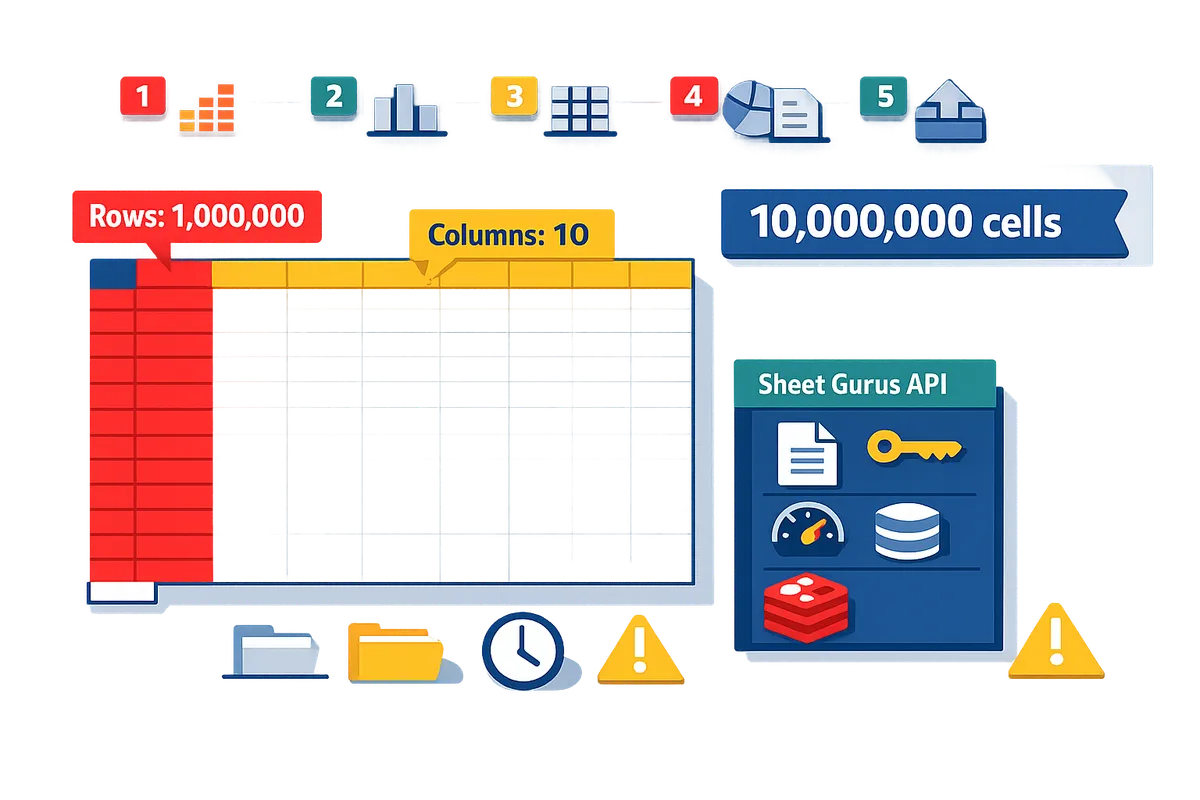
Google counts cells as the product of rows and columns per sheet, summed across all sheets, and that total counts toward the 10 million cell cap. For example, a sheet with 1,000,000 rows and 10 columns equals 10,000,000 cells and hits the limit exactly. Use this formula to estimate: total cells = sum(rows_i * columns_i) across every sheet in the file. If you import CSVs, remember templates that create extra blank columns or pre-allocated rows increase the count even if cells look empty.
💡 Tip: Before any bulk import, run a quick estimate (rows * columns) for each sheet and sum them. If the total approaches 8–9 million cells, plan partitioning or pagination.
Sheet Gurus API can help here by exposing table slices via RESTful pagination so you never need to keep the entire dataset in a single visible sheet to serve apps.
Real-world examples that hit the cap 🔍
A single sheet with 1,000,000 rows and 10 columns equals 10 million cells and will hit the cap immediately. Other common layouts that reach the cap quickly include:
- 100,000 rows with 100 columns (100,000 * 100 = 10,000,000 cells).
- Ten sheets each with 100,000 rows and 10 columns (10 * 100,000 * 10 = 10,000,000 cells).
- Wide analytic exports where formulas populate many columns; even 200,000 rows with 50 formula columns equals 10 million cells and can cause slow recalculation before the cap is reached.
These scenarios matter because hitting the ceiling often pauses imports, breaks dashboards, and forces manual splits. For production apps, teams use Sheet Gurus API to page reads and writes and to add API-level rate controls and caching, which reduces the need to cram all data into a single spreadsheet.
Common myths and clarifications ✅
The main myths are that the 10 million limit applies per sheet and that you can avoid limits by adding more columns instead of rows. The truth is the 10 million count is across the entire spreadsheet (all sheets combined). Historical references to a 5 million cell limit reflect earlier product behavior and confuse many users; always check the current Google Docs Editors help for authoritative wording. Another myth is that empty-looking grids never count; pre-allocated rows or expanded columns do count toward the total even if they contain no visible data.
If you need guidance on API quotas, 429s, and the operational tradeoffs between Apps Script, the official API, and third-party REST wrappers, read our comparisons and quota playbooks for planning at scale. For teams that want to keep spreadsheets as the single source of truth while avoiding manual partitioning, Sheet Gurus API provides paginated endpoints, per-key rate limiting, and optional Redis caching to reduce calls to Sheets while maintaining real-time sync.
Google Sheets API Quotas and 429s: How to Increase Limits and Prevent Errors (2026 Guide + Calculator) explains how to forecast API calls if you plan programmatic imports or frequent syncs.
⚠️ Warning: Do not assume that adding more sheets or columns hides you from the 10M cap; audit total cells before scheduling automated imports.
2) How do Google Sheets API quotas, batch size limits, and payload caps cause 429s and failures?
Quota limits, batch caps, and payload size cause 429s when integrations exceed per-minute request allowances or per-request size thresholds. Quota is a server-side usage limit that Google applies per project, per user, or per minute to protect shared resources. Understanding how operation counts, bytes per request, and parallel clients map to those quotas prevents surprise outages and retry storms.
What triggers 429s and quota errors?
High-frequency polling, large bulk writes, and oversized per-request payloads are the most common triggers for 429s on Google Sheets API. HTTP 429 is an HTTP status code that indicates the client sent too many requests in a short window and must slow down. Example: an automation that issues 1,000 single-row write calls in one minute under a single OAuth credential will commonly exceed per-minute write allowances and surface repeated 429s, partial row acceptance, and growing retry queues. Other common patterns that cause errors:
- Multiple background workers sharing one API key or OAuth token. This multiplies per-user counts.
- Bulk imports that send large arrays in a single request. These concentrate quota consumption and can hit per-request byte or operation caps.
- High-frequency polling (e.g., polling every 5 seconds) across many clients. This produces bursts that exceed short-window quotas even if daily totals are modest.
⚠️ Warning: Rapid client-side retries without increasing wait times usually magnify the quota problem and convert transient 429s into sustained outages. See our root-cause playbook for diagnosing frequent 429s.
Explaining the google sheets api batch size limit 📦
A batch request is a grouped HTTP call that must stay within Google’s operation-count and payload-byte limits or it will cause partial failures or rate limiting. Batch request is a request type that groups multiple read or write operations into a single HTTP call, reducing round trips but concentrating quota use. Practical guidance:
- Start conservative for writes. For typical rows (5–20 columns, modest text) begin with 50 rows per write-batch and increase only after measuring success.
- For reads, prefer pagination. Use page sizes of 500–1,000 rows for lightweight rows; lower the page size if cells contain long text or many columns.
- Measure payload size as rows × columns × average characters per cell. Example: 100 rows × 10 columns × 100 chars ≈ 100,000 characters in the request body, which is a useful proxy when testing for failures.
If a batch exceeds an operation or byte threshold, the API may process some operations and fail others. Use small batches while you instrument the exact failure point with devtools or server logs. Our API docs show how to paginate reads and split writes; consult the Sheet Gurus API Reference for examples and request samples.
Immediate tactics to avoid 429s
Reduce request frequency and shrink per-request payloads by paginating reads, limiting returned fields, batching writes into smaller chunks, and adding client-side throttling with incremental retries. Concrete starting parameters we recommend testing:
- Start with 50-row write batches and 500-row read pages.
- Throttle client calls to 5–10 requests per second per client credential, then tune down if you see 429s.
- Retry failed requests with increasing waits: 250 ms, 1 s, 4 s, 16 s, and stop after 5 attempts to avoid compounding the quota issue.
Also instrument request counts per minute, error codes, and average payload bytes so you can trace which endpoint consumes the most quota. For a full escalation playbook and a quota calculator, see our guide on increasing Google Sheets API limits and preventing errors.
💡 Tip: Before changing batch sizes in production, snapshot a 1-hour sample of actual request payloads to calculate average bytes per request. That quick measurement prevents guesswork and shows whether you need caching, pagination, or smaller batches.
How Sheet Gurus API reduces API quota issues
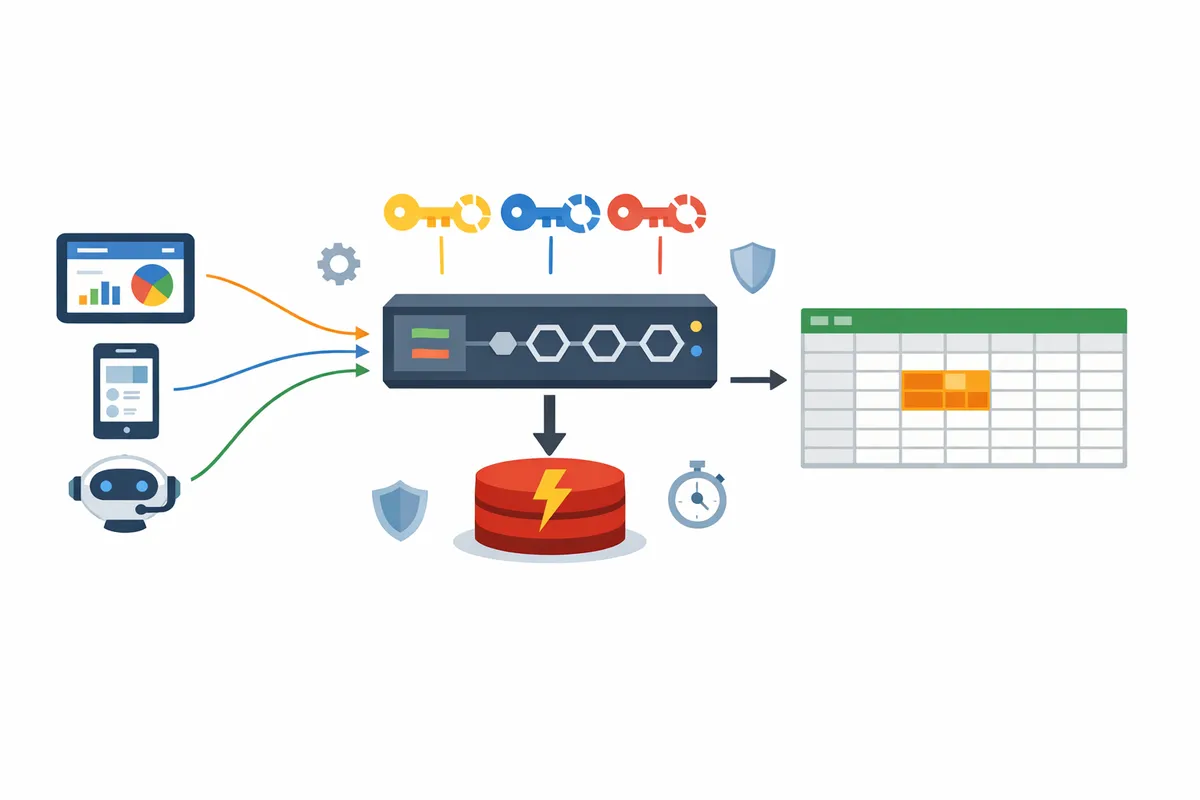
Sheet Gurus API reduces direct Google Sheets API calls by adding configurable per-key rate limits, optional Redis caching, and centralized retry logic that smooths traffic before it reaches Google. Our platform lets you set per-API-key throttles so bursts from one client do not consume project-level quotas. Optional Redis caching serves many repeated reads from cache, cutting the number of read calls that hit Google.
Practical ways teams use Sheet Gurus API to avoid 429s:
- Configure per-key rate limits to cap a single client at a safe request rate and avoid noisy-neighbor problems.
- Use Redis caching for dashboards and AI workflows to serve frequent queries from cache instead of issuing repeated sheet reads.
- Use the API Reference examples to implement server-side pagination and field filtering so clients request only the cells they need.
For engineers who prefer the DIY route, our comparison guide outlines when to keep a custom integration and when the managed API reduces operational risk and saves days of engineering time.
3) When should you keep Sheets and when should you move to a database or BI tool?
Keep Google Sheets when datasets are small-to-moderate, edits are frequent and manual, and a single team needs fast ad-hoc collaboration; move to a database or BI tool when you need sustained concurrent access, complex joins, or predictable query performance under load. Choose based on projected cell usage, peak concurrent users, formula complexity, compliance needs, and growth rate. The right choice minimizes wasted engineering time, compliance risk, and reporting surprises.
Decision framework and simple calculator 🧭
Use a four-step checklist—estimate projected cells, peak concurrency, formula load, and growth rate—to decide whether to stay with Sheets or migrate. 1) Estimate cells: cells = rows × columns × number of sheets used for active data. Example: 50,000 rows × 10 columns = 500,000 cells. 2) Project concurrency: count simultaneous editors and API consumers during peak windows; Sheets struggles with sustained high concurrency. 3) Measure formula load: mark columns with volatile formulas or array calculations. If formula columns affect more than 5% of rows, expect slower recalculation and more breakage. 4) Apply growth: multiply current cells by annual growth rate to forecast 6–12 month usage.
Rule of thumb. If projected active cells approach 4–6 million, or you expect more than ~10 concurrent writers or heavy formulas across tens of thousands of rows, plan to migrate to a database or BI tool. This buffer avoids hitting the spreadsheet cap and reduces emergency refactors.
Calculator example. Cells = rows × columns. Growth projection for 12 months = cells × (1 + monthly growth)^{12}. Example: 200,000 rows × 8 columns = 1.6M cells today; at 10% monthly growth you will exceed 4M cells in about seven months.
💡 Tip: Add 20% headroom to your projected cells to cover helper columns, temporary staging sheets, and new reporting requirements.
Refer to the quota playbook for API limits and request forecasts in the Google Sheets API Quotas and 429s: How to Increase Limits and Prevent Errors (2026 Guide + Calculator) when your decision involves automation or integrations.
Partitioning, archival, and external storage options 🗂️
You can split data across spreadsheets, archive raw logs to BigQuery or S3, or keep Sheets as a curated view; each option trades maintenance effort, reporting complexity, and compliance exposure. Splitting (multiple spreadsheets) keeps familiar workflows and low migration cost but increases copy/paste errors and dashboard joins. Archiving raw logs to BigQuery or S3 reduces spreadsheet load and improves query performance for analytics, but adds ELT maintenance and potential data residency or encryption requirements. A hybrid approach keeps a slim, curated sheet for day-to-day editing while storing raw records externally for reporting.
Business trade-offs (quick comparison):
- Split across spreadsheets. Benefits: minimal upfront time, immediate collaboration. Costs: higher manual reconciliation, increased chance of human error, harder cross-sheet joins.
- Raw storage in BigQuery/S3. Benefits: reliable query performance, easier scaling, better audit trails. Costs: engineering setup, ongoing ETL, additional storage costs, compliance planning.
- Hybrid (Sheets as curated view). Benefits: preserves end-user workflow and governance while offloading scale. Costs: requires a sync layer and monitoring.
Sheet Gurus API supports hybrid workflows by exposing a curated sheet as a secure REST endpoint while letting you archive raw data elsewhere. For architecture patterns and operational playbooks, see Google Sheet REST API: What It Is, How It Works, Limits, and the Fastest Way to Get One.
⚠️ Warning: Storing personally identifiable information in object storage without strong access controls and encryption increases compliance and breach risk.
Cost and time trade-offs: DIY backend vs Sheet Gurus API ⚙️
Building a custom backend for production-grade spreadsheet access typically costs engineering time up front and ongoing ops overhead; using Sheet Gurus API reduces development time and operational risk. Typical DIY consequences include multiple developer-weeks to build CRUD endpoints, separate effort for auth and rate limiting, and ongoing monitoring to prevent quota-related outages. These hidden costs delay time to market and increase the bug surface when a spreadsheet is a single source of truth.
Product trade-offs. Sheet Gurus API exposes a Google Sheet as a RESTful JSON API with API key authentication, per-sheet permissions, configurable rate limiting, and optional Redis caching to cut Google Sheets API calls. That means teams can keep Sheets as the canonical editor experience while offloading auth, quotas, caching, and monitoring to a managed service instead of building them yourself.
Operational example. A product team that needs an internal app backed by a master spreadsheet can connect the sheet to Sheet Gurus API in minutes, secure access with API keys, and avoid building retry logic and quota dashboards. For deeper diagnostics on quota behavior and 429 prevention patterns, consult the Google Sheets API 429s and Quotas (2026): Root‑Cause Playbook + Cloud Monitoring Dashboards and Alerting.
4) How can you configure Sheets-backed services to scale and avoid quota headaches with minimal ops?
Use per-key rate limits, optional Redis caching, safe batch sizes, and paginated reads to prevent quota spikes and reduce 429s. These controls let teams run spreadsheet-backed APIs without building custom backends or constant firefighting. The patterns below include recommended defaults you can copy, tighten, or relax depending on traffic and data volatility.
Ready-to-use configuration checklist ✅
Set per-key rate limits, enable optional Redis caching, choose safe batch sizes, and return paginated reads as the baseline controls for production Sheets-backed services. Use these defaults as a starting point and adjust after one week of traffic data.
- Rate limiting (per API key): default 60 requests per minute with a 10-request burst. Tighten to 30 RPM for low-volume consumer apps; relax to 120 RPM only after validating quota headroom.
- Global guardrail: set a global service cap 2x the median daily peak to stop runaway integrations.
- Batch write size: default 50 rows per write request; increase to 200 only when writes are large and predictable. This avoids hitting Google Sheets API batch size limit and keeps per-request payloads small.
- Read pagination: default page size 250 rows for dashboards, 50 rows for AI-agent queries that need low-latency, and 1,000 rows for internal bulk exports (use background jobs for the latter).
- Cache (optional Redis): TTL 30 seconds for dashboards, 5 minutes for moderately stale reports, and 15 minutes for archival reads.
- Monitoring & alerts: track 429 rate, Google API quota usage, and cache hit rate. Alert at 1% 429s sustained over 5 minutes.
⚠️ Warning: Do not cache sensitive personal data beyond your retention policy. See our privacy policy for how Sheet Gurus API handles Google OAuth and Sheet data.
Link internal docs: follow the quota playbook in Google Sheets API Quotas and 429s for an escalation path if you hit persistent 429s.
Three-step flow: Connect → Configure → Ship 🛠️
Authenticate a Google account, configure API keys and limits, then deploy the endpoint with monitoring and client instructions to reduce manual ops and delivery time. Use a single operational flow to avoid ad-hoc scripts and undocumented throttles.
- Connect. Sign in with Google and select the spreadsheet. Sheet Gurus API provisions a live REST endpoint without backend code and stores OAuth with the least-privilege drive.file scope.
- Configure. Create API keys, assign per-key rate limits and permissions, and enable Redis caching as needed. Set sensible defaults from the checklist and attach Cloud Monitoring alerts for 429s and quota exhaustion.
- Ship. Provide teams the endpoint URL, per-key credentials, recommended page sizes, and client-side retry guidance. Roll out to a canary group first and monitor the cache hit rate and Google API quota usage.
For monitoring templates and alerting dashboards, consult Google Sheets API 429s and Quotas (root-cause playbook) to map metrics to alerts before broad rollout.
Recommended retry and throttling patterns for 429s 🔁
Use short, capped automatic retries combined with client-side throttling and server-side per-key pacing to avoid retry storms that worsen 429s. Conservative defaults give predictable behavior across common traffic profiles.
- Client retry policy: 3 total attempts (initial + 2 retries). Use increasing delays: 200ms, 800ms, 2,500ms with random jitter. Stop retrying after a 429 or 5xx that persists.
- Server-side throttling: enforce per-key queueing with a max in-flight of 5 concurrent requests per key and a sustained rate equal to the configured RPM. Allow short bursts but drain excess requests with 429 responses that include Retry-After headers.
- Backoff behavior: prefer increasing delays over immediate retries so retries do not pile on during quota recovery. Record the Retry-After and apply it client-side when provided.
Example guidance by profile:
- Dashboards (read-heavy): short cache TTL + 1 retry. Reads are cheap when cached.
- Internal CRUD tools (write-heavy): no automatic retries for writes; surface errors to the UI and queue background reconciliation jobs.
- AI agents (high concurrency): enforce small page sizes (50 rows), stronger per-key limits, and a 500ms minimum inter-call delay per agent key.
See our Quotas and 429s guide for deeper diagnostics and quota increase playbooks.
Example templates for Sheet Gurus API deployments 📋
Use these templates as drop-in configs for common use cases and tweak values after a traffic review. Each template names the key limits, cache TTL, batch size, pagination, and retry policy.
| Use case | Per-key rate limit | Batch write size | Pagination size | Redis TTL | Retry policy |
|---|---|---|---|---|---|
| Dashboard, public metrics | 60 RPM, 10-burst | 50 rows | 250 rows | 30s | 2 retries (200ms, 800ms) |
| Internal admin CRUD | 40 RPM, 5-burst | 50 rows | 100 rows | 5m | no automatic write retries; 1 read retry |
| AI agents / assistants | 30 RPM, 5-burst | 25 rows | 50 rows | 30s | 3 retries with increasing delays; enforce 500ms inter-call delay |
Deploy these templates in Sheet Gurus API when provisioning endpoints from the console or API. The platform lets you set per-key limits, turn on Redis caching, and configure pagination sizes without writing backend code, which shortens delivery time and reduces maintenance.
Frequently Asked Questions about Google Sheets limits
This FAQ gives concise, production-ready answers about Google Sheets cell limits, API quotas, batch caps, and recovery patterns. Each Q&A focuses on operational impact and the practical steps teams use to avoid downtime or data loss.
How strict is the Google Sheets 10 million cells limit?
The 10 million cell limit is a hard per-spreadsheet ceiling enforced by Google. Files that approach or exceed it often show slow UI, failed writes, corrupted ranges, and unpredictable API behavior. Audit current cell usage, remove unused helper sheets, and use the calculator in section 3 to forecast when a file will hit the ceiling.
⚠️ Warning: Continuing to edit a file after it exceeds the cap can corrupt the sheet and break automated syncs.
Does the cell limit apply per sheet or per spreadsheet?
The cell count applies to the entire spreadsheet file, not to each individual sheet. Splitting large tables across multiple tabs does not increase capacity; you must split data into separate spreadsheet files or move older rows to archival storage to free cells. Sheet Gurus API can expose multiple spreadsheets as separate endpoints so you keep each file below the limit while presenting a consistent API to apps.
What is the Google Sheets API batch size limit and how should I size my batches?
Batch limits vary by operation and payload size, so keep batches small enough to avoid large payloads and partial failures. Large, wide rows increase payload size; many small row updates increase request counts. As a practical guideline, chunk writes into predictable batches (for example, batching by logical blocks such as 100–500 rows per request depending on column width), paginate reads, and monitor response sizes. Our quotas playbook explains which calls to prune first and how to test safe batch sizes: Google Sheets API Quotas and 429s: How to Increase Limits and Prevent Errors (2026 Guide + Calculator).
Why do I get 429s from the Google Sheets API and how fast can I recover?
A 429 indicates you exceeded a quota or rate limit and Google is temporarily throttling your requests. Per-minute limits and short-term rate caps typically clear quickly if you back off; sustained quota ceilings require applying for higher limits or reducing sustained traffic. Diagnose 429 patterns with monitoring and alerting and follow the Root-Cause Playbook for 429s to map which quota you hit and how to fix it. Sheet Gurus API lowers incident frequency by adding per-key throttling and optional Redis caching to smooth traffic spikes.
Can I run concurrent writes to Google Sheets for a production app?
You can run concurrent writes, but high-concurrency programmatic writes raise the risk of conflicting edits and quota exhaustion and are not safe without controls. Production apps should partition writes, serialize critical ranges, or use an API layer that queues and applies changes deterministically. Sheet Gurus API includes configurable rate limits and write controls that reduce conflict risk and remove the need to build custom request serialization.
How do I estimate when my dataset will hit limits?
Estimate cell usage by multiplying expected rows by columns, then add growth forecasts and formula/helper-column overhead to compare against the 10 million ceiling. Also account for staging sheets, pivot/cache sheets, and concurrent temporary rows used during imports; these inflate real usage beyond the production table. Use the calculator in section 3 or the quotas guide linked above to run scenarios and test sensitivity to column growth or weekly import spikes.
How does Sheet Gurus API help with rate limits, caching, and 429s?
Sheet Gurus API is a platform that reduces direct Google API calls by providing per-key rate limiting, optional Redis caching, pagination, and managed retries. Those features cut the number of Google Sheets API requests, smooth bursts, and let teams move spreadsheet-backed services to production without building throttling, cache invalidation, and monitoring tooling themselves. See the API Reference for examples of pagination and write patterns and the Root‑Cause Playbook for how to combine caching and per-key limits to prevent recurring 429s.
Choose Sheets for prototypes, move to APIs or databases when scale or quotas matter.
The core takeaway is simple: Google Sheets limits are fine for small teams and low-frequency workflows, but they become a liability once you hit cell, row, or API quota edges. If you approach the Google Sheets 10 million cells limit or see repeated 429 responses, expect lost time in retries, broken automations, and fragile dashboards. Use the quota playbooks to prune noisy calls and forecast needs, starting with our guide on preventing 429s and the root-cause playbook for cloud monitoring and alerts.
💡 Tip: Forecast daily API calls, batch writes where possible, and add caching to reduce quota pressure.
Create your first endpoint with Sheet Gurus API to move a spreadsheet into a production-ready RESTful JSON API in minutes and avoid building a custom backend. Follow the getting-started flow (Connect → Configure → Ship) to test how an API reduces retries and operational risk. Subscribe to our newsletter for quick cheat sheets, quota alerts, and implementation tips.