
Google Sheets API Node.js Developer Handbook
A single 429 quota error can stop a Node.js job that syncs thousands of rows from a shared spreadsheet. Google Sheets API Node.js is a developer approach that connects Node.js apps to Google Sheets for programmatic CRUD access. This beginner's guide starts from zero and shows practical Node.js examples plus a production-ready alternative using Sheet Gurus API. Sheet Gurus API turns Google Sheets into RESTful JSON APIs in minutes, with API key management, per-sheet permissions, configurable rate limits, optional Redis caching, and support for AI workflows via MCP servers. Our Getting Started guide and API Reference explain OAuth setup, generating keys, and making CRUD requests. Which approach saves days of ops work while avoiding quota shutdowns will surprise many developers.
What are the core concepts and tools for Google Sheets API with Node.js?
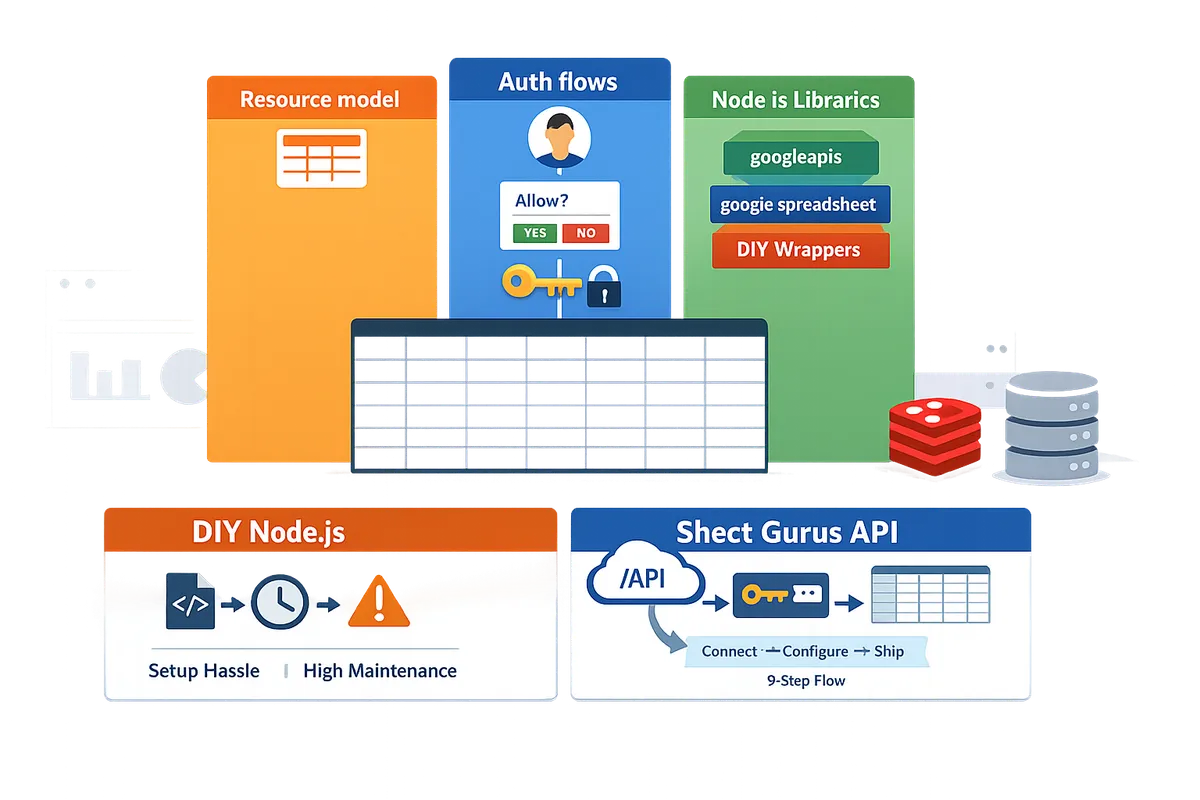
The core concepts are the API resource model, authentication choices, and the Node.js libraries you use to call the API. The Google Sheets API exposes spreadsheets, sheets, ranges, and values as HTTP resources that Node.js apps can read and modify, and Sheet Gurus API provides a managed REST layer that gives API keys, rate limiting, and optional Redis caching for production use; Sheet Gurus API typically achieves up to 99.9% uptime. This section defines the key terms, maps common operations to API calls, and compares the official and community libraries so you can pick the approach that fits your project.
What authentication options exist and which one fits my app? 🔐
OAuth 2.0 is an authorization protocol that lets users consent to an app accessing their Google data; service accounts are machine accounts intended for server-to-server workflows. OAuth 2.0 is the right choice for web or mobile apps that act on behalf of signed-in users because it scopes access to each user's spreadsheets. Service accounts fit backend jobs, scheduled importers, and server-side scripts that need unattended access to a shared spreadsheet. For single-user automation or quick CLI tools, either approach can work depending on your security policy and key management practices.
- Use OAuth 2.0 when each user must access their own spreadsheets or when you need per-user consent and refresh tokens. See our Getting Started guide for step-by-step OAuth instructions and sample scopes.
- Use a service account for cron jobs, ETL processes, or microservices that modify a shared spreadsheet because it avoids interactive consent.
⚠️ Warning: Keep service account keys in a secrets manager (AWS Secrets Manager, Google Secret Manager, or environment-restricted vault). Do not commit JSON keys to source control.
Sheet Gurus API changes the auth decision: you sign in with Google once, generate an API key, and call a managed REST endpoint. That removes your need to implement OAuth refresh logic or host long-lived service account keys while adding per-key permissions and configurable rate limits.
Which Node.js libraries should I consider? 📚
Use @googleapis/sheets when you need the full Sheets REST surface; use node-google-spreadsheet for simpler, service-account-first workflows and quick scripts. @googleapis/sheets is the official Node.js client that mirrors every Google Sheets REST method and request shape, which helps when you must call advanced endpoints like spreadsheets.batchUpdate. node-google-spreadsheet is a community library that wraps common tasks (read rows, append, simple formatting) and tends to be faster to set up for small automation tasks with service-account JSON.
Consider these tradeoffs with examples:
- Feature completeness. If you must run a complex batchUpdate that inserts sheets, creates protected ranges, and applies cell formatting, @googleapis/sheets maps directly to those REST requests. See our Google Sheets batchUpdate Node.js Guide for patterns and troubleshooting.
- Ease of setup. For a scheduled importer that appends rows nightly, node-google-spreadsheet often takes less code because it hides OAuth wiring.
- TypeScript and maintenance. @googleapis/sheets has official TypeScript types and aligns with Google docs, which helps longer-lived projects. For a fast prototype, node-google-spreadsheet reduces friction.
If you prefer to skip library choice, Sheet Gurus API exposes a JSON CRUD surface instantly. Our article comparing building a custom CRUD API versus using Sheet Gurus shows time-to-ship tradeoffs and operational differences.
How do API resources map to common spreadsheet operations? 📊
Spreadsheets map to sheets, sheets map to ranges, and ranges map to values; use spreadsheets.values.get/append/batchUpdate for value-level work and spreadsheets.batchUpdate for structural or formatting changes. Use spreadsheets.values.get to read a rectangular range like A1:E100. Use spreadsheets.values.append to add rows efficiently at the sheet's bottom. Use spreadsheets.values.batchUpdate when you need to write multiple discontiguous ranges or perform atomic value writes across ranges in one request.
Use spreadsheets.batchUpdate for operations that change spreadsheet structure or metadata, for example inserting or deleting sheets, setting column widths, or creating protected ranges. The distinction matters for performance and quota planning: spreadsheets.values.batchUpdate focuses on values, whereas spreadsheets.batchUpdate packs many operation types into a single structural transaction. For more on safe batching and avoiding 429 errors, see our Client vs Server Auth and 429-Safe Patterns guide.
Sheet Gurus API maps CRUD endpoints to row and column operations so your app calls a JSON endpoint instead of composing Sheets RPCs. That reduces your exposure to Sheets quotas and gives configurable rate limiting and optional Redis caching to cut repeated reads.
Library comparison table ⚖️
This table compares @googleapis/sheets, node-google-spreadsheet, and Sheet Gurus API across setup effort, auth model, CRUD surface, rate limiting, and caching support.
| Library / Service | Setup effort | Auth model | CRUD surface | Rate limiting | Caching support |
|---|---|---|---|---|---|
| @googleapis/sheets (official) | Medium to high. Install package, create OAuth or service-account flow, handle tokens | OAuth 2.0 or Service Account | Full Sheets REST methods (spreadsheets.values.*, spreadsheets.batchUpdate) | Client must implement retry and backoff; no built-in per-key limits | None built-in; app-level caching required |
| node-google-spreadsheet (community) | Low. Quick service-account wiring for simple scripts | Service Account primary; OAuth possible with extra code | Common spreadsheet ops (read rows, append, basic formatting) | Client must handle rate limiting and 429 retries | None built-in; smaller footprint for adapters |
| Sheet Gurus API (managed) | Very low. Sign in, pick a sheet, get an endpoint (see Getting Started) | Sign in with Google + API key per app | RESTful JSON CRUD mapped to rows/columns; real-time sync back to sheet (see API Reference) | Built-in configurable rate limiting per key or global | Optional Redis caching to reduce Google Sheets API calls |
For a deeper comparison of seven libraries, see our long-form review: Google Sheets in Node.js: 7 NPM Libraries Compared (2026) — googleapis vs google-spreadsheet vs DIY Wrappers. For production guidance on building your own CRUD API versus using a managed service, read Build a Google Sheets CRUD API in Node.js vs Use Sheet Gurus API.
How do I set up a Node.js project and run a simple Express example?
Create a Node.js project, install either @googleapis/sheets or node-google-spreadsheet, and provision OAuth client credentials or a service account key. "OAuth" is an authentication flow that lets end users grant access. "Service account" is a machine identity that your server uses without end-user interaction. Choose OAuth when requests act on behalf of users; choose a service account for backend jobs.
Checklist of environment variables and files to set before running an example:
- NODE_ENV=production or development.
- GOOGLE_CLIENT_ID and GOOGLE_CLIENT_SECRET (for OAuth) or GOOGLE_SERVICE_ACCOUNT_KEY (base64 or path).
- SHEET_ID for the target spreadsheet.
- PORT for your Express server.
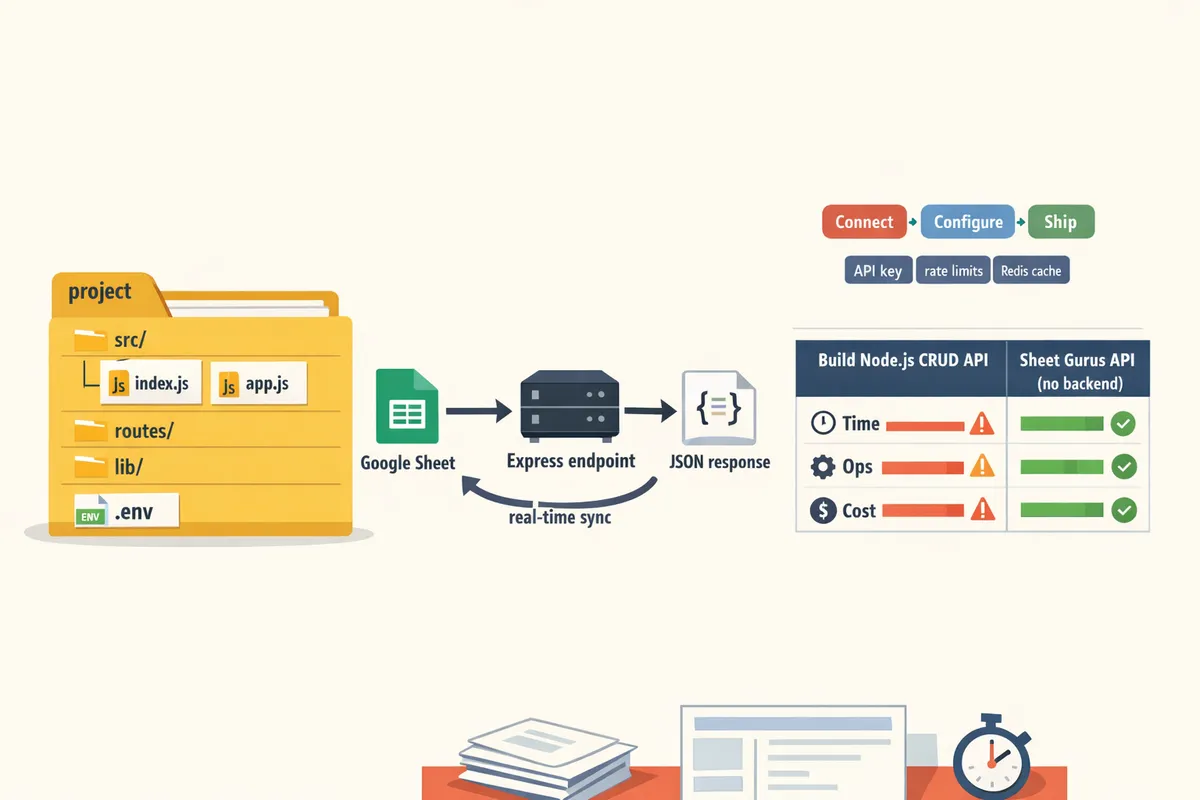
Recommended project layout:
- /src
- index.js (Express boot)
- routes/sheets.js (route handlers)
- lib/sheets-client.js (auth + client wrapper)
- .env (local dev only, never commit)
- README.md
Secure secret storage options:
- Use a secrets manager (GCP Secret Manager, AWS Secrets Manager, or HashiCorp Vault) for production keys. Store only reference names in environment variables.
- For CI, use encrypted variables in your pipeline and restrict which branches can deploy.
See our Getting Started guide for exact credential steps and sample environment variable names: https://sheetgurusapi.com/docs/getting-started. For a comparison of client libraries, read our NPM libraries comparison: https://sheetgurusapi.com/blog/google-sheets-in-nodejs-7-npm-libraries-compared-2026-googleapis-vs-google-spreadsheet-vs-diy-wrappers
⚠️ Warning: Never commit service account JSON or OAuth client secrets to source control. Treat those files like production passwords.
Express example: returning spreadsheet rows as JSON 🛠️
An Express route authenticates, reads a named range or sheet, maps the header row to object keys, and returns rows as JSON. Use this pattern for small internal APIs or demos where traffic is modest.
Follow this endpoint flow step by step:
- Authenticate. Load credentials from a secure environment variable and instantiate the Sheets client.
- Read a range. Request a values.get for a range like "Sheet1!A1:E100".
- Map rows to objects. Use the first returned row as the header. Example: ["id","name","email"] maps a subsequent row ["1","Sue","[email protected]"] to an object.
- Cache basic results. Add a short in-memory cache (ttl 30–120 seconds) to reduce Google API calls and lower quota consumption.
- Handle errors. Return 401 for auth issues, 429 for quota problems with retry guidance, and 500 for unexpected failures.
Common pitfalls to watch for:
- Missing scopes. Ensure your OAuth or service account includes the sheets.readonly or sheets scope. See the API Reference for recommended scopes: https://sheetgurusapi.com/docs/api-reference.
- CORS. Add CORS headers if callers are browser apps.
- Quotas and 429s. Implement retry/backoff and caching for endpoints that may receive bursts. For 429-safe patterns and pagination guidance, see our client vs server auth guide: https://sheetgurusapi.com/blog/google-sheets-api-with-nodejs-2026-client-vs-server-auth-readwrite-rows-pagination-and-429safe-patterns
A copyable example and small template are available in our Getting Started docs under the Express example section: https://sheetgurusapi.com/docs/getting-started
Server-to-server with service accounts and scheduled jobs ⏰
Use a service account for automated jobs like nightly imports, ETL, or backend syncs; share the spreadsheet with the service-account email or enable domain-wide delegation for G Suite. A service account is a nonhuman identity that your server uses to authenticate without user interaction. That model fits cron jobs and worker processes.
Operational patterns and recommendations:
- Share the spreadsheet with the service-account email if the sheet is personal or has restricted sharing.
- For G Suite domain-wide access, use delegation so the service account acts on behalf of users under your domain.
- Store the service account key in a secrets manager and grant the CI/CD and runtime minimal IAM permissions. Rotate keys on a schedule and audit access logs.
- Use scopes that limit access (sheets.readonly versus full sheets). Our API Reference lists sample authorization header formats and scope names: https://sheetgurusapi.com/docs/api-reference
If managing keys, tokens, and scheduled jobs adds operational risk, Sheet Gurus API can replace the job by providing an always-on REST endpoint with built-in caching and per-key permissions. See our comparison of building vs using a managed API for time-to-ship tradeoffs: https://sheetgurusapi.com/blog/build-a-google-sheets-crud-api-in-nodejs-vs-use-sheet-gurus-api-auth-rate-limits-caching-slas-and-a-time-to-ship-calculator
💡 Tip: Prefer short-lived tokens or rotate service-account keys quarterly. Automate rotation in CI/CD to avoid emergency key rollovers.
Fast path: use Sheet Gurus API to skip backend work 🚀
Sheet Gurus API turns a spreadsheet into a hosted RESTful JSON endpoint in three steps: Connect, Configure, Ship. According to Sheet Gurus API, you sign in with Google, pick a spreadsheet, and receive a live API endpoint with API key authentication and optional Redis caching.
Three-step flow to a live API:
- Connect. Sign in and grant read/write access to the spreadsheet you want to expose.
- Configure. Choose which sheets map to endpoints, set per-sheet API key permissions and optional rate limits, and enable Redis caching if you expect frequent reads.
- Ship. Generate an API key and start calling the endpoint from your frontend or backend. The endpoint supports CRUD operations and filters, with examples in the API Reference and Getting Started pages: https://sheetgurusapi.com/docs/api-reference and https://sheetgurusapi.com/docs/getting-started
When to pick Sheet Gurus API over a custom Express server:
- You need a production-ready REST endpoint in hours instead of days.
- You want built-in API key management, rate limiting, and caching without maintaining servers.
- Your spreadsheet is the single source of truth and you prefer operational controls over building them yourself.
If you want a side-by-side decision framework comparing time, ops, and cost, see our comparison article: https://sheetgurusapi.com/blog/build-a-google-sheets-crud-api-in-nodejs-vs-use-sheet-gurus-api-auth-rate-limits-caching-slas-and-a-time-to-ship-calculator
When to pick Sheet Gurus API over a custom Express server:
- You need a production-ready REST endpoint in hours instead of days.
- You want built-in API key management, rate limiting, and caching without maintaining servers.
- Your spreadsheet is the single source of truth and you prefer operational controls over building them yourself.
If you want a side-by-side decision framework comparing time, ops, and cost, see our comparison article: https://sheetgurusapi.com/blog/build-a-google-sheets-crud-api-in-nodejs-vs-use-sheet-gurus-api-auth-rate-limits-caching-slas-and-a-time-to-ship-calculator
What are the essential code patterns and production considerations?
Efficient reads, safe appends, careful batching, quota-aware retries, and robust secrets management are the patterns you must nail before production. Sheet Gurus API typically achieves up to 99.9% uptime while providing configurable rate limits and optional Redis caching, making it a lower‑risk alternative when operational controls matter.
Read, append, and batch update patterns 📥
Use spreadsheets.values.get for single-range reads, spreadsheets.values.append for safe row appends, and spreadsheets.values.batchUpdate for multiple range writes; use spreadsheets.batchUpdate only when you must change sheet structure or formatting. For simple reads, request only the exact range you need and cache responses for short windows to avoid repeated calls. For appends, prefer spreadsheets.values.append because it safely adds a single row without reading the whole sheet first; this reduces race conditions when multiple workers write concurrently. For updating many ranges at once, spreadsheets.values.batchUpdate groups value writes into one API call, cutting round trips but increasing payload size and memory usage on the client. Use spreadsheets.batchUpdate when you need to add sheets, resize columns, or apply conditional formatting; those operations cannot be performed with values.* methods.
Practical example: if your job updates 20 noncontiguous ranges, send them in one values.batchUpdate call rather than 20 separate writes to reduce latency and quota usage. For a read-heavy dashboard, poll once per minute and use an in-memory or Redis cache to serve requests between polls. See our comparison of Node.js libraries for more context on client choices and batching tradeoffs in the Google Sheets in Node.js: 7 NPM Libraries Compared (2026).
spreadsheets.values.batchUpdate vs spreadsheets.batchUpdate comparison 🧾
spreadsheets.values.batchUpdate batches multiple value updates across ranges while spreadsheets.batchUpdate sends higher-level spreadsheet requests such as adding sheets, moving ranges, or formatting. The table below shows when each method fits and what to expect from a performance and payload perspective.
| Use case | Request payload | Performance and when to use |
|---|---|---|
| Multiple noncontiguous cell or range value writes | JSON array of RangeValueRequest objects (values only) | Best for grouping many value writes into one call. Keeps requests compact compared with many single writes. Watch payload size for very large batches. |
| Structural edits: add/delete sheets, set column width, apply formatting | Array of high-level Request objects (AddSheet, DeleteDimension, RepeatCell) | Required for structure or format changes. These requests often take longer to process and can contribute to quota usage tied to spreadsheet operations. |
| Single-range read or write | Single Range or Append request | Use lightweight single requests for occasional updates; avoid when throughput is high. |
Example decision: update 500 rows of values across three ranges — use values.batchUpdate in 50–100 row chunks to avoid huge payloads and to keep retry granularity. If you must add a new sheet and seed it with values, call spreadsheets.batchUpdate to add the sheet, then follow with values.batchUpdate to populate it. For an in-depth walkthrough of batching and practical limits, see our Google Sheets batchUpdate Node.js Guide (2026).
Handling rate limits, quotas, and caching ⚠️
Handle rate limits by batching writes, caching reads, and using exponential backoff with jitter for retries. Google enforces per-project quotas that can produce 429 responses; design for retries and observability from day one. Recommended mitigations: batch writes into sensible chunk sizes (for example, 50–200 rows depending on cell payload), cache read results in Redis or an in-memory store with short TTLs, and implement exponential backoff with randomized jitter for 429/5xx responses.
If you expect bursty traffic or many concurrent clients, consider routing traffic through Sheet Gurus API to use built-in configurable rate limiting and optional Redis caching so your team avoids building those controls from scratch. Sheet Gurus API also exposes per-key limits so you can throttle misbehaving clients rather than throttling your whole project.
⚠️ Warning: A single oversized batchUpdate that writes thousands of cells at once can trigger prolonged 429s and waste developer time. Test batch sizes against your project quota in staging and monitor 429 counts.
Concrete example: processing 10,000 rows for a nightly sync. Break the job into 100-row batches, pause 200–500 ms between batches, and retry failed batches with backoff up to a capped number of attempts. Track success/failure per batch in logs so you can replay only failed chunks.
Secrets management, IAM, and deployment checklist 🔒
Store service account keys and OAuth secrets in a managed secrets store, grant least-privilege IAM roles, and automate token rotation and audit logging before deployment. Use a secrets manager (AWS Secrets Manager, Google Secret Manager, or HashiCorp Vault) so keys never appear in code or standard environment variables alone. Grant the service account only the Sheets and Drive scopes it needs and bind access to specific spreadsheet IDs when possible.
Deployment checklist (numbered):
- Put credentials in a secrets manager and inject them as ephemeral environment variables at runtime.
- Apply least-privilege IAM roles scoped to specific spreadsheet IDs and limit Drive access.
- Automate token rotation and short-lived tokens where supported.
- Add structured logging for every API call that includes request size, latency, and response codes.
- Create alerts for spikes in 429, 5xx, or sustained latency increases.
- Run load tests that simulate expected concurrent clients and confirm quota behaviour.
- Restrict production keys by origin or IP where your platform supports it.
💡 Tip: Use our API Reference and the About Sheet Gurus API page for guidance on API key management, per-sheet permissions, and the Getting Started OAuth flow when you want to avoid building a custom backend. The Getting Started guide walks through Connect → Configure → Ship if you choose Sheet Gurus API to remove much of the operational overhead.
How do I move a Sheets-backed project from prototype to production and scale safely?
You move a Sheets-backed project to production by hardening security, planning scale, and choosing the right operational model: direct Sheets calls, a custom backend, or Sheet Gurus API. Pick the path that minimizes developer hours and compliance risk while meeting performance and uptime needs.
Decision framework: Sheets vs full backend vs Sheet Gurus API 🧭
Direct Google Sheets API calls work for low-traffic internal tools; custom backends suit complex business logic and strict compliance; Sheet Gurus API offers a managed REST layer with built-in auth, rate limiting, and optional caching. Decision factors are data size, concurrency, security requirements, and maintenance capacity. Below is a compact comparison to map business consequences to each choice.
| Option | When to pick it | Business consequences (time, risk, ops) |
|---|---|---|
| Direct Sheets API | Single team, low concurrency, simple CRUD | Low initial effort. High maintenance as load grows. Higher risk for auth and quota issues. |
| Custom Node.js backend | Complex transforms, integrations, custom auth | Longer time to ship (example: 2 to 4 weeks for a small team to build secure CRUD), ongoing patching, and infrastructure costs. |
| Sheet Gurus API | Sheets are source of truth but need SLA, keys, rate limits, caching | Fast time to market, reduced ops, built-in API controls and per-sheet permissions. Our website shows a step-by-step migration in the Build a Google Sheets CRUD API in Node.js vs Use Sheet Gurus API guide. |
Our website's comparison of Node.js libraries also helps decide whether to stay on a client library or move to a managed API. See the Google Sheets in Node.js: 7 NPM Libraries Compared (2026) and the time-to-ship analysis in Build a Google Sheets CRUD API in Node.js vs Use Sheet Gurus API for concrete scenarios.
Scaling patterns: sharding, pagination, and export pipelines 📈
Use sharding, pagination, and periodic exports to a database when Sheets response times or Google API quota start blocking core workflows. Sharding is a partitioning strategy that splits rows across multiple sheets to reduce per-sheet size and API contention. Pagination is a client-side or API-layer strategy that requests a subset of rows per call to keep responses under limits. Export pipelines are scheduled jobs that move historical rows from Sheets into a database or data warehouse for heavy read workloads.
Practical patterns we use on production projects:
- Start with pagination for reads. Request 100 to 1,000 rows per page depending on row size and latency. This keeps a single API call predictable.
- Archive older rows nightly to Postgres or BigQuery. For example, move rows older than 90 days and keep an index column that maps back to the sheet.
- Use sharding only when a single sheet exceeds Google Sheets performance sweet spots. Shard by logical keys like account or region.
- For high-read APIs, keep Sheets as the source of truth and serve traffic from a cached store. Sheet Gurus API provides optional Redis caching and per-key rate limits to reduce direct Google Sheets calls.
For 429-safe reads and pagination best practices, see Google Sheets API with Node.js (2026) and the batchUpdate guide for write strategies that avoid quota spikes.
TypeScript patterns and maintainable code structure 🧩
Use TypeScript to enforce row schemas and reduce runtime errors. TypeScript is a programming language that adds static types to JavaScript and prevents many class-of-bugs before runtime. Define a single row type per sheet and centralize conversions between sheet rows and domain objects.
Recommended folder layout for a Node.js service that talks to Sheets or Sheet Gurus API:
- src/controllers - HTTP handlers and input validation.
- src/services - Small wrappers: SheetsService or SheetGurusService that centralize requests, retries, and error mapping.
- src/models - TypeScript types and schema validators (Zod or io-ts) for rows and request/response shapes.
- src/lib - Shared utilities: pagination helpers, rate-limit guards, and monitoring hooks.
- tests - unit and integration suites that mock Sheet responses.
Practical tips:
- Validate inbound payloads against a typed schema and fail fast with clear error messages.
- Keep Sheets access logic inside a single service file so swapping to Sheet Gurus API requires one change.
- Use small, focused unit tests for converters that map raw Sheets rows to typed objects.
See our library comparison for choices that affect typing and maintenance: Google Sheets in Node.js: 7 NPM Libraries Compared (2026).
Operational tools, monitoring, and a troubleshooting playbook 🔍
Monitor quota errors, auth failures, and latency with logging, health checks, and alerts; set alerts for 403, 429, and sustained response-time increases. Implement a /health endpoint that verifies both Google credential validity and Sheet Gurus API connectivity if you use it.
Troubleshooting playbook (step-by-step):
- 403 permission errors. Check that the requesting account or service account has the spreadsheet shared and that OAuth scopes match the call. If using Sheet Gurus API, verify API key permissions in the dashboard. Document permission fixes in runbooks.
- 429 quota responses. Throttle writes, switch to batched updates, and add exponential backoff. Consider routing heavy-read endpoints through Sheet Gurus API caching to reduce Google Sheets API calls.
- Malformed range or value errors. Validate range strings and expected column counts in the wrapper service before sending requests.
⚠️ Warning: Never commit service account JSON keys to source control. Use a secrets manager and rotate keys regularly.
For example error payloads, authentication walkthroughs, and API-level controls, consult our API Reference and the Getting Started guide. These pages show concrete request and error examples you can copy into your runbooks.
Frequently Asked Questions
This FAQ collects the practical, high‑value questions Node.js developers ask about integrating with the google sheets api node.js and when to use Sheet Gurus API instead. Each answer gives a direct, actionable statement first, then one or two supporting details or links for deeper reading.
How do I authenticate a Node.js app with the Google Sheets API? 🔐
Use OAuth 2.0 when your app acts on behalf of users and use a service account for server-to-server access. OAuth requires a consent screen and user sign-in; service accounts require a key file or Workload Identity in cloud providers for background jobs. For step-by-step flows, see our client vs server auth walkthrough for Node.js which shows the minimal scopes to request and example token flows.
💡 Tip: Use least‑privilege scopes (sheets.readonly vs spreadsheets) and store service account keys in a secret manager (AWS Secrets Manager, GCP Secret Manager, or your CI/CD vault).
Which Node.js library should I use for new projects? 📦
Pick @googleapis/sheets for full API coverage and node-google-spreadsheet for simpler, service-account-driven scripts. @googleapis/sheets exposes every Sheets endpoint (batchUpdate, developer metadata, etc.), while node-google-spreadsheet offers a small API surface for quick scripts and spreadsheets-backed apps. See our comparative analysis of seven Node.js libraries for feature tradeoffs and maintenance guidance.
According to Sheet Gurus API, teams that want to avoid choosing and maintaining a client library can get a managed JSON API in minutes by connecting a spreadsheet instead of building a backend.
How do spreadsheets.values.batchUpdate differ from spreadsheets.batchUpdate in Node.js? 🔁
Use spreadsheets.values.batchUpdate to write or replace multiple ranges of cell values in one request; use spreadsheets.batchUpdate for structural changes like adding sheets, resizing columns, or updating formatting. The two calls target different resource types: values versus spreadsheet structure, so mixing them in a single logical operation may require two API calls or careful orchestration. For examples, see our dedicated batchUpdate guide that covers safe batching patterns and 429‑avoidance when writing thousands of cells.
Can I use Google Sheets with Express to build an API? ⚙️
Yes. An Express endpoint can call the Sheets API, map rows to JSON, and return responses to clients. You should include response caching, request batching, and retry logic to avoid hitting quota limits; our Node.js Sheets API guide includes an Express example pattern and notes on caching and error handling. If you need a ready REST JSON endpoint without building these operational controls, Sheet Gurus API exposes CRUD endpoints directly from a sheet and adds API key management and optional Redis caching.
When should I use Sheet Gurus API instead of building my own backend? 🚀
Choose Sheet Gurus API when you want a production-ready RESTful JSON endpoint fast and want built-in API keys, rate limiting, and optional Redis caching. Building a custom Node.js backend requires days of wiring auth, quota-safe batching, caching, and monitoring; Sheet Gurus API removes that operational work and provides a Connect → Configure → Ship flow. Read the build-vs-buy comparison for a time-to-ship calculator and the Getting Started guide to see how quickly you can expose a spreadsheet as an API.
What common errors should I expect and how do I fix them? ❗
Expect 403 permission errors, 404 range errors, and 429 quota responses; check sharing, requested scopes, and request volume first. Immediate checks: confirm the spreadsheet is shared with the service account or OAuth user, verify that the requested range exists and uses correct A1 notation, and batch or cache requests to reduce 429s. Our troubleshooting playbook and the client vs server auth article offer step-by-step checks and retry patterns.
⚠️ Warning: Retrying without exponential backoff (automatic retries) can make 429s worse. Implement delays and reduce concurrent requests or use Sheet Gurus API's configurable rate limits and optional Redis caching to reduce direct calls to Google.
Is Google Sheets suitable for production workloads? ✅
Google Sheets can support low-concurrency production workflows but requires planning for quotas, latency, and data growth. Use Sheets for internal dashboards, small portals, or automation when concurrency is predictable and dataset size stays modest; move to a database or use Sheet Gurus API when you need API keys, rate limiting, caching, or SLA guarantees. Our decision framework and the build‑vs‑use article compare operational costs, maintenance risk, and time‑to‑ship to help decide.
Next step: move your Sheets integration from prototype to production.
You now know the practical Node.js patterns that make Google Sheets reliable for apps: correct auth, careful batching, and 429-safe retries matter more than clever hacks. Those steps cut debugging time and prevent service interruptions when traffic grows.
If you want deeper examples on client vs server authentication or safe retry patterns, see the guide on client vs server auth and 429‑safe patterns. For a side‑by‑side look at building a CRUD API versus using a managed approach, read the comparison on building a Google Sheets CRUD API in Node.js vs using Sheet Gurus API.
Sheet Gurus API turns Google Sheets into production-ready RESTful JSON APIs in minutes, requiring no backend code. Sign in with Google, select a spreadsheet, and get a live API endpoint that supports full CRUD with changes syncing back to the original sheet in real time.
Create your first endpoint with the Sheet Gurus Getting Started guide and test a live JSON API in minutes.
Subscribe to our newsletter for implementation tips, example snippets, and updates on Sheets API Node.js best practices.