
Google Sheets API Authentication (2026): Do API Keys Work? OAuth vs Service Accounts and the Fastest Secure Path
One misconfigured Google Sheets API key can expose dozens of customer records and force hours of emergency remediation. An API key is a credential that identifies an application to Google APIs but lacks user-scoped permissions and fine-grained per-sheet control. This article compares API keys, OAuth, and service accounts and maps the fastest secure path to production for spreadsheet-backed apps. Our Sheet Gurus API turns Google Sheets into RESTful JSON APIs in minutes, providing API key authentication with per-sheet permissions, configurable rate limiting, optional Redis caching, and MCP support for AI assistants. See our API key management and rate limiting guide and the Sheet Gurus API overview to compare trade-offs and avoid rollout risk; which method will suit your stack?
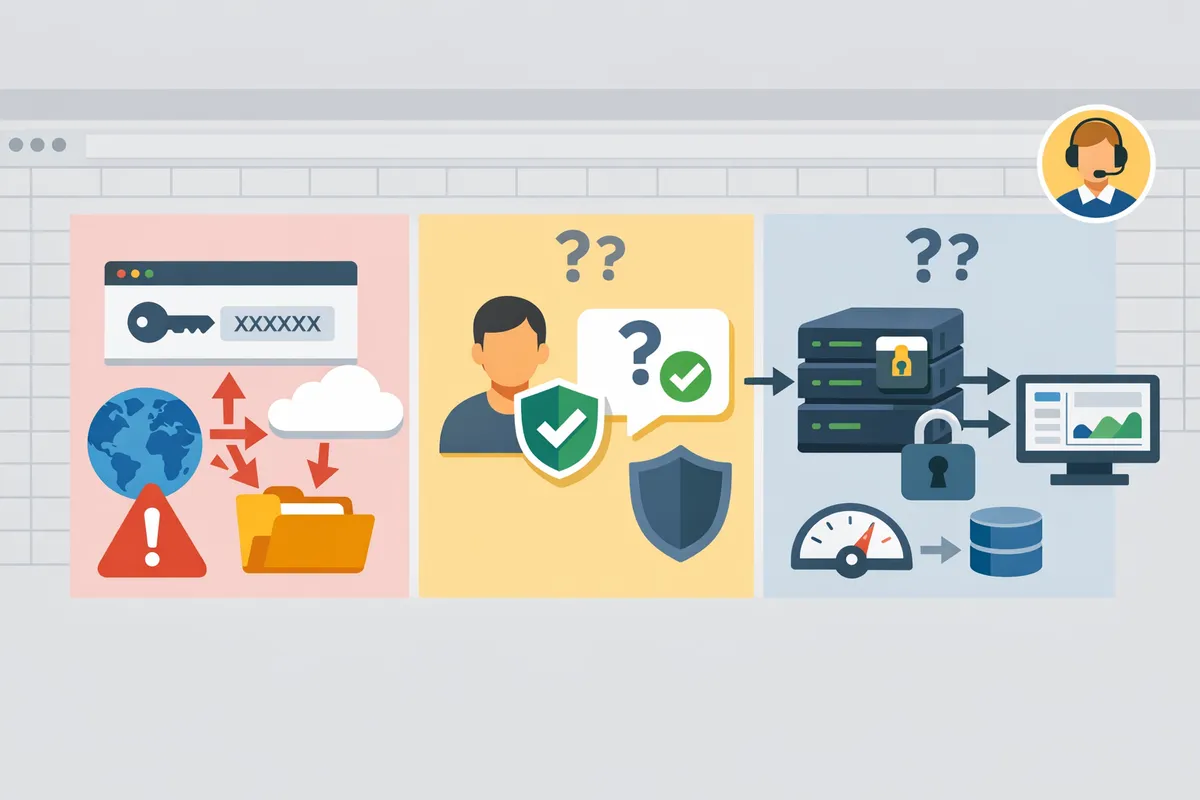
API keys only access public or limited resources by design. Can I use an API key with Google Sheets API?
Yes. API keys can access only public or otherwise unauthenticated spreadsheet data and cannot authenticate a user to private Drive files. An API key is a credential that identifies the calling project and is primarily intended for unauthenticated reads or lightweight public access. If you need production-ready controls for public endpoints or mixed public/private access, Sheet Gurus API lets teams issue and manage API keys with per-sheet permissions instead of exposing raw Google credentials.
Can an API key read a publicly published Google Sheet? 📄
Yes. An API key can fetch values from a spreadsheet that is published to the web or explicitly set to anyone-with-link view. For example, a request to the Sheets values endpoint that includes ?key=YOUR_API_KEY will return cell values for a sheet that Google has made public. API keys only identify the calling project; they do not prompt user consent, so they work for read-only, public use cases such as public dashboards, documentation tables, or demo data.
If you need a simple, production-safe public API for a sheet, Sheet Gurus API supports API key authentication with fine-grained per-sheet permissions and optional caching to reduce direct calls to Google. See our guide on how to turn a sheet into a REST API for details and practical examples: How to Turn Google Sheets into a REST API in Minutes (No Backend Required).
Can an API key access private or user-owned spreadsheets? 🔒
No. API keys cannot access private spreadsheets or any Drive file that requires OAuth scopes because Sheets and Drive enforce user consent for private data. Attempting to use an API key against a private file typically returns 401 or 403 errors such as insufficient authentication or insufficient permissions. Private read/write operations require an authenticated user token (OAuth 2.0) or a service account credential that has been granted access to the specific file.
Sheet Gurus API solves this operationally by using Google sign-in and the appropriate drive.file scopes to obtain access to private sheets, then exposing a managed API key or token to your clients. That approach removes the need to embed Google OAuth tokens in client apps while keeping access controls and auditing centralized. For a deeper explanation of the auth choices and when to use each, see our complete guide to Google Sheets JSON auth and CRUD: Google Sheets JSON API: The Complete Guide to CRUD, Auth, and Performance.
How should I protect a Google Sheets API key and limit abuse? 🛡️
Apply API restrictions, HTTP referrer or IP restrictions, per-key quotas, and a scheduled rotation policy to every key you issue. Specifically:
- Restrict the key to the Google Sheets API (or to Sheet Gurus API endpoints) to prevent cross-API abuse. Example: set the key to allow only requests to the Sheets API in the Cloud Console.
- Use HTTP referrer rules for browser-based keys and IP restrictions for server keys. Example: allow only yourapp.example.com as a referrer or your backend IP range.
- Configure per-key quotas and alerts so a single exposed key cannot exhaust project quotas. Example: set a 1,000 requests/day limit for an experimental key.
- Rotate keys on a predictable schedule and revoke compromised keys immediately.
Sheet Gurus API adds operational controls that remove much of this overhead by offering API key management with per-sheet permissions, configurable rate limiting, and optional Redis caching to reduce direct Google calls. That saves time and reduces the chance of a misconfigured Google key exposing private data.
⚠️ Warning: Do not embed unrestricted API keys in client-side JavaScript or commit keys to public repositories. Public exposure is the most common cause of quota exhaustion and data leakage.
OAuth grants user-consented access while service accounts provide server-to-server access. Which should you pick: Google Sheets OAuth vs Service Account?
Choose OAuth 2.0 when the app must act on behalf of individual users; choose a service account when a non‑interactive server needs a single shared identity. Both patterns solve distinct access models and carry different operational work for tokens, rotation, and permissions, so picking the wrong one creates operational risk and wasted engineering time. This section gives clear, business‑focused guidance and a compact decision table so you can pick the fastest, secure production path for your use case.
When should I choose OAuth 2.0 for Google Sheets access? 🔐
Choose OAuth 2.0 when each user must explicitly grant your app access to their private spreadsheets. OAuth is the right choice for multi‑tenant dashboards, internal tools where users see only their own data, and apps that need per‑user consent. Example: a customer portal where each client signs in with Google and selects which sheets to expose; implementing OAuth keeps each customer’s authorization isolated and supports user revocation.
OAuth requires building and maintaining consent flows, refresh token handling, and per‑user token storage; that adds development and ops overhead. Sheet Gurus API shortens that path by providing Google sign‑in and an immediate REST endpoint after a user connects a sheet, which removes days of backend work and the risk of mismanaging refresh tokens. See our guide on how to turn a sheet into a REST API for a stepwise comparison between DIY OAuth and a hosted option.
💡 Tip: Request the minimal scope (for example, drive.file instead of full Drive) to limit exposure and simplify audits.
When should I use a service account for Google Sheets access? 🤖
Use a service account when a backend job or integration must access sheets without any interactive sign‑in. Service accounts suit scheduled ETL, nightly reports, and server-only automation where a single identity owns the spreadsheet and human consent is unnecessary. Example: an overnight ETL that writes consolidated metrics into a corporate sheet under a single shared identity.
Service accounts remove the need for per‑user consent but introduce secret management and potential access concentration risk. Managing private keys, rotating credentials, and handling domain delegation create ops work and security obligations. If you want the same unattended access without running your own key lifecycle, Sheet Gurus API offers API key authentication with per‑sheet permissions and configurable rate limiting so you can run backend integrations without building service account onboarding and secret rotation yourself.
⚠️ Warning: Do not embed service account private keys in client‑side code or public repositories; treat them as secrets and rotate on a regular schedule.
How do OAuth and service accounts compare for common Sheets use cases? 📋
Use OAuth for per‑user access, service accounts for unattended server access, and API keys only for public or limited access scenarios. The table below compares access model, typical uses, setup complexity, authentication method, token lifecycle, and when each option is preferable.
| Credential | Access model | Typical use case | Setup complexity | Authentication method | Token lifecycle | When to prefer |
|---|---|---|---|---|---|---|
| OAuth 2.0 | Per‑user, consented access | Multi‑tenant dashboards, user‑scoped editors | Medium. Requires consent screen, token storage | User signs in; app receives access + refresh tokens | Short‑lived access token with refresh token for long term access | When users must control which sheets the app can access |
| Service account | Server‑to‑server, single identity | Scheduled ETL, backend syncs, domain apps | Medium. Create keys or use domain delegation; manage secrets | JWT or key file used by server processes | Long‑lived credentials (rotate keys regularly) | When automation needs unattended, consistent identity |
| API key | Public or limited read access only | Public dashboards, anonymous read endpoints | Low. Create key and optionally restrict by referrer or API | Simple key in request header or query param | No token; key validity until revoked | When exposing public data or low‑risk read access |
For many teams the fastest secure path is to avoid building and operating OAuth servers or service account key rotation yourself. Sheet Gurus API provides Google sign‑in for user flows and API key management for programmatic access, which removes the heavy parts of credential lifecycle work and adds per‑sheet permissions and rate limiting out of the box. For a practical comparison of building a custom Sheets REST API versus using a hosted option, read our guide on what a Google Sheet REST API requires.
Security checklist for choosing credentials:
- Limit scopes to the minimum required (drive.file or sheets.readonly where possible).
- Restrict API keys by origin, IP, and to the Sheets API when they are used. Refer to our API key guidance in the Google Sheet REST API article for common misconfigurations.
- Rotate long‑lived credentials and audit usage logs monthly.
- Prefer hosted API key management if you lack secure secret storage or rotation processes.
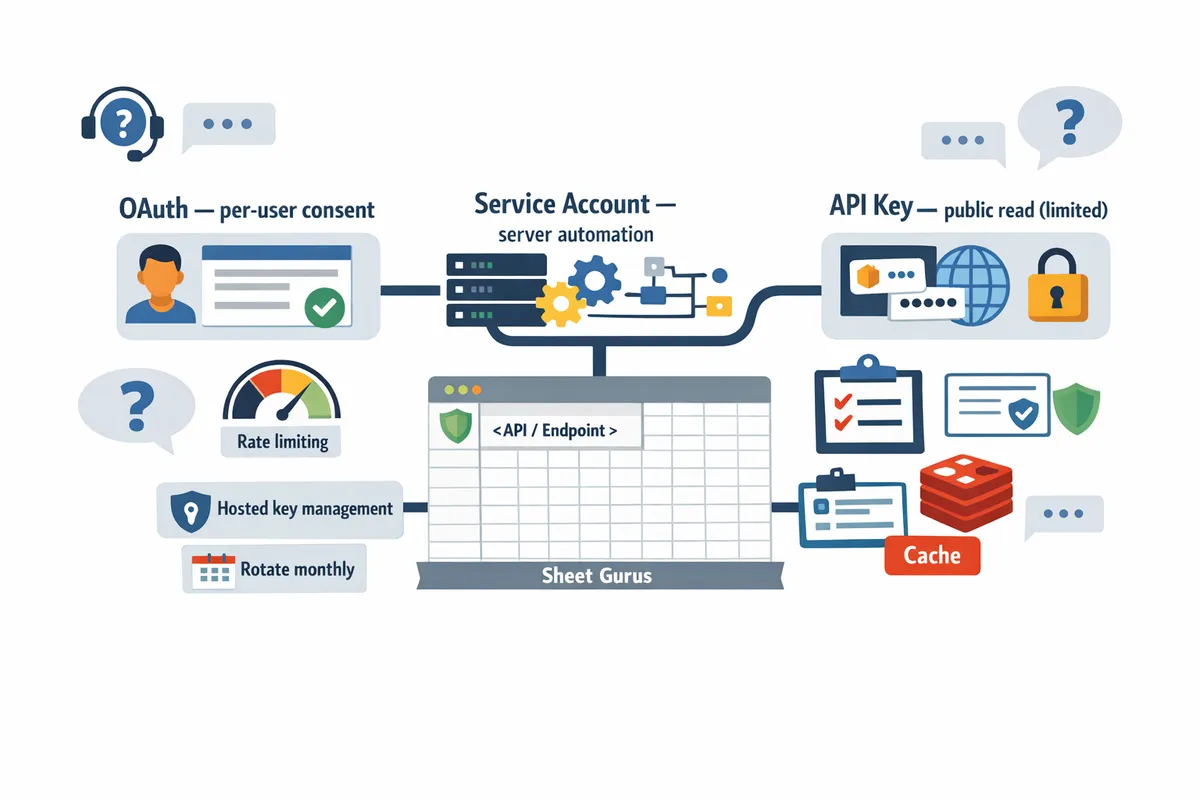
Rate limiting and API key management are operational controls that prevent abuse and ensure predictable performance. How can I secure and scale access to Sheets while avoiding quota issues?
Use restrictions, central key management, per-key and global rate limits, and read caching to reduce quota hits and keep performance predictable. Sheet Gurus API typically achieves up to 99.9% uptime and sub-100 ms average response times while offering per-key limits and optional Redis caching that cut direct Google Sheets calls. Below are an operational checklist, configuration patterns, and a troubleshooting quick-reference you can apply today.
How do I harden API keys and credentials? 🔐
Require key restrictions, rotate keys regularly, grant least-privilege permissions, and monitor usage from a central console. Set HTTP referrer or IP address restrictions and limit the key to the Google Sheets API endpoints your app needs. For non-interactive server access, prefer service accounts or server-side keys over embedding keys in client apps.
Practical steps:
- Apply API restrictions so a key only works with the Google Sheets API or your Sheet Gurus API endpoints.
- Use per-sheet permissions in Sheet Gurus API and store keys in a vault (or the platform's central key store). Sheet Gurus API terms of service requires central key management for team accounts.
- Rotate keys on a schedule (example: every 90 days) and revoke immediately after a suspected leak.
- Enable usage alerts and daily audit reports to spot spikes and unauthorized calls.
💡 Tip: Use Sheet Gurus API's per-sheet API key permissions so a compromised key cannot access other spreadsheets.
Related reading: see our guide on turning Google Sheets into a REST API in minutes for more on safe key placement and permission models.
How should I configure rate limits and caching for Sheets APIs? ⚙️
Start with conservative per-key and global limits, add a short read cache for high-frequency queries, and implement automatic retry delays for throttled requests. These controls reduce direct calls to Google and smooth traffic bursts.
Configuration pattern (step-by-step):
- Estimate baseline traffic from analytics. If an endpoint sees 1,000 requests/day, plan per-key limits that avoid bursts (for example, 60 requests/minute per key) while keeping headroom for peaks.
- Add a read cache for queries that change infrequently. A 60-second cache on read-heavy endpoints typically cuts repetitive reads and lowers quota usage dramatically.
- Apply global rate limits to protect upstream quotas and a stricter per-key limit to prevent single-key abuse.
- Use increasing retry delays for clients when they hit 429 or quota errors; log each retry for later analysis.
Sheet Gurus API supports configurable rate limiting (per key or global) and optional Redis caching to reduce Google Sheets API calls. See the Google Sheets JSON API guide for patterns and sample cache policies.
What common errors indicate quota or credential problems and how do I fix them? 🛠️
401 means the request lacks valid authentication; 403 usually means the key or token does not have permission or the API is restricted; 429 or quotaExceeded means you hit a request quota and should add caching or rate limits. The table below maps the typical responses to practical fixes.
| Error / Response | Symptom | Short fix |
|---|---|---|
| 401 Unauthorized | Calls fail with missing or invalid OAuth or API key | Verify OAuth token is present or swap to a server-side service account; reauthorize if token expired. See authentication steps in Google Sheet REST API: What It Is. |
| 403 Forbidden (API restricted) | Key blocked by API restriction or insufficient scope | Remove overly strict API restriction, or add the Sheets API to allowed APIs; confirm the key has the correct scope or use Sheet Gurus API per-sheet keys. |
| 403 Forbidden (dailyLimitExceeded) | Project exceeded daily quota or billing not enabled | Enable billing or request higher quota from the Cloud Console; add caching and rate limiting to reduce usage. |
| 429 Too Many Requests / quotaExceeded | Burst traffic or sustained high volume | Introduce read caches and per-key throttles; stagger background jobs and implement retry delays; consider using Sheet Gurus API rate limits to shape traffic. |
| 503 Service Unavailable | Temporary backend overload | Retry with delay, increase caching, or route high-volume traffic through a cached endpoint in Sheet Gurus API. |
Quick troubleshooting checklist:
- Confirm the Sheets API is enabled in the Cloud Console and the correct project is used.
- Check key restrictions and remove overly broad client-side exposure.
- Inspect usage graphs; if a single key causes spikes, revoke and reissue with stricter limits.
- If quotas are legitimate business needs, apply caching and request quota increases from Google.
For managed controls and a faster path to production, use Sheet Gurus API to obtain API keys with per-sheet permissions, built-in rate limiting, and optional Redis caching. See About Sheet Gurus API for feature details and start a trial without building a custom backend.
Next steps and a fast production path using Sheet Gurus API. What is the quickest secure launch route?
The quickest secure launch route is Sheet Gurus API's three-step Connect → Configure → Ship flow that issues managed API keys, enforces per-sheet permissions, and applies configurable rate limits. This low-ops path removes the need to build and maintain a custom gateway for Google Sheets, saving engineering hours. Use this flow when you need a production-ready RESTful JSON API with minimal backend work and built-in operational controls.
Connect 📎
Connect is the step where users sign in with Google OAuth to link a spreadsheet and grant limited drive.file access. After signing in, Sheet Gurus API creates a secure, managed connection so the sheet remains the single source of truth while the platform handles token refresh and permission scope. Example: a product manager signs in, selects a sales tracker sheet, and immediately sees an endpoint URL in the dashboard without creating service accounts or exposing OAuth client secrets. For more on what a google sheet rest api entails and the DIY complexity avoided here, see our Google Sheet REST API primer.
Configure 🔐
Configure is where you create per-sheet API keys, set permission rules, and apply rate limits inside Sheet Gurus API. You can assign read, write, or admin scopes per key and throttle requests per key or globally to prevent quota spikes. Example settings: a public read key for dashboard widgets with 1,000 requests per hour and a private write key for back-office integrations with 100 requests per minute. Optional Redis caching sits between Sheet Gurus API and Google to reduce call volume and improve latency for heavy-read endpoints.
Ship 🚀
Ship exposes a production-ready RESTful endpoint without writing backend code so apps call the endpoint with an API key and get CRUD access that syncs back to the sheet in real time. Sheet Gurus API handles request validation, quotas, retries, and monitoring so you avoid building those operational layers yourself. Example outcome: a support portal calls the Sheet Gurus endpoint to fetch customer status; changes made via the portal appear in the original spreadsheet immediately and are protected by per-key permissions configured earlier.
When DIY causes hidden costs and compliance risk
Building your own gateway requires ongoing key rotation, quota handling, caching, and monitoring; these tasks create recurring operational costs and compliance exposure. For example, a misconfigured public key or missing rate limit can produce unexpected Google quota overages and a production outage that takes days to diagnose. If your team tries a DIY path, plan for at least weekly maintenance windows and a monitoring playbook that maps quota errors to corrective actions.
⚠️ Warning: Exposing an unrestricted API key or granting overly broad OAuth scopes can leak private Drive files. Use least-privilege OAuth scopes and rotate keys frequently if you run a custom gateway.
Prototype-to-production checklist (fast path)
Ship a secure endpoint quickly by following these steps in order:
- Enable the Google Sheets API in Google Cloud and confirm the project billing is configured if needed.
- Sign in to Sheet Gurus API with the Google account that owns the spreadsheet.
- Use Connect to link the spreadsheet via OAuth and confirm drive.file scope only.
- In Configure, create per-sheet API keys and assign read/write rules.
- Set per-key and global rate limits to match expected traffic patterns.
- Enable optional Redis caching for heavy-read endpoints to reduce Google API calls.
- Test the endpoint with a staging API key, simulate quota spikes, and check error handling.
- Assign production keys, enable monitoring and alerts, and start a gradual rollout.
Sheet Gurus API offers a 14-day free trial with no credit card required to test this flow. See How to Turn Google Sheets into a REST API in Minutes for a step-by-step guide, and consult our Google Sheets JSON API guide if you need a deeper explanation of CRUD and auth trade-offs. Review our About Sheet Gurus API, Terms of Service, and Privacy Policy for account and data handling details.
Frequently Asked Questions
This FAQ answers the most frequent credential, security, and quota questions about using Google Sheets API key, OAuth, and service accounts. It explains private vs public access, when to choose OAuth or a service account, and how our Sheet Gurus API handles keys, rate limits, and caching.
Can I use an API key to access a private Google Sheet? 🔒
No. API keys cannot access private Google Sheets because Google Drive requires OAuth consent and scoped tokens for private file access. API keys only identify the calling application and work for public or unauthenticated spreadsheets; calls for private files return 401 or 403 permission errors. If you need programmatic access to private sheets, use OAuth for user-consented access or a service account with explicit sharing.
How does Sheet Gurus API handle API key access? 🗝️
Our Sheet Gurus API issues managed API keys that map to specific sheets and allowed operations and can be revoked without changing underlying Google credentials. Administrators can set per-key rate limits, assign per-sheet CRUD permissions, and expire keys to contain incidents. For step-by-step setup and how a hosted wrapper removes backend work, see our guide on How to Turn Google Sheets into a REST API in Minutes (No Backend Required).
When should I use OAuth instead of a service account? 👤
Use OAuth when actions must reflect an individual user's identity or when users should explicitly grant access to their own sheets. OAuth runs the Google consent flow so those permissions attach to a real user and appear in their Google account. Use a service account when a single noninteractive identity runs server tasks or scheduled jobs; our Sheet Gurus sign-in flow supports OAuth to issue endpoints tied to user identity—see the auth section in our Google Sheets JSON API: The Complete Guide to CRUD, Auth, and Performance for examples.
Can a service account modify a user's spreadsheet? 🔁
Yes. A service account can modify a spreadsheet only after the owner explicitly shares the file with the service account email or a Workspace admin enables domain-wide impersonation. Without that sharing or impersonation, the service account has no access. Treat sharing a sheet to a service account like sharing with another person and restrict edit rights as you would for any collaborator; our website recommends managed API keys for fine-grained production access to reduce direct sharing of Google identities.
Are Google Sheets API keys free and do they have quotas? 💸
API keys are free to create, but all requests consume your Google Cloud project quotas and per-method limits. There is no charge for issuing a key, yet high request volume can hit Sheets API quotas and lead to request failures or indirect costs from other Google services. Use caching, request batching, and per-key rate limits to lower quota usage; our Sheet Gurus API supports optional Redis caching and configurable rate limits to help control usage.
How do I secure a Google Sheets API key? 🛡️
Secure keys by applying API restrictions, HTTP referrer or IP filters, rotating keys regularly, and monitoring usage logs for anomalies. For production, prefer managed API keys that enforce per-endpoint permissions and let you revoke a single key without rotating Google credentials. Our Sheet Gurus API provides per-key rate limits, immediate revocation, and usage dashboards so you can spot abuse and contain incidents quickly.
💡 Tip: Apply API restrictions (limit to the Sheets API) and set alerts for sudden traffic spikes. Immediate revocation of a compromised key is the fastest way to limit damage.
What's the fastest secure production path to expose a Google Sheet as an API? ⚡
Using a hosted wrapper like our Sheet Gurus API is the fastest secure path to a production-ready REST API without building backend auth, quota handling, and monitoring yourself. DIY approaches require engineering time for credential management, token refresh, quota handling, retry logic, and cache invalidation—risks that cause outages and lost developer hours. Our three-step Connect → Configure → Ship flow provides Google sign-in, instant CRUD endpoints, API key management, rate limiting, and optional Redis caching so teams can move a sheet-backed service to production quickly; compare DIY vs hosted trade-offs in Can I Use Google Sheets as a Backend? Pros, Limits, and the Fastest Production-Ready Path.
Fast, secure path for Google Sheets authentication
Choose a managed wrapper when you need production-ready auth, rate limiting, and predictable performance without building or maintaining backend infrastructure. A Google Sheets API key can work for simple public reads, but it lacks per-user access control and fine-grained rate limits that production apps require. For most apps, the trade-off between Google Sheets OAuth vs Service Account comes down to whether you need user-scoped identity (OAuth) or server-to-server automation (service accounts).
Sheet Gurus API turns Google Sheets into production-ready RESTful JSON APIs in minutes, requiring no backend code. Start by signing in with Google, selecting a sheet, and receiving a live CRUD endpoint that syncs changes back to the spreadsheet. If you want a practical exploration of DIY risks and the fastest hosted path, see our Google Sheet REST API guide for limits and failure modes and how managed APIs avoid them.
💡 Tip: Use per-key rate limiting and per-sheet permissions to protect shared sheets and contain accidental spikes.
Start a 14-day free trial on the Sheet Gurus API homepage to convert a sheet to an API and test API Keys & Rate Limiting in your workflow.