
Google Drive API Bulk Operations Playbook
Copying 1,000 files with Drive's API often triggers quota errors and adds days of reconciliation work. Google Drive API bulk operations are a set of batching techniques that consolidate copy, move, permission, and comment requests to cut API calls and stay inside quotas. This how-to playbook provides a step-by-step approach to batch Drive API calls for folder copy/move, permission updates, and comment sync while using retries and quota-aware scheduling, and shows how Sheet Gurus API exposes spreadsheets as a production-ready REST API with per-key rate limits and optional caching to reduce Google API usage. We compare DIY scripts against an API-first path and point to our Sheets API quotas guide for planning the retry budgets and request windows you'll need.
What prerequisites and risks should you address before running Google Drive API bulk operations?
Address OAuth scopes, quota limits, operation atomicity, and rollback plans before you run any bulk Drive operations. These checks prevent permission leaks, quota exhaustion, and half-applied changes that lead to hours of manual recovery. Sheet Gurus API can reduce operational risk by providing per-key rate limits and caching options that help control request volume during staged runs.
Step 1: Inventory operations and decide atomicity 🔎
Classify every bulk task as read-only, independent write, or atomic multi-step and only batch the first two categories. Create a short inventory that maps each operation to one of three categories and include expected file counts, average file sizes, and whether the operation touches ACLs or parent folders. For example, listing file metadata is read-only and safe to batch; updating file content or moving files between folders are independent writes you can batch with retries; copying a folder with nested permission inheritance is an atomic multi-step change you should avoid batching. Use this table to communicate choices to stakeholders and to program retry logic.
| Category | When to batch | Business risk if it fails |
|---|---|---|
| Read-only | Batch aggressively (metadata, listings) | Low. Can re-run without data loss |
| Independent writes | Batch with per-item retries and idempotency checks | Medium. Partial writes cause duplicated work or retries |
| Atomic multi-step | Avoid batching; run sequentially or in transactions | High. Partial runs create orphaned files or leaked permissions |
Sheet Gurus API helps by exposing per-sheet APIs where you can test read-only and write patterns against a staging dataset before touching production files.
Step 2: Confirm OAuth scopes and least privilege 🔐
Grant tokens the narrowest Drive scopes required and record which service accounts or user tokens will run each job. OAuth scopes is a permission model that limits what an access token can do and which Drive resources it may touch. For copy and move workflows use drive.file for file-level writes and add full-drive or permissions scopes only when updating ACLs. Document consent screens, service account emails, and whether actions run under delegated user credentials or a single automation account.
⚠️ Warning: Broad scopes increase blast radius. If a token with wide Drive scope is compromised, it can expose or delete entire folders. Keep audit records of consent and rotate credentials on schedule. Sheet Gurus API can centralize some permission-sensitive workflows by providing API key auth and per-key rate limits so you do not distribute high-privilege OAuth tokens across multiple systems.
Step 3: Estimate volume and map to quotas 📊
Calculate both the number of batch requests and the total expanded per-item calls and compare those totals to per-minute and per-day Drive quotas. Start with an equation: Total per-item calls = items to process. Total HTTP calls = batch requests + non-batch API calls. For example, copying 500 files in batches of 25 equals 20 batch requests but still represents 500 copy operations for quota accounting and error risk. Model peak concurrency by multiplying concurrent worker threads by per-item operations to find per-minute pressure.
Use those numbers to set throttles: per-worker sleep, global concurrency gates, and progressive retries. For guidance on quota differences and real-world mitigation patterns, see our analysis of Google Drive vs Google Sheets API Quota (2026) and the rate-limit playbook in Google Drive API Rate Limit: Sheets, Drive, Docs (2026). If you hit user 429 or 403 errors during tests, follow steps in Fix Google Drive API 'User Rate Limit Exceeded'.
Step 4: Define rollback, dry-run, and test spreadsheets 🧪
Require a dry-run mode and a dedicated non-production spreadsheet to validate behavior before any production run. Create a test spreadsheet that mirrors production folder IDs, sample file counts, and permission scenarios. Run a dry-run that logs intended actions to a results sheet and inspects for unexpected ACL changes or name collisions. Define a rollback playbook that includes: a timestamped audit sheet, reverse actions (for example, remove newly granted ACLs), and an escalation path to pause the job and notify owners.
💡 Tip: Maintain an immutable audit sheet that records the original parent IDs and ACLs for every item processed. That single-sheet source of truth reduces recovery time when a batch partially fails. Sheet Gurus API can help here by routing test runs through API keys with strict rate limits and optional Redis caching so tests do not inflate production quotas.
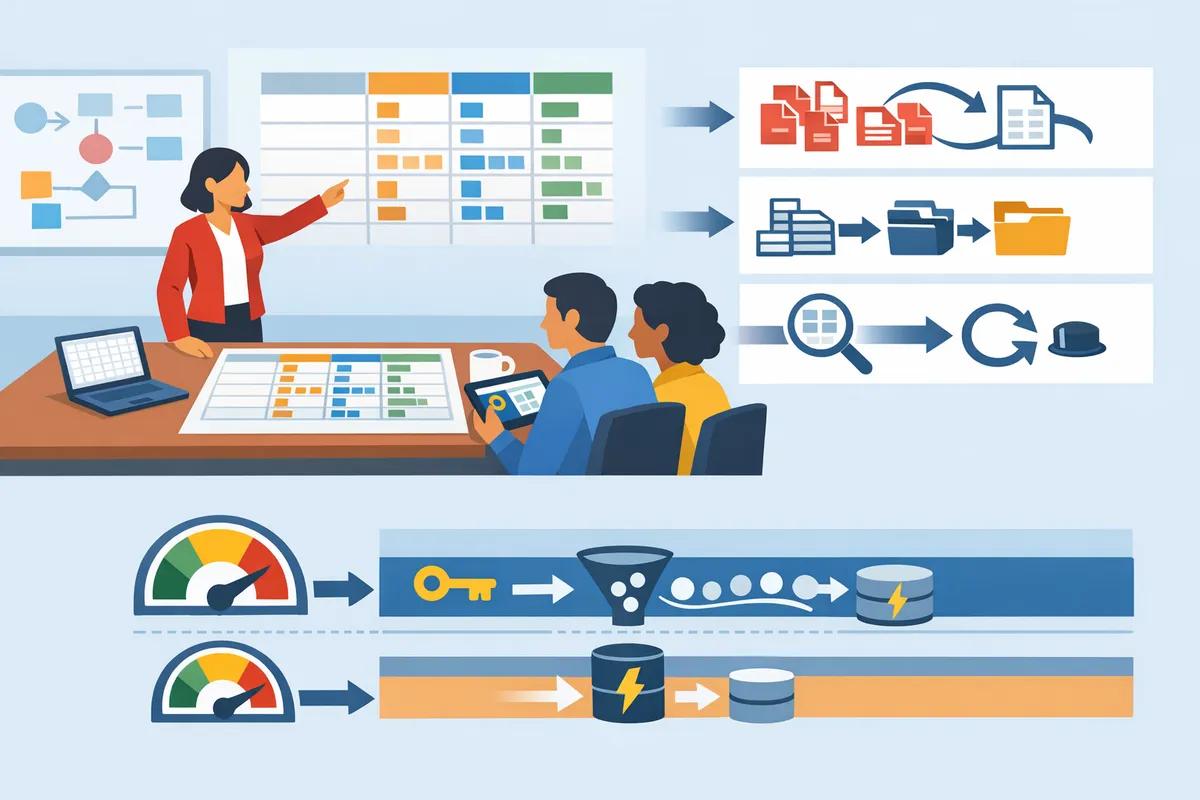
How do you execute bulk copy/move, permission, and comment workflows with batching and automatic retries?
Group compatible Drive calls into multipart batch requests, validate the template with a small sample, and apply capped retries with incremental backoff. This approach reduces per-request overhead, narrows failure blast radius, and makes quota failures predictable. The steps below show an operational, language-agnostic playbook for building payloads, copying or moving folder trees, updating ACLs, syncing comments, and handing off runs to operations teams.
Step 1: Authenticate, choose scopes, and set accounts 🔐
Use a service account with delegated domain-wide access or an OAuth user token scoped to the minimal Drive permissions your workflow requires. Confirm token-refresh behaviour and session lifetimes outside of the batch executor to avoid mid-run expiry. Link to production-ready authentication guidance in the Sheet Gurus API docs and our API reference for examples on scopes and auth patterns.
- What to pick. Prefer service accounts with domain delegation for unattended bulk jobs or delegated OAuth for user-specific ownership flows.
- Minimal scopes. Limit to the smallest Drive scopes that allow your operations (for example, file metadata and file content read/write only).
- Operational checks. Validate refresh tokens, token expiry warnings, and logging for auth failures prior to any large run.
Reference: See Sheet Gurus API about page for how our product handles API key auth and rate controls, and consult the API reference for auth examples.
Step 2: Build and validate a batch request template 🧩
A batch request template is a multipart container that groups individual Drive calls and tags each part with client-supplied IDs for result correlation. Test the template against 5–20 items to confirm response parsing, error mapping, and idempotency before scaling.
- Template definition and QA. A batch request template is a repeatable, language-agnostic manifest that lists each sub-request (method, endpoint, body) and a client ID used to correlate responses.
- Plain-English mapping sample. Example mapping: part "copy_01" → POST /files/{fileId}/copy returns newFileId; part "perm_01" → POST /files/{newFileId}/permissions returns permissionId.
- Validation checklist. Verify request headers, part boundaries, client IDs, expected status codes, and whether any sub-request is non-idempotent.
- Quota-aware testing. Run templates against a small set and monitor for 429/403. For quota strategy comparisons, consult our Google Drive vs Google Sheets API quota analysis.
Sheet Gurus API can reduce Drive and Sheets call volume by exposing spreadsheet data as REST endpoints with configurable rate limiting and optional caching, lowering the probability that a large batch run hits quota limits.
Step 3: Copy folders programmatically (Drive API copy folder programmatically) 📁
Copy a folder by enumerating children, creating the destination folder, and copying files in staged batches while preserving metadata and ACLs. Copying entire trees in one shot risks quota spikes and ownership surprises; stage the work by folder depth and file type.
- Multi-step pattern. 1) List children and capture metadata. 2) Create destination folder(s). 3) Copy files in batches (tag each copy with source metadata). 4) Reapply ACLs and timestamps if required.
- When to batch file copies. Batch file copies when metadata and ownership don't change. If a file needs ownership reassignment or complex ACL logic, run that file as a single operation to avoid partial failures.
- QA checklist for product managers and QA teams:
- Confirm folder structure matches expected tree (counts per folder).
- Validate top-level ownership and sharing settings on a sample of copied files.
- Spot-check timestamps and critical metadata fields.
- Ensure no sensitive ACLs were widened during copy.
If your workflow reads data from Google Sheets instead of copying files, Sheet Gurus API can expose sheet data directly so you avoid copying spreadsheet files and reduce Drive operations.
Step 4: Move folders and update parents safely ↪️
Move a folder by updating its parents in small batches or by copy-and-delete with verification to limit the failure blast radius. Updating parents directly is faster but riskier; copy-and-delete is safer for high-value content.
- Parent update pattern. For each folder or file, change the parents field in small batches (10–50 items) and verify the new link exists before proceeding to the next batch.
- Copy-and-delete pattern. Create the target folder, copy items, verify ownership and integrity, then delete originals only after verification completes.
- Verification steps. After any move, confirm: new parent membership, file accessibility for expected users, and that ownership did not unintentionally change.
For guidance on handling user-rate limits that often surface during large parent updates, review our troubleshooting guide for google drive api user rate limit exceeded.
Step 5: Bulk update permissions and comments 🛡️
Batch permission inserts when assignments are independent, but avoid batching mutating changes that must be atomic across multiple files. For comments, prefer per-file operations when thread continuity matters; batch when you add identical top-level comments to many files.
- Permissions best practice. Group independent permission inserts (user A, role reader, file X) in batches. Do not batch changes that require all-or-nothing semantics across a set; instead, mark partial failures for manual review.
- Commenting rules. Add identical top-level comments across many files via batch calls. Preserve threads and replies with single-file operations to keep conversation links intact.
- Audit and rollback. Capture permission-change requests in a template (who, role, file, requestId) so you can reverse problematic changes quickly.
Sheet Gurus API's per-key rate limits and request logging help prevent sudden permission-change surges from triggering quota-related throttles during these runs.
Step 6: Implement automatic retries and backoff policies ⏱️
Retry transient 5xx and 429 responses with capped incremental backoff and failure recording to avoid runaway loops. Do not retry non-retriable client errors like 403 permission denials or 400 malformed requests.
- Which errors to retry. Retry on 429 (quota) and 5xx (server) errors. Do not retry 403 permission errors or persistent 4xx input validation failures.
- Recommended retry pattern (non-code, operational):
- Wait 1–2 seconds after first failure. 2. Multiply wait time (x2) on each subsequent retry. 3. Cap the wait at 30–60 seconds. 4. Stop after 4–6 attempts and record the failed items for manual review.
- Logging and alerting. Record attempt counts, final status, and raw responses for each item. Surface aggregated failure rates to operations dashboards so humans can act before a full abort.
For deeper rate-limit handling and progressive retry tactics, read our guide on Google Drive API rate limits and the related recovery steps in the user-rate-limit troubleshooting article.
Step 7: Non-code templates and cross-team handoffs 📄
Provide CSV or spreadsheet templates that list source IDs, target parents, permission mappings, and expected outcomes, and require an operations sign-off before any production run. This keeps runs auditable and reduces human error when different teams coordinate bulk jobs.
- Template columns to include. source_file_id, source_path, target_parent_id, action(copy|move), owner_decision, permission_template_id, expected_file_count, request_id, owner_approval.
- Pre-flight checklist for ops sign-off. 1) Auth tokens validated. 2) Sample run completed on 1–5% of items. 3) Quota budget confirmed and throttles set. 4) Rollback plan documented. 5) Incident contact and logs destination verified.
- Handoff and auditing. Save a copy of the CSV with timestamps and signer identity. Keep a machine-readable run log that maps request IDs back to template rows for fast remediation.
💡 Tip: Run a staged rollout using 1–5% of target folders first to catch permission and metadata edge cases before scaling to the full set.
Suggested image:
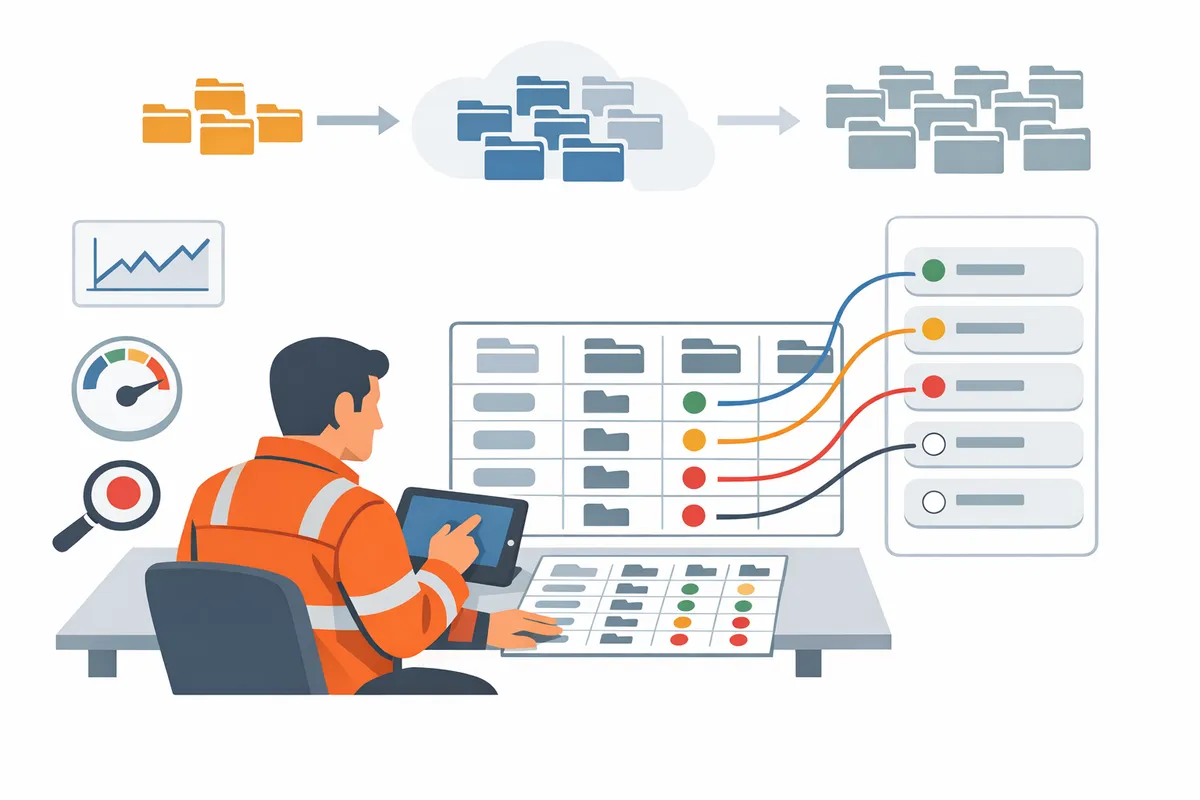
How do you tune batch sizes, monitor quotas, and troubleshoot common bulk operation failures?
Tune batch sizes to match your quota headroom, failure-isolation needs, and business SLAs while monitoring targeted metrics so throttling never surprises stakeholders. This section gives a decision table for batching strategies, a monitoring checklist tied to KPIs, concrete troubleshooting steps for 403/429/5xx errors, and auditing guidance for cost vs. speed trade-offs.
Step 1: Choose a batching strategy and compare trade-offs 📈
Pick small, medium, or large batches based on the throughput you need, how much rework you can accept, and how close you are to quota limits. Small batches reduce rework after failures but increase total request count. Large batches maximize throughput and finish sooner but increase retry cost and risk of partial failures.
| Batch size | Typical items per batch | Throughput | Failure impact | Retry cost | Quota risk | Best use case |
|---|---|---|---|---|---|---|
| Small | 1–10 | Low parallel throughput but predictable | Minimal. Failures affect few items | Low per-failure cost | Low per-minute spike | Permission fixes, manual QA runs |
| Medium | 11–100 | Balanced throughput and control | Containable partial failures | Moderate retry cost | Moderate quota burst | Nightly syncs, folder moves |
| Large | 101–1000+ | High throughput, faster finish | Large partial failures if rollback needed | High retry cost | High chance of 429/403 throttling | Bulk ingest where speed matters and retries are automated |
Expected outcomes. Small batches finish with higher total API calls but simplify remediation. Large batches complete faster but require stronger retry automation and audit trails. Use profiling runs to measure failure rate per 100 items, then select a batch size that keeps expected retries under your SLA cost budget.
⚠️ Warning: Avoid mixing large mutating batches with metadata-only batches in the same run. Mixing increases partial-failure risk and complicates rollbacks.
Sheet Gurus API helps here by applying per-key rate limits and optional Redis caching so sheet-backed workflows reduce overall Drive calls and avoid surprising quota spikes. See our comparison of Drive and Sheets quotas in Google Drive vs Google Sheets API Quota (2026) to pick the right batch size against real-world limits.
Step 2: Monitor quotas, error rates, and business KPIs 📡
Monitor per-minute Drive API usage, batch success rate, 4xx/5xx ratios, and percentage of partial failures, and tie those signals to business KPIs like files processed per hour and permission rollback events. Instrument dashboards with these four signals: per-minute requests, batch success rate, 429/403/5xx counts, and retries per file.
Alerting thresholds to start with. Trigger a P1 alert when per-minute usage exceeds 80% of your safe headroom or when batch success rate dips below 95% over a 15-minute window. Notify product owners when permission rollback events exceed a configured threshold because those directly impact customers.
Practical setup. Send metrics to your monitoring stack (Datadog, Grafana, or our API dashboard) and tag runs with a job_id and operator. Track business KPIs alongside technical metrics so stakeholders see the customer impact, not just technical noise. For quota mechanics and per-endpoint behavior, consult our guide on Google Drive API Rate Limit: Sheets, Drive, Docs (2026).
Sheet Gurus API’s configurable rate limiting and Redis cache reduce quota pressure for spreadsheet-backed flows, letting you map rate limits to business SLAs rather than building custom throttling logic.
Step 3: Troubleshoot common errors and corrective actions 🔧
Handle 403 permission errors as data or ACL issues requiring manual review, treat 429 responses by throttling and reducing batch size, and address 5xx responses with capped retries and a backoff plan. Each error type needs a clear playbook and a stored list of failed file IDs for safe replays.
Quick triage checklist.
- 403 permissions: identify which user or service account caused the error, log the affected file IDs, and run a scoped recheck of ACLs. If many files share the same owner, escalate to a manual fix stage before retrying.
- 429 quota: detect whether the limit is per-user or per-project. Pause automated runs, reduce concurrent batches, and resume with a lower concurrency or additional API keys. Use progressive backoff to avoid immediate retriggering.
- 5xx server errors: queue failed items for automatic retry with capped attempts and increasing wait intervals. If repeated, mark the item for manual review.
Operational recovery. Always move failed items into a durable retry queue that records job_id, payload, and failure reason. Re-run retries under a different batch size and capture success/failure counts. Keep a playbook that lists exact CLI or dashboard steps to re-run, validate, and mark items complete.
💡 Tip: Record a failure fingerprint (file ID, error code, timestamp) to prevent duplicate remediation effort when retries and manual fixes overlap.
For step-by-step fixes to user-rate-limit errors, consult our troubleshooting article Fix Google Drive API 'User Rate Limit Exceeded'.
Step 4: Audit, logging, and cost trade-offs for bulk runs 🧾
Log every batch request with inputs, affected file IDs, response codes, and elapsed time to enable audits, replays, and cost analysis. Store logs in a searchable system and attach job metadata like operator, environment, and SLA target.
What to log and why. Capture request payload, response body, file IDs, batch size, and retries. This mapping lets you prove final state to auditors and to customers if files moved or permissions changed unexpectedly. Retain logs long enough to satisfy compliance and dispute windows used by your business.
Cost versus speed trade-offs. Large runs finish faster but raise the expected retry bill because a single failure can touch many items. Stretched runs reduce peak quota usage but increase total wall-clock time and possible operational overhead. Use a simple formula: expected_retry_cost = failure_rate * batch_retry_cost. Plug in measured failure_rate from profiling to decide whether the faster completion justifies higher retry cost.
Sheet Gurus API reduces repeated calls with optional Redis caching and lets you shift rate limits out of your application by using per-key throttles. That turns quota risk into a predictable monthly configuration rather than repeated engineering sprints.
Step 5: When to use Sheet Gurus API to simplify Drive-heavy workflows ⚙️
Use Sheet Gurus API when your spreadsheets are the source of truth and you want production-ready rate limiting, API keys, and optional caching instead of building custom backoff and throttle logic. Sheet Gurus API exposes spreadsheets as REST endpoints, applies per-key or global rate limits, and can add Redis caching to cut redundant Sheets and Drive calls.
Example scenario. If you run a nightly job that reads a control spreadsheet and issues thousands of Drive mutating calls, Sheet Gurus API lets you centralize throttling and reduce Drive traffic by caching lookups. That reduces the ops work of hand-tuning batch sizes and building retry orchestration.
Operational benefits. Move from handwritten retry scripts to an operationally managed flow: configure rate limits, drop in Redis cache, and use API keys to split traffic across tenants. For implementation details and API capabilities, see our API reference and the product overview on About Sheet Gurus API.
Frequently Asked Questions
This FAQ answers the most common operational questions teams ask about google drive api bulk operations: batching behavior, folder-copy patterns, quotas, retry tactics, permission audits, and when to use Sheet Gurus API. Use these answers to decide safe batch sizes, design rollback checks, and pick the right tooling for production syncs.
What are Google Drive API batch requests and when should I use them? 🔁
Batch requests are a single multipart HTTP request that contains multiple Drive API calls and they work best for high-volume, independent operations where per-call latency matters more than atomicity. For example, use batching for thousands of metadata reads, repeated identical updates (setting a shared property), or permission checks where each file is independent. Avoid batching dependent workflows that require all-or-nothing consistency, such as moving a folder tree where child operations depend on a prior step.
Batching reduces round trips but still counts each sub-request against quotas and can surface partial failures. Our website's Sheet Gurus API can reduce the need for aggressive Drive batching by exposing sheets as REST endpoints with configurable rate limits and optional caching; this lowers Drive and Sheets API call volume for visibility and reporting.
How can I copy a Drive folder programmatically without losing metadata? 📁
Copying a folder safely requires a staged approach: create the destination folder, enumerate children, copy files while preserving the specific metadata fields you need, reapply ACLs, and verify integrity before deleting originals. Follow these steps:
- Create destination folder and record its ID. Expected outcome: new folder ready for content. What can go wrong: permission mismatch; recover by granting a temporary admin account.
- Export a manifest of source children (file IDs, mimeType, owners, custom properties). Expected outcome: dataset to drive copy steps. What can go wrong: listing truncation; recover by paging and rechecking counts.
- Copy files in small batches, explicitly reapply metadata fields you care about (modifiedTime, description, custom properties). Expected outcome: file copies retain chosen attributes. What can go wrong: API write failures; mark failed items for retry.
- Reapply sharing and ACLs. Expected outcome: identical access model. What can go wrong: domain-restricted shares may fail; log and alert.
- Run an automated verification pass comparing manifest to destination. Expected outcome: byte- or metadata-level confirmation before any deletion.
Sheet Gurus API can help by providing a spreadsheet-backed audit trail of the manifest and copy mapping so non-developers can review progress via a simple REST endpoint rather than running repeated Drive queries.
How large should my batch requests be to avoid quota problems? ⚖️
There is no universal batch size; start with small batches (for example, 10–50 reads or 5–20 writes), measure throughput and 429/5xx rates, then increase until you see diminishing returns or quota warnings and apply a safety cap. Practical tuning steps:
- Begin with conservative batch sizes during off-peak hours to estimate per-minute quota consumption. Expected outcome: baseline throughput and error rate.
- Track three metrics: success rate, 429 frequency, and average latency. Expected outcome: clear knee point where larger batches stop improving throughput.
- Consider different sizes for reads versus writes; writes usually require smaller batches because they hit stricter per-user limits.
For background on quota mechanics and production trade-offs, see our comparison of Google Drive vs Google Sheets API Quota (2026). Sheet Gurus API can reduce effective Drive and Sheets calls through caching and per-key rate limits, which raises your usable throughput without increasing Drive request volume.
⚠️ Warning: Running large batches without active quota monitoring can exhaust per-user or project quotas and force manual intervention during business hours.
What retry strategy should I use for transient Drive API errors? 🔁
Use capped automatic retries with progressively longer waits plus randomness, and stop after a finite number of attempts while recording permanently failed items for manual review. A practical policy looks like this:
- Retry for retryable codes (429, 500, 503). Expected outcome: most transient spikes resolve automatically.
- Use increasing waits between tries (for example, 1s, 2s, 5s, 10s) and add small random jitter to avoid synchronized retries. Expected outcome: reduced retry collisions.
- Stop after a fixed max attempts (for example, 4–5) and mark the item for manual or scheduled requeue. Expected outcome: prevents runaway retries and surfaces problematic items.
Log both retry attempts and final outcomes with file IDs and error messages. Sheet Gurus API reduces the need for heavy retrying by providing caching and per-key rate control that smooths bursts before they hit Drive or Sheets endpoints.
Can I batch permission updates and still keep auditability? 🔐
Yes. You can batch permission updates and retain full auditability by logging each change with file ID, target principal (email or group), permission role, timestamp, and operation result. Implement these controls:
- Emit one audit record per permission change, even if executed inside a batch. Expected outcome: searchable trail for compliance and rollback.
- Include a batch identifier and per-item status so you can detect partial failures and requeue only failed items. Expected outcome: efficient retries without reapplying successful changes.
- Store the audit trail in a central place your ops team can query. Expected outcome: fast investigation and rollback decisions.
If you want a low-effort audit store, Sheet Gurus API can expose a spreadsheet-backed endpoint to receive and persist permission-change logs without building a custom backend. That reduces Drive calls while keeping a human-readable audit log.
When should I use Sheet Gurus API instead of building my own backend? 🧭
Choose Sheet Gurus API when you need spreadsheet data exposed as production-ready REST endpoints quickly, want built-in API key authentication, configurable rate limits, and optional caching to cut Sheets and Drive calls, and prefer to avoid building and operating a custom backend. Use cases where Sheet Gurus API is the faster, lower-risk path:
- Internal dashboards or small customer portals where a sheet is the single source of truth. Expected outcome: get an API endpoint in minutes instead of weeks of backend work.
- Automation workflows that need rate limiting and caching to prevent 429 spikes. Expected outcome: fewer Drive/Sheets API hits and smoother production behavior.
- Audit or mapping tables that store copy manifests, permission logs, or requeue lists without adding infrastructure. Expected outcome: searchable, editable records with minimal ops.
If you need deeper custom business logic, a custom backend may still make sense; otherwise, Sheet Gurus API reduces developer hours, operational risk, and the need to implement rate-limiting and caching yourself. See our API reference and about page for implementation details and examples.
Next steps and recommended actions
Use quota-aware batching, progressive retries, and staged permission updates to finish large Drive tasks without hitting hard limits. This playbook gives you the specific steps to run google drive api bulk operations while keeping retries, backoff, and quota budgeting predictable. For quota tradeoffs and which API enforces tighter write caps, consult our comparison on Google Drive vs Google Sheets API Quota (2026) to decide whether to batch via Drive or move more work to Sheets.
If a run trips a user quota, follow the mitigations in Fix Google Drive API 'User Rate Limit Exceeded' to recover quickly and avoid manual rollbacks.
💡 Tip: Run a small dry run during an off-peak window and watch quota metrics so you can tune batch sizes and retry timing before full production runs.
Move from manual scripts to a maintained path by trying Sheet Gurus API: follow our getting-started guide to expose spreadsheets as production-ready APIs and cut the backend work that causes quota surprises. Subscribe to our newsletter for implementation tips and quota alerts.