
Fix Google Sheets 429 errors in Power Automate, Power BI, and Looker Studio: throttling tactics, retry budgets, and a Sheet Gurus caching front end (2026)
One Power Automate flow writing 500 rows per hour can trigger hundreds of 429 responses and halt reports. This integration guide fixes power automate google sheets 429 errors with throttling, retry budgets, and a caching front end. A 429 error is an HTTP status code that indicates the Google Sheets API is rate limiting requests when quota or per-second limits are exceeded. Sheet Gurus API is a service that turns Google Sheets into production-ready RESTful JSON APIs in minutes without backend code. Our platform adds API key auth, per-sheet rate limits, optional Redis caching, and MCP support so AI assistants can query sheets securely, with up to 99.9% uptime. Follow the steps to stop 429s, protect reports, and weigh developer hours versus using Sheet Gurus API?
What requirements and permissions must be in place before using Sheet Gurus with Power Automate to prevent power automate google sheets 429?
Confirm Google edit access, a Power Automate plan that supports HTTP or custom connectors, and a Sheet Gurus API key with per-key limits before you migrate flows to avoid permission failures and surprise quota spikes. These checks stop 401/403 interruptions that often look like quota problems and let you apply Sheet Gurus API rate limits and Redis caching safely. Follow the steps below to verify scopes, licenses, and key settings before production rollout.
Which Google OAuth scopes and account types are required for safe API access? 📛
Use drive.file as the default Google OAuth scope to limit access to only the spreadsheets your app creates or opens. drive.file restricts access to files the user has explicitly opened with the app, which reduces blast radius compared with broader scopes such as drive.readonly or drive.
Recommended scopes and why they matter:
- drive.file — restricts the app to only sheets the user opened or created with the app; reduces exposure when a key leaks.
- sheets.readonly — use for read-only dashboards where writes are unnecessary; reduces write-related quota counts.
- sheets.body or sheets — add only when you need full spreadsheet-level operations (use sparingly).
Confirm sheet owner and share settings:
- Open the spreadsheet in Google Drive and check the Owner field under File > Share settings. 2. Ensure the account you will sign in with has Editor (not Viewer) access. 3. If you use a shared service account, verify domain policies allow the drive.file scope or enable domain-wide delegation via IT.
Quick checks that cause 401/403 errors which masquerade as quota problems:
- OAuth consent never granted for the spreadsheet. Re-authenticate with the exact account that owns or was shared the sheet.
- The sheet moved to a Shared Drive with restricted access; Shared Drive permissions differ from My Drive.
- Using a personal account where a G Suite policy blocks third-party OAuth.
For quota planning and specific request counts that trigger 429s, see our guide on Google Sheets API quotas and 429s.
What Power Automate plan or capabilities do I need to call Sheet Gurus endpoints? 🔌
You need a Power Automate license that permits HTTP actions or custom connectors to call external REST APIs like our Sheet Gurus API. Free plans and some basic tiers block outbound HTTP or custom connector creation and will fail at runtime.
Options and trade-offs:
- HTTP action: Fast to set up for single flows and simple headers. Use it for ad-hoc automation or low-volume flows.
- Custom connector: Wraps Sheet Gurus API once and reuses it across flows. Higher initial setup but lower maintenance when you change headers, auth, or endpoints.
- Premium connectors or managed connectors: Useful for enterprise governance and lifecycle controls but may require additional licensing.
Choose HTTP action for quick tests and a custom connector for production flows that multiple teams will reuse. For a walkthrough on building connector-style integrations and API auth patterns, see the API-Key auth and connector examples in our guide on connecting a Google Sheets REST API to automation platforms. For example request/response shapes and header examples, consult the Sheet Gurus API Reference.
What Sheet Gurus account settings and permissions should I prepare? 🔐
Create a Sheet Gurus API key, assign per-sheet permissions, and set conservative per-key rate limits before switching flows to the Sheet Gurus API. These steps prevent sudden bursts from exhausting Google quotas and give you a predictable retry budget.
Step-by-step checklist:
- Sign in to Sheet Gurus API and select the spreadsheet you will expose.
- Create an API key tied to that sheet. Use per-sheet scoping so keys cannot access other spreadsheets.
- Set a per-key rate limit (start conservative; for example, begin with 5–10 requests per second and raise once you observe stable performance).
- Assign read/write permissions per key rather than broad workspace-level rights.
- If your workflows are read-heavy (dashboards, repeated polling), enable optional Redis caching to cut calls to Google Sheets and reduce 429 risk.
Privacy and compliance:
- Store API keys in secure stores (Power Automate environment variables or Azure Key Vault).
- Review our Sheet Gurus API privacy policy for how Google OAuth tokens and spreadsheet data are handled and retained.
⚠️ Warning: Do not embed long-lived API keys in client-side flows or publicly accessible connectors. Rotate keys after testing and audit usage before enabling high concurrency.

How do I configure Power Automate, Power BI, and Looker Studio to eliminate 429 errors by using Sheet Gurus API?
Point your flows and dashboards at Sheet Gurus API and enforce per-key rate limits and caching to stop direct Google Sheets API calls that trigger 429s. Sheet Gurus API is a REST wrapper that turns a Google Sheet into a production-ready JSON API, with API key auth, configurable rate limiting, and optional Redis caching to reduce Google Sheets calls.
Step 1 — Connect 🔌
The first action is to expose the spreadsheet in Sheet Gurus API and generate an API endpoint plus an API key. Start by signing in with your Google account, selecting the target spreadsheet, and granting drive.file scope so the sheet stays linked but access stays scoped. Generate the API key from the sheet settings page; the generated endpoint and example GET/POST payloads appear in the Sheet Gurus API Reference. Checklist:
- Pick the sheet you will migrate (one sheet per API is simplest).
- Set read/write permissions for service accounts or individual users in Sheet Gurus API key settings.
- Enable Redis caching in the sheet settings if your workload is read-heavy.
💡 Tip: Use a dedicated API key per environment (test, staging, prod) so you can throttle or revoke a single key without affecting others.
Step 2 — Configure ⚙️
Replace direct Google Sheets steps with HTTP calls or a Power Automate custom connector that calls the Sheet Gurus endpoints and sends the API key in a header. Create a custom connector with these minimal settings: authentication type = API key, header name = x-api-key, base URL = your sheet endpoint, default timeout = 30s, and retry count = 2 for idempotent reads. Map common flow actions to CRUD endpoints:
- Read rows: GET /rows (supports filter, limit, page token).
- Create row: POST /rows (JSON body with column values).
- Update row: PATCH /rows/{id} (partial updates supported).
- Delete row: DELETE /rows/{id}.
Use these flow patterns to avoid bursts:
- Batch writes into groups of 25 rows and send one POST per batch.
- Paginate dashboard queries with page size 100 and follow the next token.
- Run conditional updates only when a change token or modified_at value differs.
Recommended pacing values for initial testing: concurrency 1-2 parallel requests per key and request spacing 250–500 ms. If you enable Redis caching in Sheet Gurus API for query endpoints, you can safely reduce spacing for reads during load windows. For more on quota thresholds and planning, see our Google Sheets API Quotas and 429s guide.
Step 3 — Ship 🚢
Roll out traffic to Sheet Gurus API behind a staged feature flag and enforce per-key rate limits to prevent a sudden quota spike. Apply this rollout sequence: test tenant → internal users → full production. Configure per-key limits in Sheet Gurus API settings for each environment and monitor 429 counts and latency in the first 24–72 hours.
Migration checklist:
- Switch one flow or dashboard to call the Sheet Gurus endpoint in read-only mode.
- Verify responses match expected schema using the API Reference response examples.
- Gradually enable writes with small batch sizes and confirm Google-originated 429s drop.
Set alerting on the Sheet Gurus API 429 response rate and on Power Automate run failures. If 429s persist, follow the root-cause playbook to determine whether bursts come from concurrent flows, Google quota ceilings, or long-running refresh schedules. See the Root‑Cause Playbook and Cloud Monitoring Dashboards for diagnostics and the Quotas guide for quota-request workflows.
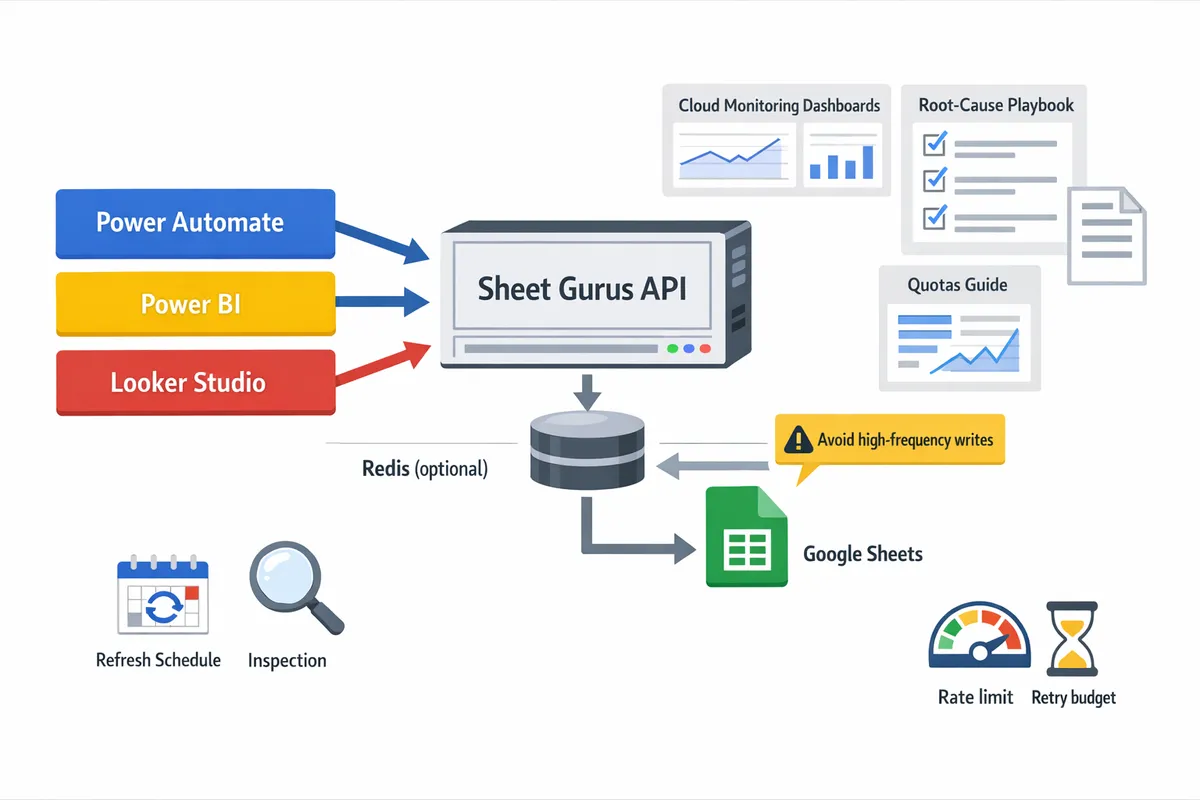
⚠️ Warning: Do not route high-frequency writes directly back to Google Sheets during initial cutover. Validate caching and per-key throttles first to avoid exhausting Google Sheets quotas.
How can you test and verify that the migration stops power automate google sheets 429 and meets performance needs?
Run controlled load tests and targeted flow runs while watching Sheet Gurus API metrics and Google API 429 counts to prove the error source and measure improvements. Use a combination of synthetic bursts, scheduled-refresh replays, and real-world traffic replays to validate cache hit rate, per-key throttling, and end-to-end latency. The test plan below gives scenarios, pass/fail criteria, dashboard metrics, and a safe rollback checklist.
What test scenarios should I run to reproduce and confirm 429 mitigation? 🧪
Run these five targeted scenarios against a staging copy of your spreadsheet and record Sheet Gurus API counters, Redis cache hit rate, and Google API 429s. Each scenario reproduces a known failure mode that previously caused power automate google sheets 429.
| Scenario | How to run (steps) | Expected outcome | Counters to watch (pass/fail) |
|---|---|---|---|
| 100 parallel reads | Fire 100 concurrent GET requests to the Sheet Gurus endpoint from separate Power Automate flows or a load tool over 60s. | Most responses served from Sheet Gurus cache; Google 429s should be near zero during the window. | Cache hit rate ≥ 80% (pass). Google API 429s = 0 (pass). Avg response < 300 ms (pass). |
| Scheduled refresh storm | Reproduce your peak schedule: run N Power BI dataset refreshes or M timed flows simultaneously (match production concurrency). | Sheet Gurus per-key throttling smooths bursts; refreshes complete without 429 failures. | Per-key rate-limit throttles active but retries succeed. Power BI refresh failures = 0. |
| Bulk backfill writes | Run a single write job inserting 5k–10k rows through Sheet Gurus API during low-read windows. | Writes complete with controlled pacing; downstream reads remain healthy. | Write error rate < 0.5%. Google API 429s during write ≤ expected retry budget. |
| Mixed traffic (read+write) | Run 50 readers and 5 writers concurrently for 10 minutes. | Cache retains high hit rate while writes propagate; transient 429s handled by retries, not system-wide failures. | Cache hit rate ≥ 70%. Retry budget used < 10% of requests. |
| Real trace replay | Replay a 1–24 hour production trace against Sheet Gurus with identical timing and concurrency. | End-to-end behavior matches production with far fewer Google 429s and predictable latency. | Total Google 429s reduced by ≥ 90% vs direct sheet access. |
💡 Tip: Run these scenarios against a cloned spreadsheet and a separate Sheet Gurus API key to avoid accidental production changes.
Which metrics and logs prove the 429 issue is resolved? 📊
The core proof is sustained reduction in Google API 429 counts while Sheet Gurus shows healthy rate-limit and cache metrics. Monitor these metrics together so you can correlate cause and effect.
- Sheet Gurus per-key request rate. Alert if sustained near the configured quota for the key. This shows whether throttling engaged. Link failed keys back to specific flows in Power Automate.
- Google API 429 count. Expect this to fall to zero during synthetic peak tests. Use the Google Cloud Monitoring logs referenced in our root-cause playbook for historical comparison. See the Root‑Cause Playbook for setup.
- Redis cache hit rate (if enabled). Target: read-heavy flows should show ≥ 70–80% hit rate during bursts to prove cache effectiveness. Lower rates indicate either cache TTLs or query patterns need tuning.
- API error codes returned by Sheet Gurus. Track 5xx and 4xx separately; transient 429s should be represented as Sheet Gurus-managed throttles, not Google 429s.
- Latency percentiles for reads and writes. Aim for P95 under your SLA window (example: < 500 ms for dashboard queries).
Suggested alert thresholds (start conservative, tighten later):
- Google API 429 > 1 per minute for 5 minutes.
- Sheet Gurus per-key throttling > 50% of requests for 10 minutes.
- Cache hit rate < 60% for read-heavy endpoints for 10 minutes.
- P95 latency increasing > 2x baseline for 5 minutes.
Useful dashboards include a combined panel with Sheet Gurus per-key requests, Redis hit/miss, Google 429s, and Power Automate failed runs. For setup guidance, see our Cloud Monitoring and dashboards playbook in the root-cause guide.
What should I look for in Power Automate run history and Power BI refresh logs? 🔎
Power Automate run history
- Status distribution. Count Completed vs Failed runs during tests. Pass: Completed rises and Failed drops to zero for 429-related errors.
- Action-level HTTP responses. Inspect HTTP actions that call Sheet Gurus; they should return 200 or 202, not 429 from Google.
- Retry attempts and backoff. Confirm the flow's retry budget is used predictably and not exhausted.
Power BI refresh logs
- Refresh outcome and error messages. Pass: no "quota exceeded" or 429 entries during scheduled refresh replays.
- Refresh duration and dataset rows processed. If duration drops and error count is zero, caching is working.
Looker Studio and connectors
- Connector error messages. Watch for "Quota exceeded" or connector 429s; these should disappear when using Sheet Gurus endpoints.
- Query latency and report load failures. Pass: interactive reports load in target P95 with no 429 errors.
Cross-correlate timestamps between Sheet Gurus metrics and Power Automate/Power BI logs to prove causality rather than coincidence. For integration patterns and connector examples, see Connect a Google Sheets REST API to Zapier, Make, Relay.app, and Clay.
How do I roll back safely if issues appear during testing? ⚠️
Rollback means re-pointing flows or dashboards back to the original Google Sheet endpoint or tightening Sheet Gurus per-key quotas while ensuring no duplicate writes and preserving audit trails. Follow this checklist for a safe rollback.
Quick rollback steps (ordered)
- Pause or disable the test jobs and scheduled refreshes that target Sheet Gurus.
- Re-point a single flow or dataset to the original Google Sheets connection and run a smoke test. Verify identical dataset IDs, schema, and a single write/read succeed.
- Gradually re-enable flows or refreshes in small batches (1–5) to confirm stability.
- If you must fully revert, update all flows/datasets back to the original sheet connection and disable the Sheet Gurus API key used in testing.
Checklist to avoid duplicate writes and preserve audit trails
- Use a clonable write marker. Add a test_run_id column to all write jobs so you can delete or identify test writes.
- Ensure idempotent keys on writes. Use an external unique ID (e.g., timestamp plus run id) to avoid duplicates on replays.
- Export a full change log before rollback. Use Sheet Gurus API read endpoints to snapshot rows and save as CSV.
- Maintain execution logs with timestamps and API keys used so you can map any unexpected writes back to the responsible job.
⚠️ Warning: Do not drop or overwrite production sheets during rollback. Always validate schema and a single-row smoke write before bulk re-pointing.
If you prefer a staged fallback, reduce the Sheet Gurus per-key quota rather than switching connections. Lowering the quota forces conservative pacing while you investigate. For detailed diagnostics on quota sources and quota increase playbooks, see Google Sheets API Quotas and 429s: How to Increase Limits and Prevent Errors (2026 Guide + Calculator) and Google Sheets API 429s and Quotas (2026): Root‑Cause Playbook + Cloud Monitoring Dashboards and Alerting.
What advanced throttling tactics, retry budgets, and troubleshooting checks stop persistent google sheets 429 errors and when should you consider moving away from Sheets?
Advanced throttling tactics, retry budgets, and cache-first fallbacks stop persistent 429 errors by shaping traffic, capping retries, and removing unnecessary direct Google API calls. Sheet Gurus API adds per-key rate limits and optional Redis caching to enforce those policies while you validate migration and operational patterns (our platform reports 99.9% uptime).
What is a retry budget and how do you implement one in Power Automate flows? 🤖
A retry budget is a capped number of retry attempts and total retry time that prevents flows from amplifying API throttling. A retry budget is a policy that limits retries per logical operation (read, write, batch) to a fixed count and time window so repeated failures do not produce request storms. For example, use a 3-attempt budget for noncritical reads and a 5-attempt budget for idempotent writes, with exponential backoff (base 5 seconds) and a hard cap of 60 seconds between attempts.
Steps to implement in Power Automate.
- Track attempts in flow variables or a persistent operation log. Expect the variable to increment on each retry attempt and abort when it reaches the budget.
- Implement backoff with the Delay action. Use delays of 5s, 15s, 45s for a 3-attempt budget, or 5s, 20s, 60s, 60s for larger budgets.
- Abort with a retry-failure branch that writes the failing payload to a dead-letter queue (SharePoint list, Azure Queue) and raises an alert.
- Use Sheet Gurus API for write-heavy flows so you can apply per-key quotas instead of hammering the native Google API. Sheet Gurus enforces per-key rate limiting at the gateway to prevent runaway retries from hitting Google directly.
Recommended default budgets for common Power Automate actions.
- Get rows (read-heavy, noncritical): 2 attempts, backoff 5s → 20s, abort and serve cached response when available.
- Append row (frequent writes): 4 attempts, backoff 5s → 60s, move failed appends to a queue after budget exhausted.
- Update row (idempotent writes): 3 attempts, backoff 5s → 30s, perform optimistic locking if possible.
- Batch writes (bulk operations): 1 retry only, prefer server-side batching via Sheet Gurus to reduce per-row calls.
Why unlimited retries cause repeated 429s. Unlimited retries reintroduce load during a throttling window and multiply the original burst. Each retry becomes a new request counted against quotas and quickly exhausts overall allowance. A strict budget prevents that amplification and gives the system time to recover.
💡 Tip: For migrations, configure conservative per-key limits in Sheet Gurus API to throttle new clients while you validate real traffic patterns.
Which throttling tactics reduce peak load without blocking business-critical operations? ⚖️
Per-key rate limiting, request queueing, batching, and cache-first reads reduce peak load while preserving critical operations. Apply each tactic according to operation type and criticality rather than using a single blunt throttle.
Tactical patterns and when to apply them.
- Per-key rate limits. Use Sheet Gurus API per-key quotas to allocate safe concurrency per integration (for example, separate keys for Power Automate, Power BI, and Looker Studio). This isolates noisy clients and stops one process from taking down all consumers.
- Queue bursts. Turn synchronous writes into queued background jobs for nonreal-time workflows. Use an Azure Queue or SharePoint list for staging and a scheduled worker to apply batches during off-peak windows.
- Server-side batching. Aggregate many row writes into a single batch operation (use Sheet Gurus batch endpoints) to reduce count of Google API calls.
- Cache-first reads. Serve dashboard reads from Redis or Sheet Gurus caching tier and refresh caches on a schedule. Cache-first reads reduce synchronous calls from Power BI or Looker Studio during refresh windows.
- Staggered refresh windows. Spread scheduled refreshes across time buckets instead of aligning all reports at top-of-hour.
Checklist items to enforce immediately.
- Set per-key quotas in Sheet Gurus for each integration.
- Replace high-frequency GETs with cached responses where possible.
- Batch writes to reduce write calls by 5x–20x depending on row size.
- Stagger refreshes in Power BI and Looker Studio by at least 5 minutes across heavy reports.
What troubleshooting checklist identifies whether 429s come from Google Sheets quotas, flow design, or external refreshes? 🔍
A reproducible diagnostic checklist maps error timestamps, flow concurrency, and external refresh schedules to the root cause. Correlate logs from Sheet Gurus, Power Automate runs, Google API error timestamps, and dashboard refresh schedules to build evidence for attribution.
Step-by-step checklist with expected signals.
- Capture the 429 timestamp and request identifiers from Sheet Gurus API logs or Power Automate run history. Expected signal: a spike of 429 entries clustered by minute.
- Check Power Automate concurrency. Expected signal for flow-caused bursts: many concurrent runs of the same flow in the run history matching the 429 window.
- Inspect scheduled refreshes. Expected signal for BI-caused bursts: Power BI or Looker Studio scheduled refreshes that start within the 1–5 minute window of the 429 spike. Link refresh IDs back to Sheet Gurus API requests to confirm.
- Verify Google API quota exhaustion. Expected signal for quota limits: Google Cloud console shows quota error counts and a matching increase in Google Sheets API 429 metrics. For quota guidance, use our guide on increasing limits and the quota calculator in the Google Sheets API Quotas article.
- Run controlled repro tests. Execute a single flow run and monitor. Expected signal: if a solitary run still produces 429, the root cause is quota-level, not flow concurrency.
- Validate client identity. Expected signal for misconfigured clients: requests from unexpected API keys or service accounts concentrated in the error window.
Where to look for log attributes.
- Sheet Gurus API logs include API key, endpoint, timestamp, and response code—use these fields to group failures. See the API reference for log field names.
- Power Automate run history shows concurrency and trigger timestamps; export runs for the error window.
- Power BI and Looker Studio refresh logs show connector start times and dataset names; match those to Sheet Gurus keys used by the connector.
⚠️ Warning: If you delete flows or keys mid-diagnosis you lose the exact correlation data needed to attribute the root cause.
For more in-depth root-cause dashboards and alerting patterns, see our root-cause playbook and monitoring guide.
How do alternatives compare when Google Sheets becomes an architectural bottleneck? 📊
A short decision table compares staying on Sheets with Sheet Gurus versus moving to Excel Online, Dataverse, or staged CSV exports based on cost, operational effort, and concurrency suitability.
| Option | Operational effort | Concurrency suitability | Expected request limits (guideline) | Migration effort | Recommended use cases |
|---|---|---|---|---|---|
| Sheet Gurus API | Low to medium. No backend to build; manage API keys and caching. | Moderate. Per-key quotas and Redis caching handle most dashboard/automation loads. | Gateway reduces Google API calls; scale depends on plan and caching. | Low. Connect → Configure → Ship with minimal mapping. | Spreadsheet-first apps, dashboards, automation where fast time-to-market matters. |
| Excel Online (Microsoft Graph) | Medium. Requires Azure AD and Graph integration, plus token management. | High for Microsoft-centric environments; better concurrency under Graph quotas. | Higher burst capacity for enterprise tenants; subject to Graph throttling policies. | Medium. Move data and re-point integrations. | Organizations standardizing on Microsoft 365 and heavy concurrent access. |
| Dataverse (Power Platform) | High. Requires environment management and governance. | High. Designed for scale and transactional integrity across Power Platform. | Enterprise-grade throughput with configurable throttling. | High. Schema and app redesign required. | Apps needing relational integrity, rich business logic, and heavy automation. |
| Staged CSV exports (S3/Blob + worker) | Medium. Simple storage cost, custom worker to ingest and apply updates. | High for write-heavy pipelines when you batch and process off-peak. | Very high when you control ingestion cadence; avoids Sheets API entirely. | Medium. Build export and ingestion jobs. | High-volume batch processing and ETL where eventual consistency is acceptable. |
Decision guidance.
- Persist with Sheet Gurus API when spreadsheet data is the single source of truth and you need minimal ops overhead. Use per-key rate limits and caching to scale.
- Move to Excel Online if your org already uses Microsoft 365 and needs tighter integration with Power Platform.
- Move to Dataverse when you need relational models, transactions, and enterprise governance.
- Use staged CSV exports when you control upstream systems and can accept batch processing for much higher write throughput.
If you need more help choosing, our quota calculator and comparative benchmarking article outlines exact request assumptions and migration costs.
Frequently Asked Questions — Power Automate Google Sheets 429
This FAQ gives concise, actionable answers for common causes of Google Sheets 429 errors and practical steps you can take inside Power Automate, Power BI, and Looker Studio. Each answer points to diagnostic checks, pacing tactics, or how Sheet Gurus API can reduce direct Google API calls and add caching and per-key throttling.
Why does Google Sheets return 429 errors when used from Power Automate? 🧭
Google Sheets returns 429 when the Google API sees too many requests from the same user, project, or IP in a short period and throttles further calls. The Google Sheets API treats concurrent reads and writes as quota-consuming operations; bursts from multiple Power Automate flows or overlapping dashboard refreshes quickly amplify that load. Check whether flows run in parallel (Power Automate concurrency settings), whether connectors spawn many small requests instead of batched updates, and whether dashboards refresh on a schedule that collides with automation jobs. For a structured diagnostic and quota-request playbook, see our Google Sheets API Quotas and 429s guide.
What quick diagnostic checks identify the source of 429s? 🔎
Check Google API response headers, Power Automate run history, and overlapping refresh schedules to isolate whether 429s come from Google Sheets quotas, flow design, or external dashboards. Look for the Retry-After header in Google responses, inspect Power Automate concurrency and trigger frequency, and map scheduled refresh windows in Power BI or Looker Studio to identify simultaneous spikes. Run a controlled test: pause one set of consumers (for example, dashboards) and reproduce the offending flow to see if 429 counts drop. Our root-cause playbook shows a diagnostic checklist and Cloud Monitoring dashboard examples to speed this mapping.
How many concurrent requests typically trigger google sheets 429 power bi refreshes? ⚖️
There is no single published threshold that triggers 429s because Google counts requests by project and user and applies dynamic throttling under load. In practice, bursts from several concurrent dashboard refreshes plus automation flows frequently cause 429s; teams often see problems when dozens of small requests overlap rather than when one large read runs. Use pacing: cap parallelism in Power BI refreshes and Power Automate flows, and consolidate reads into larger batched requests. For help forecasting safe request volumes and where to prune calls first, consult our quota calculator and planning guide.
Will switching to Sheet Gurus API stop looker studio google sheets quota exceeded errors? 🔄
Switching to Sheet Gurus API reduces direct Google API calls by routing requests through a caching front end and enforcing per-key rate limits, which lowers the chance of quota exceeded errors. Sheet Gurus API is a REST wrapper that adds API key controls, configurable rate limiting, and optional Redis caching so read-heavy dashboards hit the cache instead of Google Sheets. For dashboards that are primarily read operations, enable Redis caching in Sheet Gurus API and point Looker Studio at the endpoint to see immediate reduction in Google API traffic.
💡 Tip: Enable Redis caching in Sheet Gurus API for read-heavy Looker Studio and Power BI dashboards to reduce repeated Google API calls during concurrent refresh windows.
When should I expect to see improvement after moving to Sheet Gurus API? ⏱️
Read-heavy dashboards and automation flows typically show the biggest improvement immediately after enabling caching and using per-key throttling at the Sheet Gurus API layer. Caching cuts repeated reads; per-key limits prevent a single workflow from starving other consumers. For mixed read/write workloads, expect progressive gains as you introduce batching and longer cache TTLs for noncritical views. Run a side-by-side test: measure Google API 429 counts and request volume before and after routing traffic through Sheet Gurus API to quantify the effect.
How should I set retry policies in Power Automate to avoid amplifying 429s? ⚠️
Use small fixed retry counts and longer backoff intervals to avoid amplifying throttling when a 429 occurs. Start with 2–3 retries and exponential or linear backoff that grows by seconds to minutes, then abort and surface an alert so you do not create retry storms. Prefer flow-level duplicate protection and queueing patterns over aggressive retries against shared resources. Sheet Gurus API supports per-key throttling and will return clear Retry-After hints; configure your flows to respect that header rather than retrying blindly.
⚠️ Warning: Setting aggressive automatic retries without backoff can convert transient throttling into prolonged outages across multiple consumers.
When should I move from Google Sheets to a database instead of optimizing throttling? 🧭
Move to a database when concurrent request volume, transactional integrity, or complex queries consistently exceed what Sheets can serve even after caching and pacing. Decision signals include persistent 429s after implementing pacing, business requirements for high-concurrency writes, frequent schema changes that break sheet-based APIs, or latency-sensitive queries. As a transitional option, use Sheet Gurus API plus staged CSV exports or a hybrid approach (Sheets for small config data, a database for high-volume tables) while you migrate.
Does Sheet Gurus API store my Google credentials and how is data privacy handled? 🔐
Sheet Gurus API stores the OAuth tokens required to access spreadsheets and documents access and retention in accordance with its privacy policy. Review the Sheet Gurus API privacy policy for details on token storage, minimal scopes (we recommend drive.file), retention windows, and user rights. Grant the least-privilege scope possible when connecting, and consider service-account patterns or delegated access for enterprise deployments when available.
For step-by-step checks and a downloadable troubleshooting checklist, see our Root‑Cause Playbook and the quotas calculator to plan safe request windows.
Final steps to stop 429s and run spreadsheet-backed services in production.
The core takeaway is to combine per-key throttling, short retry budgets, and caching so your automations stop triggering power automate google sheets 429 errors. Apply per-flow quotas first, then add a centralized cache and short, incremental retry windows to prevent repeated quota fallout. For quota requests and a pruning playbook, see the guide on increasing Google Sheets API quota and the quota calculator.
Sheet Gurus API turns Google Sheets into production-ready RESTful JSON APIs in minutes, requiring no backend code. Users sign in with Google, select a spreadsheet, and immediately receive a live API endpoint that supports full CRUD operations with changes syncing back in real time; the platform adds API key auth, configurable rate limits, and optional Redis caching to cut Google API calls and speed responses. Evaluate the API reference and the root-cause playbook to confirm it fits your SLA needs.
💡 Tip: Start with a conservative per-key throttle and a 5–10 attempt retry budget while you validate traffic patterns.
Start a 14-day free trial with Sheet Gurus API to convert a problem sheet into a stable endpoint and stop spending engineering time on quota firefights.