No‑Code API for Google Sheets: The Definitive 2026 Guide to Tools, Security, and AI Workflows
A single misconfigured integration can expose thousands of spreadsheet rows and break downstream dashboards. This practical beginner's guide shows how a no-code api google sheets approach works, compares options, and gives a step-by-step path to expose Google Sheets as production-ready RESTful JSON APIs using Sheet Gurus API. On our website we unpack the three-step flow (Connect → Configure → Ship), explain API key authentication, per-sheet permissions, optional Redis caching, MCP servers for AI workflows, and why building token refresh, rate limiting, retry logic, cache invalidation, and monitoring yourself creates long-term operational risk. Sheet Gurus API runs on enterprise infrastructure with up to 99.9% uptime, so you can move spreadsheet-backed apps from prototype to production without writing a custom backend — which approach will best fit your project's security and AI needs?
Fundamentals and key concepts
Before you expose a sheet as a production API, understand the concrete mechanics that determine reliability, security, and performance. This section defines the endpoint shapes you will use, the authentication options you must choose between, and the hidden operational work a DIY path forces your team to build and run. Knowing these details prevents surprises when a spreadsheet becomes a live dependency for apps or AI assistants.
What a no-code API for Google Sheets actually exposes 🧭
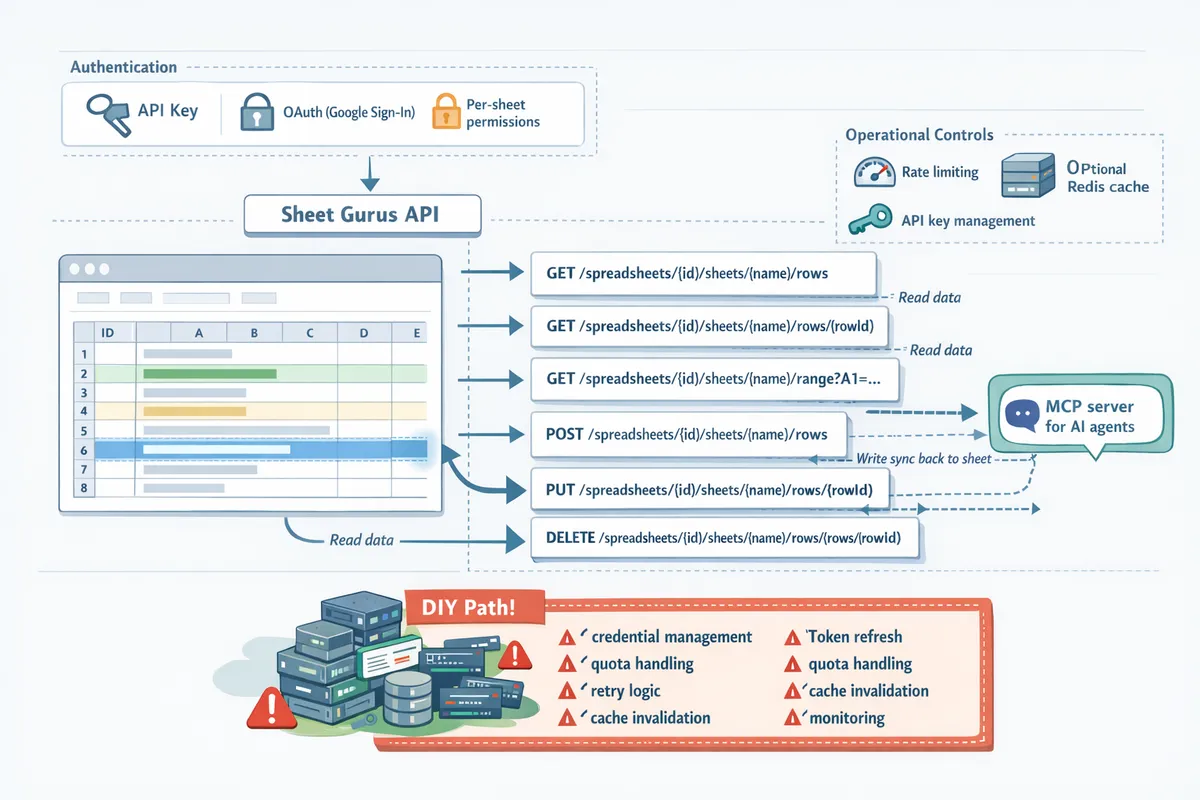
A no-code Google Sheets API typically maps RESTful endpoints to spreadsheet resources: the sheet, rows, and ranges. Expect CRUD endpoints such as GET /spreadsheets/{id}/sheets/{name}/rows for listing, GET /rows/{id} for a single record, POST /rows to create, PATCH /rows/{id} to update, and DELETE /rows/{id} to remove. JSON payloads usually appear as either a records array for list responses or a single record object for detail responses. Example JSON shapes:
// list response
{ "records": [{ "id": "r1", "email": "[email protected]", "amount": 42 }], "nextPage": null }

// single record
{ "id": "r1", "email": "[email protected]", "amount": 42 }
Header rows map to JSON keys. Typed columns require explicit coercion rules: numeric columns should convert empty cells to null or 0 depending on your API policy. Sheet Gurus API preserves header mapping, offers column typing options, and syncs any API write back to the original sheet in real time so the spreadsheet remains the single source of truth. For implementation patterns and endpoint examples, see our API reference and the practical walkthrough that shows how to turn Google Sheets into a REST API in minutes.
Authentication, permissions, and rate limiting 🔐
API key access, OAuth delegated access, and per-sheet permission models each change how you control and audit usage. API keys give simple server-to-server access and fit server apps or automation. OAuth delegated access ties requests to a Google identity and is necessary when actions must respect user-level permissions. Per-sheet permissions let you restrict a key to specific spreadsheets or ranges, which reduces blast radius if a key leaks.
Rate limits typically enforce requests per minute or per second per key. Per-key limits matter for multi-tenant apps because a single noisy tenant using the same key can cause 429 errors for all tenants. Governance controls you should require are least-privilege keys, automated key rotation, and audit logs for reads and writes. Our website documents how Sheet Gurus API offers Google sign-in, API key auth with fine-grained per-sheet permissions, and configurable per-key or global rate limiting; check Getting Started for how to generate keys and apply permissions.
⚠️ Warning: A single misconfigured public API key can expose thousands of rows. Always apply per-sheet permissions and rotate keys on a schedule.
Operational complexity of DIY solutions ⚙️
Building a custom Sheets API forces teams to solve many operational problems that go beyond simple request handlers. Typical tasks you must design, implement, and maintain include:
- Credential management and token refresh. You must securely store refresh tokens, run refresh logic, and handle revocation windows.
- Quota monitoring and retry logic with exponential backoff. Google API quotas require backoff policies and alerting to avoid silent failures.
- Idempotency and race condition handling for concurrent writes. Concurrent updates to the same row require conflict resolution or optimistic locking.
- Cache invalidation and consistency. Caching responses speeds reads but requires invalidation hooks when the sheet changes.
- Hosting, scaling, and monitoring. You need uptime SLAs, latency monitoring, and request tracing for debugging.
A short, illustrative example of token refresh plus a simple retry loop you would need to write yourself:
# illustrative only; not production-ready
token = load_refresh_token
if token.expired: token = refresh_token(token)
for attempt in range(3):
 resp = call_google_sheets_api(token)
 if resp.status == 200: break
 sleep(2 ** attempt)
Sheet Gurus API removes much of this maintenance burden: our platform handles Google sign-in and token management, provides API key lifecycle tools, configurable rate limiting, and optional Redis caching to reduce calls to the Sheets API. If you compare building this stack yourself versus using a hosted no code google sheets api, the time and operational risk differences become clear; for a step-by-step comparison of DIY versus hosted approaches, read our practical guide on turning Google Sheets into a REST API in minutes and the complete guide to CRUD, auth, and performance.
For quick API examples and endpoint details, consult the API reference and Getting Started pages on our website.
Core concepts, provider comparison, and real-world use cases
This section gives a practical decision framework for choosing a no-code Sheets API, Apps Script, or a custom backend. It also provides a checklist you can use to compare providers and concrete security controls teams often miss before exposing a sheet as a production API.
Decision framework: pick no-code, Apps Script, or a custom API ⚖️
Choose a no-code provider when the spreadsheet is the single source of truth, you need SLA-grade endpoints quickly, and your team prefers minimal ops work. Our website recommends no-code if you want CRUD endpoints, per-sheet permissions, and built-in rate limiting without building a backend. Use Google Apps Script when the dataset and access patterns stay inside Google Workspace, you can accept script quotas, and you only need lightweight triggers or UI macros. Build a custom backend when you need complex joins, transaction guarantees, multi-source consistency, or custom business logic that will require deployment pipelines and observability.
Compare these axes before deciding: time to market, operational risk (credential rotation, token refresh), maintenance load (library upgrades, logging), and required features (fine-grained permissions, rate limiting, caching, monitoring). If you would otherwise build a token store, retry logic with exponential backoff, and quota monitors, a hosted no-code path like Sheet Gurus API removes most of that operational burden.
💡 Tip: If your app will be used by external customers, prioritize per-key rate limits and per-sheet permissions during the vendor evaluation stage.
Provider checklist: what to compare when evaluating no-code Sheets APIs 🧾
Use this checklist to compare providers before committing. Each item maps to an operational risk or a feature you'll likely need in production:
- Pricing model. Per-request vs tiered vs metered billing and overage behavior.
- Request quotas and throttling rules. Per-key and global limits.
- Latency expectations and SLA options.
- Authentication models. OAuth sign-in, API keys, and key scoping per sheet or per endpoint.
- Caching options. Built-in Redis or configurable TTLs to reduce Google Sheets API calls.
- Retry and backoff behavior. Automatic retries, idempotency handling, and configurable policies.
- Monitoring and observability. Request logs, dashboards, and alerting.
- AI/agent support. Native connectors or MCP server support for AI assistants.
- Developer ergonomics. Open API spec, SDKs, and documentation quality.
Our website hosts a compact comparison table under Compare Sheet Gurus API; use that table to record vendor responses on quotas, auth models, and caching. For a technical walkthrough of CRUD, auth, and performance patterns, see our guide on how to turn Google Sheets into a REST API in minutes and the Google Sheets JSON API reference.
Security and governance deep dive: token lifecycles, scoping, and masking 🔐
Treat API access like a live credential boundary. Implement short-lived tokens or scoped API keys and rotate keys on a schedule. DIY systems require building secure key stores, rotation logic, replay protection, and monitoring for leaked credentials. You must also handle quota monitoring and implement rate limiting to prevent noisy neighbors from exhausting Google API quotas.
Per-sheet permissioning and audit trails prevent accidental data exposure. Apply column-level masking for PII and restrict write operations to trusted keys. If you build this yourself, expect to add secret management (vaults), alerting for abnormal query patterns, and a logging pipeline that retains per-request metadata for forensic needs.
Sheet Gurus API centralizes these controls: scoped API key management, configurable per-key rate limits, built-in audit logs, and optional Redis caching to reduce backend calls. That removes the need to operate a separate token store, implement custom rotation cron jobs, or wire an external monitoring pipeline before shipping.
⚠️ Warning: Never expose a sheet-wide API key with write permission to client-side code; always scope keys and enforce server-side use for writes.
See our Getting Started guide for the secure path to connect a sheet and generate a scoped key, and consult the API Reference for endpoint-level permissions.
High-value use cases: three realistic scenarios and required API features 🚀
Internal CRM built on a sheet. Minimum features: row-level reads, filtered queries, authenticated write access, webhooks for sync. With Sheet Gurus API you sign in, select the CRM sheet, and get a live REST endpoint that avoids building authentication middleware and webhook schedulers. Delivery time: days instead of weeks because you skip credential and retry plumbing.
Lightweight customer portal that reads orders. Minimum features: read-only endpoints, caching for list endpoints, rate limiting per API key, and per-sheet read scoping. A no-code provider like Sheet Gurus API provides optional Redis caching and per-key rate limits so you avoid building cache invalidation logic and quota monitors.
AI assistant querying structured sales data. Minimum features: low-latency reads, schema discovery, and support for agent connectors. Sheet Gurus API exposes sheets as MCP servers so assistants can query structured data directly, removing the need to build an adapter, manage token refresh for the assistant, or implement special pagination and sorting logic.
Each scenario lists the minimum production features and shows how a hosted no-code path shortens delivery by removing credential rotation, retry logic, backoff, and monitoring you would otherwise have to build.
Getting started: a hands-on quickstart and configuration checklist
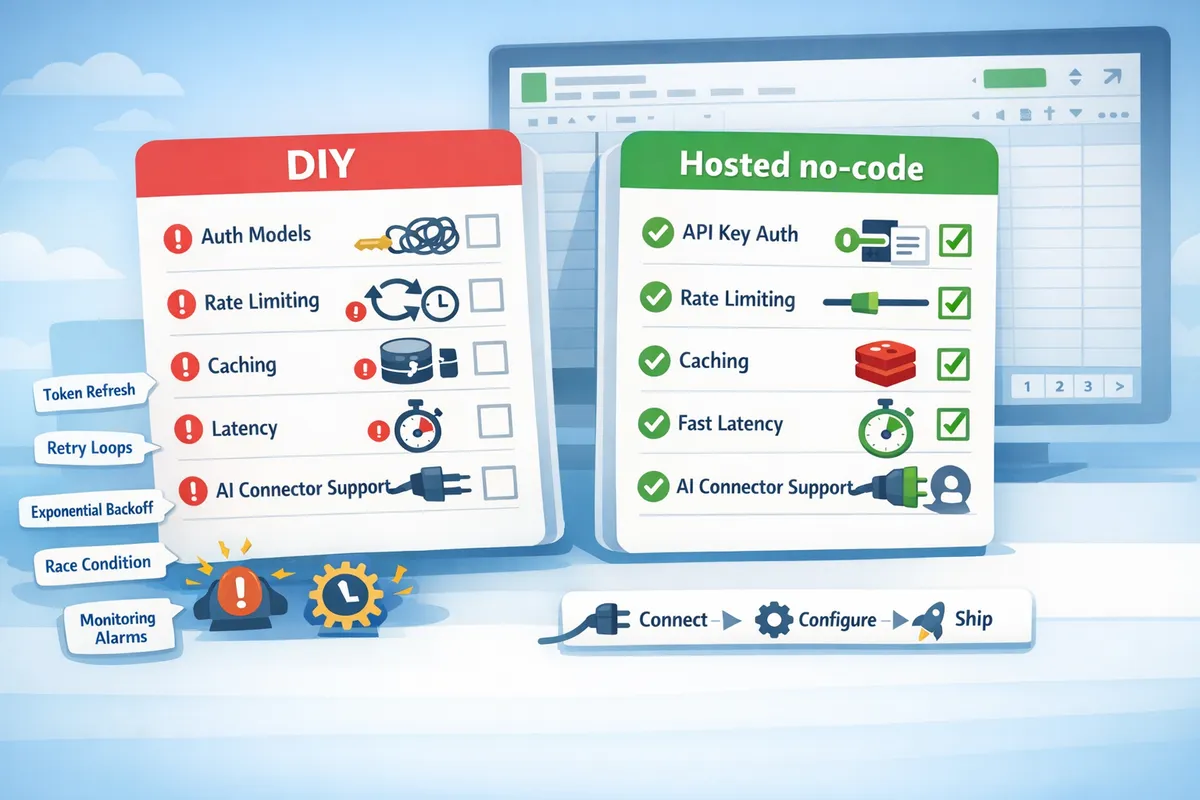
This quickstart walks through a 10–30 minute path to expose a Google Sheet as a production-ready JSON API using Sheet Gurus API (Connect → Configure → Ship). Follow the checklist, run the suggested tests, and review the troubleshooting notes before sending real traffic.
Quickstart: connect a spreadsheet and get a live JSON endpoint 🚀
- Sign in with Google in the Sheet Gurus API console. Grant the minimal read or read+write scopes the UI requests. The console shows which scopes you consent to.
- Select the spreadsheet from your Google Drive. Pick a sheet or an explicit A1 range to expose. Toggle whether the first row is header keys.
- Generate an API key and assign a descriptive name (dev, staging, public-form). Use a test key for early checks.
- Copy the live endpoint shown in the UI. The typical response shape is a JSON array of objects: each object maps column headers to values and includes a row_id field for writes.
Example curl test (replace YOUR_KEY and ENDPOINT):
curl -H "x-api-key: YOUR_KEY" "https://api.sheetgurusapi.com/v1/sheets/ENDPOINT?limit=5"
Use Postman or curl to validate read and write operations. See our Getting Started guide for the step-by-step screenshots and sample responses.
Sheet Gurus API removes the need to host an OAuth flow, implement token refresh, or write CRUD endpoints yourself. Building a DIY proxy requires credential rotation, token refresh, quota handling, retry logic, and monitoring that add days of work and ongoing ops.
Configure permissions, rate limits, and optional Redis caching ⚙️
Set per-sheet API key scopes in the Sheet Gurus console so keys only allow the operations you intend. Common patterns:
- Read-only keys for dashboards and analytics pipelines.
- Read+write limited to specific sheets for web forms or automation.
- Admin keys restricted to a small ops group.
Rate limiting can be applied per key or globally. For example, set a per-key limit of 60 requests per minute for public widgets and a tighter limit for write operations. Rate limits prevent quota exhaustion and accidental storms from client bugs.
Enable optional Redis caching to cut Google Sheets API calls and speed responses. TTL trade-offs:
- 1–5 seconds: near real-time for assistant queries but higher Google call volume.
- 10–30 seconds: good balance for dashboards and automations.
- 60–300 seconds: reduces API traffic for stable reference data.
Sheet Gurus API supports automatic cache invalidation on writes and provides controls for manual purge. That eliminates the usual cache invalidation headaches you would face when building your own layer, such as race conditions and stale data windows.
See the Google Sheets JSON API guide for deeper CRUD and caching examples.
Common errors and troubleshooting tips ⚠️
401 Unauthorized: The API returned 401 when the key lacks the required Google scopes.
- Mitigation: Re-run Google sign-in in the console, grant the requested scopes, and regenerate the key if needed.
429 Too Many Requests: Quota exhausted or sudden traffic spike.
- Mitigation: Raise the per-key rate limit temporarily, enable Redis caching, and inspect request logs to find noisy clients.
Stale cache causing data skew: Clients see old rows after a sheet update.
- Mitigation: Lower TTL for that endpoint, enable write-triggered invalidation, or mark records with last_updated timestamps.
Sync conflicts on concurrent writes: Two clients update the same row simultaneously.
- Mitigation: Use row_id for idempotent updates, apply optimistic concurrency by comparing last_updated, and use retries with backoff.
⚠️ Warning: Do not expose production write keys in client-side code. Use a backend or short-lived token exchange to protect write operations.
For step-by-step debugging, consult our troubleshooting articles and use the request logs in the Sheet Gurus dashboard to replay failed calls.
Integrating with AI assistants and MCP servers 🤖
Enable MCP server mode for the sheet in Sheet Gurus API, then register the endpoint with your AI assistant's tool registry. This provides a stable, authenticated JSON interface the assistant can query.
Minimal steps:
- In the console toggle "Expose as MCP server" and set the schema mapping (which columns are searchable tokens or numeric fields).
- Generate a service token scoped to the MCP server and copy the server URL.
- Register the server URL and token in your assistant (for example, add to Claude or another model's tool list).
- Validate with a prompt that expects structured JSON. Example prompt: "Return customers with status:"overdue" and days_overdue > 30 as JSON objects with id, name, email, and days_overdue." The assistant should call the MCP endpoint and return the structured array.
For AI use cases prefer short cache TTLs or real-time reads to avoid stale answers. Sheet Gurus API handles token management, rate limiting, and monitoring for MCP calls so you do not need to build those systems yourself. Use the API Reference to inspect read, filter, and pagination parameters that assistants will use.
For further context on small-scale choices versus building a custom backend, read our comparison guide on how to turn Google Sheets into a REST API and the complete CRUD and auth reference.
Next steps and advanced resources
Moving from a prototype to a production-ready sheet-backed API requires operational plans for monitoring, scaling, migration, and integrations. The checklist below gives concrete next steps, sample thresholds, and stacks you can apply immediately. Each subsection explains the DIY burdens you would have to build and how Sheet Gurus API removes that maintenance overhead so teams focus on product rather than ops.
Monitoring, SLOs, and alerting for sheet-backed APIs 📈
Track these metrics as the minimum observability surface for a no-code api google sheets endpoint: request error rate, p50 and p95 latency, cache hit ratio, and API key usage by client. Set practical alert thresholds: error rate > 1% sustained for 5 minutes, p95 latency exceeding 1s for 5 minutes, cache hit ratio dropping below 60% for 10 minutes, and any API key request rate spike above 200% of baseline. Runbook steps for each alert should be short and actionable: reproduce with curl, check recent deploys or schema changes, inspect cache metrics and Redis eviction, rotate or revoke an API key if abuse is suspected.
Sheet Gurus API emits request and cache metrics and integrates with common monitoring stacks, so you do not have to build ingestion, retention, and dashboarding from scratch. For dashboard templates and alert examples see our Google Sheets monitoring guidance in the "Google Sheets JSON API: The Complete Guide to CRUD, Auth, and Performance" article.
⚠️ Warning: Publicly shared spreadsheets can expose rows if API keys are misconfigured. Always scope keys to the minimum required sheet and role.
Scaling strategies: caching, batching, and rate control 🚦
Use Redis when you need sub-100ms reads and want to cut Google Sheets API calls; prefer a read-through cache pattern for mostly-read workloads and an explicit write-through or cache-invalidate strategy for mixed read/write workloads. Batch writes into grouped operations (for example, accumulate up to 100 row edits or 5 seconds of edits before a single bulk write) to reduce quota usage and avoid Google Sheets API spikes. Configure per-key and global rate limits to block abusive clients and enforce fair use.
Building these pieces yourself requires multiple moving parts: Redis provisioning and eviction tuning, cache invalidation on concurrent writes, token refresh for service accounts, quota monitoring and throttling logic, retry policies with exponential backoff, and race-condition handling for optimistic updates. Sheet Gurus API offers optional Redis caching, configurable rate limiting, and built-in write-batching controls, removing the need to implement and maintain those subsystems.
💡 Tip: Use write batching for high-throughput forms: aggregate client edits server-side and flush on timer or size threshold to avoid per-row API calls.
Migration checklist: prototype to production ✅
- Lock down permissions. Remove broad Google sharing and grant only required service accounts or user scopes.
- Enable auditing. Turn on access logs and retention so you can trace data access.
- Add schema validation. Use column-level checks and reject writes that break the model.
- Configure SLOs and alerts. Define p95 latency and error-rate SLOs and map alerts to runbooks.
- Run load and chaos tests. Simulate concurrent reads/writes and quota exhaustion.
- Migrate clients to scoped API keys. Roll out in a pilot group, monitor, then expand.
- Prepare rollback procedures. Keep a short-lived bypass key or feature flag to route traffic back to the prototype during incidents.
A DIY migration requires scripting credential rotation, audit collection, schema enforcement, load-testing harnesses, and phased client migrations. With Sheet Gurus API you get Google sign-in, API key generation with per-sheet permissions, and tracing hooks that let you shorten the pilot phase. Consult our Getting Started docs and the API Reference to script key rotation and client upgrades.
Advanced integrations and recommended stacks 🔗
Common production stacks that pair well with Sheet Gurus API:
- Automation stack: Sheet Gurus API + Make or Zapier for event-based triggers + Redis cache for read-heavy lookups. Use the API as the single source of truth and Zapier for orchestration.
- Dashboard stack: Sheet Gurus API + Metabase or Superset for analytics + ETL job (Cloud Run) for periodic denormalization. Use read-through caching to keep dashboards snappy.
- Serverless backend stack: Sheet Gurus API + AWS Lambda or Google Cloud Run for business logic + API keys scoped per client + Sentry for error tracking.
- AI assistant stack: Sheet Gurus API as an MCP server + an LLM agent (e.g., Claude) for retrieval and reasoning + vector DB for embeddings when you need fuzzy search.
For each stack, confirm data governance: scoped API keys, column-level masking, audit logs, and retention policies. Our blog post "How to Turn Google Sheets into a REST API in Minutes (No Backend Required)" walks through several of these stacks and contrasts the work required for a DIY connector versus using Sheet Gurus API as the hosted integration point.
For step-by-step migration templates, monitoring dashboards, and API examples, visit our Getting Started guide and the API Reference to script client migrations and operational dashboards.
Frequently Asked Questions
This FAQ answers practical and technical questions beginners ask when exposing Google Sheets as production APIs. Each answer points to deeper guides on our website and shows the operational choices you will face before and after launch.
How does a no-code Google Sheets API differ from the Google Sheets API? ⚙️
A no-code Google Sheets API provides hosting, authentication, rate limiting, caching, and monitoring so you do not build or operate a backend. Our website's Sheet Gurus API signs users in with Google, issues API keys with per-sheet scopes, and exposes live CRUD endpoints without you writing server code. By contrast, the raw Google Sheets API requires you to host a service (or use Apps Script), implement OAuth2 token refresh, handle quota responses, build retry/backoff logic, and add monitoring and alerting. Common operational pain points for DIY: credential rotation, token refresh logic, quota tracking, retry policies, cache invalidation, and race conditions on concurrent writes. See our walkthrough on how to turn a sheet into a REST endpoint for a side-by-side comparison and decision checklist.
How to Turn Google Sheets into a REST API in Minutes (No Backend Required)
Can I secure specific columns or rows before exposing a sheet? 🔒
Yes. You can enforce column-level masking and row-level scopes using server-side transformation rules and per-sheet API keys. With Sheet Gurus API, configure column masking rules (for example, replace a SSN column with a hashed token), define per-key read/write scopes so keys only access designated sheets, and add server-side filters that return only rows matching a user_id claim. A practical pattern: keep a master sheet with full data, expose a sanitized view sheet for public endpoints, and apply server-side transforms for any sensitive fields. Implementing this yourself requires additional code to rewrite responses, maintain mapping tables, and secure token checks on every request. See the API Reference for column management and our Getting Started guide to configure scoped API keys.
⚠️ Warning: Never rely on client-side hiding (hidden columns or filtered views) to protect sensitive data. Apply server-side masking and strict API key scopes.
API Reference · Getting Started
What are common error patterns when exposing sheets as APIs and how do I fix them? 🛠️
Missing OAuth scopes, Google quota limits, cache desyncs, and concurrent-write conflicts are the most common errors. For missing scopes: check the OAuth consent and add the required Sheets scopes; our Getting Started guide lists the minimum scopes Sheet Gurus API needs. For quota limits: enable per-key rate limits in Sheet Gurus API or add Redis caching to reduce Google Sheets API calls. For cache desyncs: set a short TTL for frequently updated data and use webhook-driven invalidation when your sheet changes. For write conflicts: serialize writes server-side or use optimistic locking (row version column) to detect and retry failed updates. Monitor 4xx/5xx rates, instrument request latency, and configure alerts; building that monitoring yourself means adding logs, dashboards, and alerting rules that Sheet Gurus API provides out of the box.
How to Turn Google Sheets into a REST API in Minutes (No Backend Required)
How do I integrate a no-code Sheets API with an AI assistant or agent? 🤖
Expose a secure read endpoint or register your sheet as an MCP server so the assistant can query structured data directly. With Sheet Gurus API, create a read-only API key scoped to the sheet or enable the MCP server option, then provide the assistant with the endpoint URL and an authorization header. Prompt pattern example: instruct the assistant to call the API for a row lookup rather than embedding data in the prompt. Example minimal prompt snippet: system: "Use the tool to fetch order info by order_id." user: "Fetch order 12345." The operational details you avoid by using Sheet Gurus API: token rotation, rate limiting per agent, and monitoring for abusive queries. Set short cache TTLs for low-latency responses and enforce per-key quotas to protect your Google Sheets quotas.
💡 Tip: Issue a unique API key per agent instance and set strict read-only scopes to reduce blast radius if a key is leaked.
When should I choose a no-code provider like Sheet Gurus API over Apps Script? ⚖️
Choose Sheet Gurus API when you need per-key rate limits, fine-grained permissions, caching, SLA-backed availability, and built-in monitoring without operating a custom backend. Apps Script works for light-weight automations and prototypes, but it pushes operational responsibility onto your team: you must manage triggers, deployment versions, quota exhaustion, token refreshes, and scaling behavior. Sheet Gurus API removes those operational tasks—API key lifecycle, configurable rate limits, optional Redis caching, and production monitoring are included—so your team avoids building and maintaining retry logic, cache invalidation, and concurrency controls. Use Apps Script for single-user automations; choose Sheet Gurus API for multi-tenant apps, dashboards, or AI integrations that require predictable behavior.
How to Turn Google Sheets into a REST API in Minutes (No Backend Required)
What are the cost considerations and quotas I should watch for? 💰
Costs usually depend on request volume, caching tier, number of API keys, and enterprise features rather than sheet size. Before committing, measure typical request patterns during a 14-day trial and test cold-cache and warm-cache behavior. Key checks: estimate peak requests per minute, enable per-key rate limits to protect Google API quotas, and determine how much traffic caching will remove from the Sheets API. If you build a DIY service, add the operational cost of hosting, monitoring, and engineering time for quota handling and retries into your TCO. We recommend running traffic-pattern tests during the trial, then use the results to select the appropriate caching tier and request plan.
Getting Started · Google Sheets JSON API: The Complete Guide to CRUD, Auth, and Performance
Next steps to ship a sheet-backed API
You now know the practical trade-offs between a DIY pipeline and a hosted service: building credentials, token refresh, quota handling, retry logic, race conditions, cache invalidation, and monitoring adds days of work and ongoing ops risk. A no-code api google sheets approach removes most of that overhead while keeping your spreadsheet as the single source of truth.
Sheet Gurus API turns Google Sheets into production-ready RESTful JSON APIs in minutes, requiring no backend code. Users sign in with Google, select a spreadsheet, and immediately receive a live API endpoint that supports full CRUD operations with changes syncing back to the original sheet in real time. For teams that need a reliable no code google sheets api and AI-friendly endpoints, this removes custom backend work and the operational chores that follow.
Create your first endpoint with the Getting Started guide and test a live CRUD call in minutes. For additional implementation patterns and troubleshooting, read our guide on how to turn Google Sheets into a REST API in minutes. Subscribe to our newsletter for practical tips and updates.