
How to Enable the Google Sheets API (2026): Cloud Console Setup, OAuth vs Service Accounts, and Secure Key Rotation
A single misconfigured Cloud Console setting can leave service account keys exposed and delay an API launch by days. "How to enable API in Google Sheets?" is the exact query product and engineering teams use when setting up sheet-backed services. Google Sheets API is an API that lets applications read and write spreadsheet data programmatically. This FAQ-style guide walks through Cloud Console setup, choosing OAuth versus service accounts, creating keys, and secure key rotation for production with our Sheet Gurus API and the Getting Started guide. Our Sheet Gurus API turns spreadsheets into production-ready RESTful JSON APIs in minutes without a backend, adding API key auth, per-sheet permissions, rate limiting, and optional Redis caching. We also compare OAuth and service accounts and common pitfalls.
How do I enable the Google Sheets API in the Google Cloud Console?
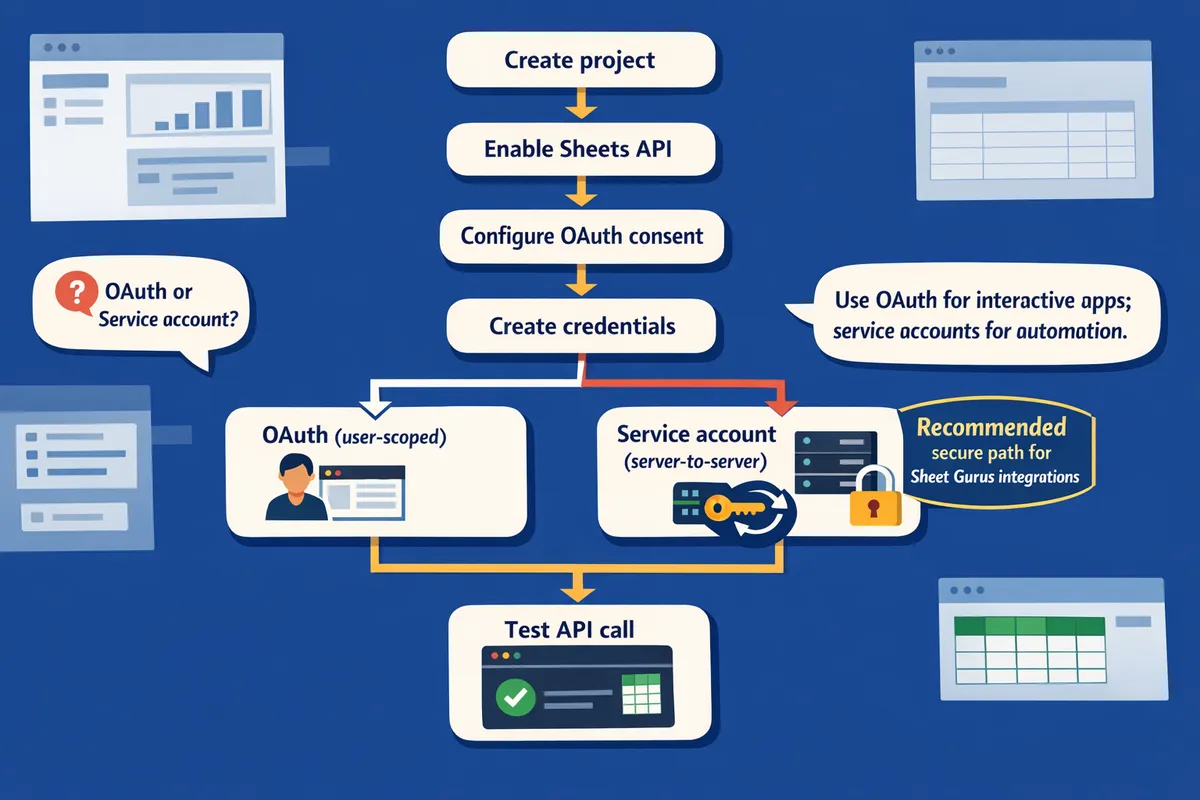
Enable the Google Sheets API by creating a Cloud project, enabling the Sheets API from the API Library, and creating credentials that match your integration type. Follow the steps below to finish the enablement flow in the Cloud Console and verify an API call using OAuth or a service account.
How do non-technical teams quickly enable the Sheets API? 🟢
Non-technical teams can enable the Sheets API in five Cloud Console actions: create a project, enable the Sheets API, set the OAuth consent screen if using user-scoped access, create credentials (service account or OAuth client), and run a test API call.
- Create a project. Cloud Console: Home > Select a project > New Project. Name it using your team convention (e.g., crm-integration-prod).
- Enable the API. Cloud Console: APIs & Services > Library > search for "Google Sheets API" > Enable.
- OAuth consent screen (if your app asks users to sign in). Cloud Console: APIs & Services > OAuth consent screen. Set app name, support email, and authorized domains.
- Create credentials. Cloud Console: APIs & Services > Credentials > Create Credentials > choose OAuth client or Service account key depending on the integration.
- Test an API call. Use the OAuth token or the service account credentials to call a simple read (spreadsheets.values.get). For hands-on examples and curl requests, follow our Getting Started guide on the Sheet Gurus API documentation.
If you plan to use our Sheet Gurus API, sign in with Google, pick a spreadsheet, and our platform handles OAuth onboarding and exposes the REST endpoints so you avoid manual credential plumbing. See our Getting Started guide for exact test requests and sample payloads.
What common errors occur when enabling the Sheets API and how do I fix them? ❗
Most failures surface from missing billing, a disabled Sheets API, or insufficient IAM roles. Cloud Console error messages and community threads frequently point to these three culprits.
- Missing billing. Console path: Billing > Overview. Action: attach a billing account to the project or move the project under an existing billing account. If you only need read tests, confirm "your quota tier permits unauthenticated testing."
- Disabled Sheets API. Console path: APIs & Services > Dashboard. Action: confirm "Google Sheets API" appears under Enabled APIs. If not, enable it and wait a minute for the backend to register.
- Insufficient IAM roles. Console path: IAM & Admin > IAM. Action: add the proper role to the executing identity (see the permissions map below).
- Service account key errors. Console path: IAM & Admin > Service Accounts. Action: download keys only into a secured secrets manager and consider short-lived keys or Workload Identity where possible.
⚠️ Warning: Service account keys are long-lived credentials; store them in a secrets vault and enforce rotation to reduce exposure risk.
For step-by-step troubleshooting and permission patterns, consult our post comparing OAuth and service accounts to choose the fastest secure path: Google Sheets API Authentication (2026): Do API Keys Work? OAuth vs Service Accounts and the Fastest Secure Path.
Which IAM roles and permissions should I assign to team members to enable the Sheets API? 🔐
Assign the minimum roles required for each task: Viewer for read verification, Editor or a Sheets API-specific role for modifications, and Service Account User when a human must impersonate a service account.
| Role | Allowed actions | Recommended for |
|---|---|---|
| Viewer | Inspect APIs, view configs | Business owner or auditor performing checks |
| Editor | Enable APIs, change configs, modify resources | Trusted admin who manages the project |
| Service Account User | Impersonate service accounts | CI systems or admins who deploy service accounts |
| Service Account Admin | Create and delete service accounts | Security or platform engineers who manage keys |
Practical examples: give a product owner Viewer and the engineering lead Editor. Create a dedicated service account for automation and grant Service Account User to the CI principal only. That separation limits audit scope and reduces blast radius when keys are exposed.
💡 Tip: Create service accounts with narrow sheet-level scopes and rotate keys on a schedule documented in your runbook.
If you need a decision path between OAuth and service accounts for a specific integration, our authentication guide lays out the trade-offs and the recommended secure path for spreadsheet-backed apps. Also review our Getting Started guide for step-by-step credential creation tied to Sheet Gurus API workflows.
How do I choose between OAuth and service accounts and create service account keys for Google Sheets API access?
Choose OAuth for user-scoped, interactive apps and service accounts for server-to-server automation. This decision matters because it defines how you manage credentials, who can revoke access, and how you scale operational controls like rotation and audit logging. The guidance below helps small teams pick the right model, create keys safely, and test access with either direct Sheets calls or Sheet Gurus API.
When should I use OAuth vs a service account? 📊
Use OAuth when users must explicitly grant access to their personal or Drive-hosted spreadsheets; use a service account when your application needs server-to-server access to spreadsheets it owns or that you share with the service account. OAuth is an authorization framework that lets real users grant scopes like spreadsheets.readonly; service account is a non-human identity that your app uses to call Google APIs without user presence. For example, a customer-facing portal where each user sees only their sheet requires OAuth and per-user consent. A nightly ETL job that writes to a shared report sheet is a candidate for a service account.
| Factor | OAuth client (user-facing) | Service account (server-to-server) |
|---|---|---|
| Authentication flow | User grants scopes through OAuth consent screen | App uses service account credentials (no interactive consent) |
| Credential custody | App stores short-lived tokens; refresh logic required | App holds JSON key in secret manager or uses workload identity |
| Sharing model | Access limited to files the user owns or has granted | Share the specific spreadsheet with the service account email |
| Typical use cases | Customer portals, single-user dashboards, integrations that act for a person | Scheduled ETL, backend automation, system-to-system reporting |
| Operational implications | Requires token refresh, consent management, user revocation path | Requires secure key storage, rotation, and least-privilege sharing |
Refer to our Google Sheets API Authentication deep dive for a full comparison and to map the fastest secure path to production with Sheet Gurus API.
How do I create a service account key for Google Sheets API? 🔑
Create a service account from Cloud Console > IAM & Admin > Service Accounts, grant minimal privileges, generate a JSON key, and store that key in a secrets manager rather than in source control. Follow these steps in order:
- Open Cloud Console. Go to Navigation menu > IAM & Admin > Service Accounts > Create Service Account. Name it and add a clear purpose.
- Grant roles sparingly. Do not use Project Owner. Instead, avoid broad project roles and plan to share the spreadsheet with the service account email for sheet-level access. Provide only the IAM roles your workflow requires, for example Service Account User for principals that must impersonate.
- Create a key: under the service account, choose Keys > Add Key > Create new key > JSON. Download the JSON once and treat it as sensitive.
- Secure storage: upload the JSON to Google Secret Manager, AWS Secrets Manager, or HashiCorp Vault. Do not embed the JSON in source control, CI logs, or public buckets.
- Share sheets: open the target spreadsheet and share with the service account’s client email, granting Editor only if writes are required.
- Test access: verify by calling the Sheets values endpoint with the service account credentials or by connecting the sheet to Sheet Gurus API to confirm the endpoint can read rows and map columns.
⚠️ Warning: Never commit service account JSON keys to repositories or CI logs. A leaked key can permit broad access until you revoke it.
💡 Tip: Rotate service account keys on a schedule (for example every 90 days) and prefer short-lived credentials or workload identity where possible to reduce blast radius.
Sheet Gurus API supports connecting spreadsheets via OAuth or by accepting a sheet that you've shared to a service account, removing the need to embed long-lived keys in application code. See our getting-started guide for examples of connecting a sheet and generating a live API endpoint.
How do I create an OAuth client ID for user-facing apps? 🧭
Register an OAuth consent screen in Cloud Console > APIs & Services > OAuth consent screen, then create an OAuth client ID under Credentials and add exact authorized redirect URIs for your app. Steps to follow:
- Console path: Navigation menu > APIs & Services > OAuth consent screen. Choose User Type (Internal for G Suite orgs, External for public apps).
- Fill the form: App name, support email, developer contact. Request only the scopes you need (example: spreadsheets.readonly). Limited scopes reduce verification hurdles and user friction.
- Scopes and test users: add test users if using External and you want early testing without verification.
- Create client ID: Navigation menu > APIs & Services > Credentials > Create Credentials > OAuth client ID. Select application type (Web application, Android, etc.).
- Add exact Authorized redirect URIs and JavaScript origins. Mismatched URIs cause authentication errors in production.
- Store client secret securely, and avoid shipping it in browser code or public repos. For public clients (mobile, single-page apps) use PKCE and avoid a client secret.
Requesting sensitive or restricted scopes triggers Google verification and may require a security assessment for high-risk scopes. Keep scope requests narrow and add incremental permissions as needed. If you prefer not to manage OAuth flows, Sheet Gurus API offers Google sign-in as part of the Connect step so teams can avoid building their own consent flows; see our getting-started examples for front-end integration patterns.
💡 Tip: Use incremental authorization to request additional scopes only when a feature needs them. This reduces user friction and lowers the chance of triggering Google review for broad access.
Which credential model saves time and reduces risk for my business? ⚖️
Service accounts save time and reduce operational risk for scheduled ETL, backend automation, and shared internal dashboards; OAuth is required when end users must grant access to their personal or drive-hosted sheets. For example, a nightly job that appends rows to a shared report sheet that you control fits a service account. By contrast, a customer portal where each customer logs in and sees only their own spreadsheet rows requires OAuth and per-user consent.
Practical scenarios and trade-offs:
- Scheduled ETL and batch imports. Use service accounts. Benefit: no token refresh complexities per user. Trade-off: you must secure and rotate keys.
- Internal dashboards and monitoring. Use service accounts or Sheet Gurus API endpoints configured with API keys to reduce credential handling. Benefit: faster setup and central audit.
- Customer-facing apps or multi-tenant portals. Use OAuth. Benefit: users control revocation. Trade-off: implement consent UX and manage verification for broad scopes.
- AI agents and automation that query many sheets. Use Sheet Gurus API to expose sheets as secure REST endpoints with API key controls and per-sheet permissions instead of distributing service account keys across agents.
Using Sheet Gurus API often reduces risk and time to production because it handles OAuth onboarding, API key management, per-sheet permissions, rate limiting, and optional caching so teams avoid building credential rotation and quota control systems from scratch. See our post on turning Google Sheets into a REST API for deployment patterns and operational checklists.
How do I secure, govern, and integrate Google Sheets API access for production with Sheet Gurus API?
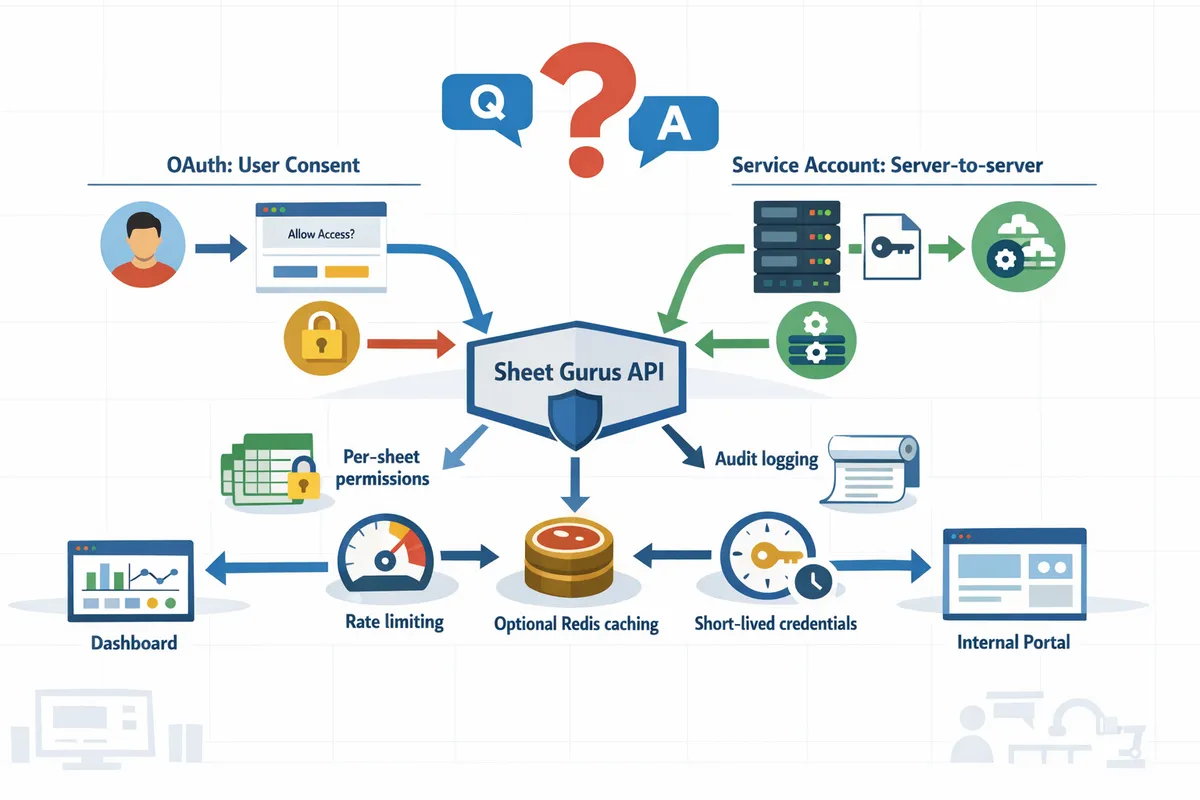
Secure production access requires short-lived credentials, per-key permissions, rate limits, and audit logging to limit blast radius and meet compliance needs. Sheet Gurus API is a managed service that exposes spreadsheets as RESTful JSON endpoints while providing per-sheet API key management, configurable rate limiting, and optional Redis caching to cut operational work. The guidance below gives a practical rotation checklist, governance roles, performance controls, and an exact Connect → Configure → Ship flow you can follow today.
🔄 How should I rotate keys and maintain credential hygiene?
Rotate API keys and service account credentials on a regular cadence and keep them in a centralized secrets manager. For most teams, rotate high-risk keys every 30 days and lower-risk service keys every 90 days; shorter windows suit keys with write privileges. Follow this two-step rotation checklist to avoid downtime: (1) create the new key, add it to a small canary set of clients, verify successful requests and metrics for 24 hours, then (2) promote the new key to additional clients and revoke the old key after monitoring. If a key is compromised, immediately disable it in the dashboard, revoke associated OAuth tokens, and rotate dependent integration keys.
Sheet Gurus API lets admins create, scope, and revoke API keys from the dashboard so rotations happen without running custom backend scripts. Use an enterprise secrets manager (AWS Secrets Manager, Google Secret Manager, or Vault) for automated key distribution to servers and CI.
💡 Tip: Test rotation in a staging environment using a canary header and a 1-hour monitor window before mass-promoting a key.
🛡 How do I set roles, permissions, and audits for Sheets API access?
Enforce least-privilege roles, map responsibilities across stakeholders, and enable immutable audit logs on Sheets and API activity. Business owners should approve which spreadsheets serve as sources of truth and set retention rules. IT and security admins must provision OAuth consent, configure the secrets vault, and run quarterly access reviews. Developers should request scoped API keys limited to specific sheets and CRUD operations to reduce the blast radius of leaked credentials. Governance failures cause data exposure, regulatory fines, and lost customer trust; treat access reviews as audit evidence.
Sheet Gurus API provides per-sheet permission levels (read-only, read-write, admin) and request logs in the admin console so you can audit which key accessed which row and when. For a deeper comparison of credential models and the fastest secure path to production, see our Google Sheets API Authentication guide.
⚡ How do I manage performance and operational controls like caching, rate limiting, and retries?
Use caching, per-key rate limits, and retry strategies to lower Sheets API traffic and prevent quota exhaustion. Apply cache-aside or read-through caching for high-read endpoints. Use sub-10-second TTLs for near-real-time dashboards and longer TTLs for archival reports. Invalidation must fire on writes; implement immediate purge or webhook-driven invalidation for any write path. Configure per-key rate limits with a small burst window and queue excess writes to avoid 429 storms. Add idempotency or optimistic locking for writes and simple retry with exponential backoff for transient failures.
Sheet Gurus API offers optional Redis caching and configurable per-key or global rate limits so you avoid building queueing and cache-coherence logic. For operational patterns that map to quota behavior and 429 handling, review our no-code production guide and the API key management and rate limiting resources to choose appropriate TTLs and throttles.
🚀 How do I integrate Sheet Gurus API in production (Connect → Configure → Ship)?
Connect, configure, and deploy a sheet-backed REST API in three steps using Sheet Gurus API. Step 1 — Connect: sign in with Google, pick the spreadsheet, and grant the minimal scopes required for the workflow. Step 2 — Configure: define per-sheet API keys, set permission levels (read-only, read-write), enable optional Redis caching, and set per-key rate limits and webhooks for invalidation. Step 3 — Ship: deploy the live endpoint, update client credentials, and monitor request logs and quota dashboards.
Sheet Gurus API typically achieves up to 99.9% uptime while removing the need to build and operate a custom backend, which shortens time to production and reduces operational risk. Follow our Getting Started guide for step-by-step onboarding and check the API reference for example requests, pagination patterns, and webhook payloads. If you want a side-by-side comparison of building a custom REST backend versus using a hosted no-code API, see our guide on turning Google Sheets into a REST API in minutes.
Frequently Asked Questions
This FAQ answers the operational and troubleshooting questions teams hit when enabling the Google Sheets API and running sheet-backed services in production. Each answer gives exact Cloud Console menus, quick verification steps, and the Sheet Gurus API options that reduce operational risk.
What are the minimum Cloud Console steps to enable the Sheets API? 🔧
Enable the Sheets API by selecting or creating a Cloud project, enabling the API from APIs & Services > Library, and creating credentials under APIs & Services > Credentials that match your use case. Start with these exact steps.
- Cloud Console. Open the Console and either create a new project or select an existing project from the project selector.
- APIs & Services > Library. Search for "Google Sheets API" and click Enable.
- APIs & Services > Credentials. Choose Create credentials and pick either OAuth client ID (for interactive apps) or Service account (for server automation). Use Application type = Web application for interactive apps.
- Quick verification. Use the API Explorer on the Sheets API reference or the Console's "Try this API" panel to call spreadsheets.values.get for a small range and confirm a 200 response.
If you want a fast path that avoids managing credentials and backend servers, follow our Getting Started with Sheet Gurus API to connect a spreadsheet and get an immediate REST endpoint: https://sheetgurusapi.com/docs/getting-started.
How do I create a service account and grant it access to a spreadsheet? 🔐
A service account is a non-human Google identity that your servers use to access Sheets without user interaction. Create the account in IAM & Admin, share the spreadsheet to the service account email, and grant only the sharing permission the integration needs.
- IAM & Admin > Service Accounts. Create a new service account and give it a clear name and description tied to the integration.
- Keys. Only create a JSON key if your environment cannot use workload identity or short-lived tokens. Store the key immediately in a secrets manager (GCP Secret Manager, AWS Secrets Manager, or Vault).
- Spreadsheet sharing. Open the sheet, choose Share, and add the service account email. Grant Viewer for read-only jobs or Editor for write jobs. Do not give broad project roles when sheet-level sharing suffices.
- Verify. Run a single read call (use the API Explorer or a one-off test job) and confirm the spreadsheet returns the expected range.
💡 Tip: Use a dedicated service account per integration and share only the specific spreadsheets needed to limit blast radius.
Sheet Gurus API also supports service-account-backed workflows and removes the need to rotate raw JSON keys frequently by offering API key and managed onboarding flows. See the authentication comparison for more guidance: https://sheetgurusapi.com/blog/google-sheets-api-authentication-2026-do-api-keys-work-oauth-vs-service-accounts-and-the-fastest-secure-path
How do I revoke or rotate a service account key without downtime? 🔄
Rotate a service account key without downtime by creating the new key, updating running services to use the new key, validating traffic on the new key, and only then deleting the old key. Follow a checklist so clients never lose access.
Rotation checklist:
- Create new key. IAM & Admin > Service Accounts > Keys > Add Key > Create new key. Store the new key in your secrets manager.
- Staged rollout. Update one instance or deployment to use the new secret and verify successful API calls.
- Full rollout. Roll the remaining instances to the new key after verification.
- Finalize. After all clients confirm success, delete the old key from the Cloud Console and from your secrets store.
Use a secrets manager that supports versioning and automatic rotation where possible. If you use Sheet Gurus API, prefer its API key model and dashboard rotation features to avoid hosting long-lived service account keys in multiple places.
⚠️ Warning: Do not delete the old key before every client confirms the new key works. Premature deletion causes immediate outages for any client still using the old key.
Can I use OAuth for multi-user apps and service accounts for automation together? ⚖️
Yes. Use OAuth for interactive, user-scoped access and service accounts for backend automation, and isolate those credentials and scopes by purpose. Document which flows own which operations and minimize scopes for each credential.
Operational pattern example:
- OAuth (interactive). Product team implements OAuth consent to let users grant per-sheet access for dashboards and user-driven edits. Store only the tokens needed and record the spreadsheet IDs the user approved.
- Service accounts (automation). Ops provisions dedicated service accounts for nightly syncs, ETL, or scheduled reports and shares target sheets with those accounts.
Responsibilities to document in a runbook:
- Product: consent screen changes, OAuth client rotation, and user-facing reconsent flows.
- Ops: service account key rotation, secrets management, and IAM audits.
Sheet Gurus API supports both patterns; you can onboard via OAuth for owner consent and use Sheet Gurus API keys for automated access so teams avoid managing separate service account secrets: https://sheetgurusapi.com/docs/getting-started
Why would I use Sheet Gurus API instead of building my own REST layer? 🚧
Sheet Gurus API provides production-ready controls—API key management, per-sheet permissions, configurable rate limiting, optional Redis caching, and a live REST endpoint—so teams avoid the weeks of engineering and ongoing ops work required to run a custom REST layer. The platform maps sheet operations to standard JSON endpoints and handles many operational failure modes for you.
Common DIY pain points Sheet Gurus API addresses:
- Credential management and secure key rotation. Sheet Gurus API exposes API key creation, scoped permissions, and rotation from the dashboard.
- Quota and rate limiting. Configurable per-key and global limits prevent a single client from exhausting Google quota.
- Performance. Optional Redis caching reduces Google Sheets API calls for high-read workloads.
- Sync and consistency. Built-in webhooks and idempotent endpoints reduce race conditions when multiple clients write concurrently.
Read the Getting Started guide for a three-step flow to connect a sheet and obtain a live API endpoint: https://sheetgurusapi.com/docs/getting-started. For endpoint examples and request formats, see the API reference: https://sheetgurusapi.com/docs/api-reference
What should I check if I get a 403 or quota error from the Sheets API? ⚠️
A 403 or quota error usually means the caller lacks permission, the API is not enabled on the project, or the project has exhausted its quota or lacks billing for quota increases. Check caller identity, API enablement, and quota status in the Console.
Exact Console checks and quick mitigations:
- IAM & Admin > IAM. Confirm the service account or OAuth client is listed and has the necessary role or sheet-level sharing. Remove overly broad roles such as Owner for runtime clients.
- APIs & Services > Dashboard and > Library. Verify Google Sheets API shows as Enabled for the project.
- APIs & Services > Quotas. Inspect your method-level quotas and recent usage spikes. Use the Quotas page to request increases if legitimate traffic patterns require it.
- Billing. Open the Billing page to confirm the project billing account is active if you need quota increases tied to billing.
Quick mitigations: throttle clients, enable caching to reduce read volume, batch writes, and queue background jobs. If you do not want to manage per-client rate limiting yourself, Sheet Gurus API enforces per-key rate limits and offers optional caching to reduce Google quota consumption; see our guide on preventing 429s and managing quotas: https://sheetgurusapi.com/blog/google-sheets-api-quotas-and-429s-how-to-increase-limits-and-prevent-errors-2026-guide-calculator
Next steps to finish setup and secure access
Finish the Cloud Console setup, choose OAuth for user sign-in or a service account for server-to-server access, and enforce key rotation and scoped permissions before you launch. This answers the common question How to enable API in Google Sheets? by confirming consent screens, granting the minimum scopes, and validating access with test accounts. See our Google Sheets API Authentication (2026) guide for a detailed comparison between OAuth and service accounts.
For server integrations, follow the service account walkthrough so you know how to create service account key for Google Sheets API and store that key in a secure vault rather than a repo.
💡 Tip: Rotate service keys on a schedule and revoke unused keys immediately to limit exposure.
Sheet Gurus API turns Google Sheets into production-ready RESTful JSON APIs in minutes, requiring no backend code. Create your first endpoint with the getting-started guide to connect a sheet, generate an API key, and test CRUD endpoints in minutes. Subscribe to our newsletter for implementation tips, updates, and best practices.