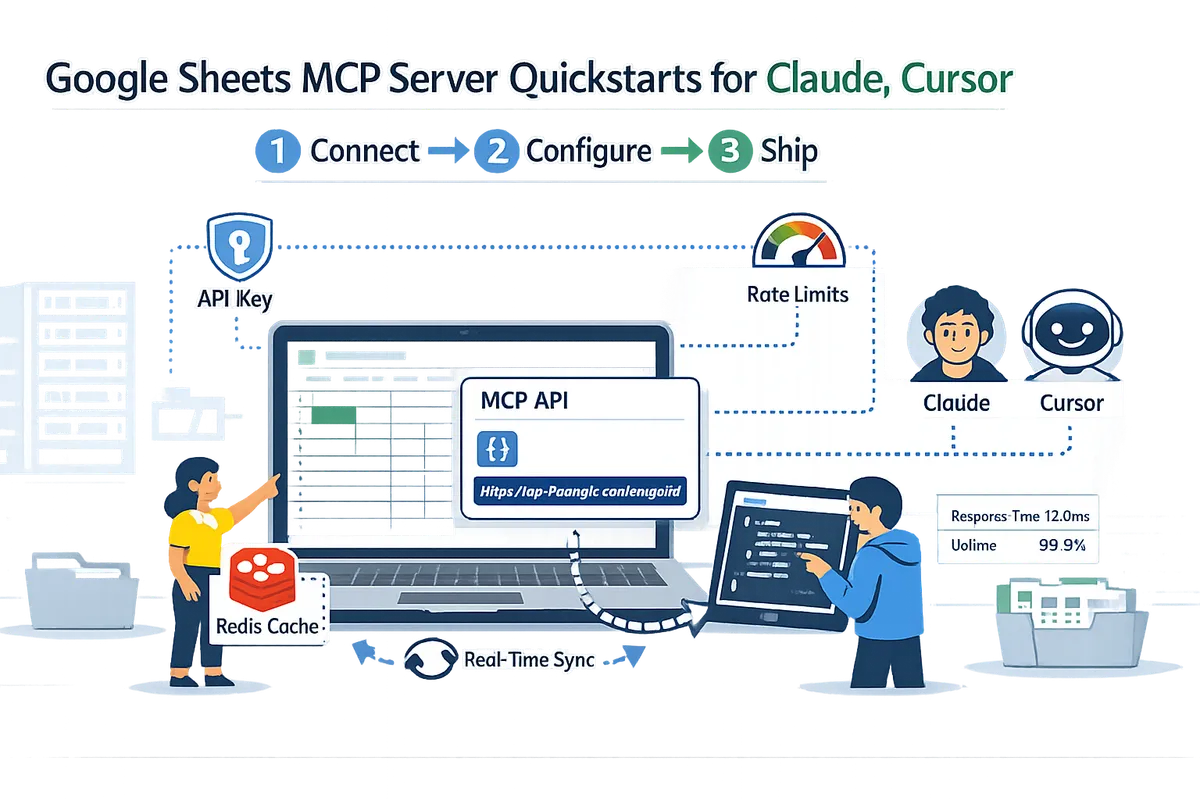
Google Sheets MCP Server Quickstarts for Claude, Cursor
A misaligned spreadsheet schema can force AI assistants to pause or return wrong answers, adding as much as 3 hours of manual fixes per week. A Google Sheets MCP Server is a Model Context Protocol endpoint that exposes sheet rows and tabs as structured data agents can query and update in real time. This quickstart shows a three-step flow to enable and configure a Google Sheets MCP Server for Claude and Cursor with our Sheet Gurus API. Sign in with Google, pick a sheet, and get a live RESTful JSON endpoint with full CRUD, API keys, per-sheet permissions, configurable rate limits, and optional Redis caching. See the MCP Server guide for scoped tokens and assistant connections, and learn a simple tweak to reduce rate-limit errors.
When should you run an MCP server for Google Sheets?
Run an MCP Server for Google Sheets when your spreadsheets must act as a production-ready, programmatic data source for AI agents or internal applications. Model Context Protocol (MCP) is a protocol that exposes structured sheet context to AI assistants while enforcing scoped tokens and permissions. Use this section to match your business needs to an MCP deployment on Sheet Gurus API and to weigh the operational costs and compliance risks of a DIY approach.
Step 1: Match MCP to your use case 🔎
Choose MCP when the spreadsheet is the single source of truth and agents must query or update structured rows programmatically. Examples that fit: internal ticket routing stored in Sheets, HR roster updates handled by an assistant, and README-driven dashboards that require real-time edits. These scenarios need full CRUD endpoints, per-sheet access control, and reliable agent integration.
Checklist to confirm you need MCP.
- CRUD endpoints required (create, read, update, delete) with predictable row keys.
- Per-sheet or per-tab access control for different teams or agents.
- High-frequency agent queries or writes that must not hit Google quotas.
If you plan a prototype, compare a DIY server against a managed path. See our comparison of DIY vs managed approaches in the Claude MCP versus Sheet Gurus API analysis for latency, auth, quotas, and cost: Claude MCP + Google Sheets CRUD API: DIY Python Server vs Sheet Gurus API vs Composio vs n8n. When you need rapid, lower-risk deployment, Sheet Gurus API exposes Sheets as RESTful MCP endpoints and handles API keys, scoped tokens, and rate limits so your team avoids building and operating a custom backend. For setup details, see our MCP Server documentation.
Step 2: Audit sheet layout and permissions 🧰
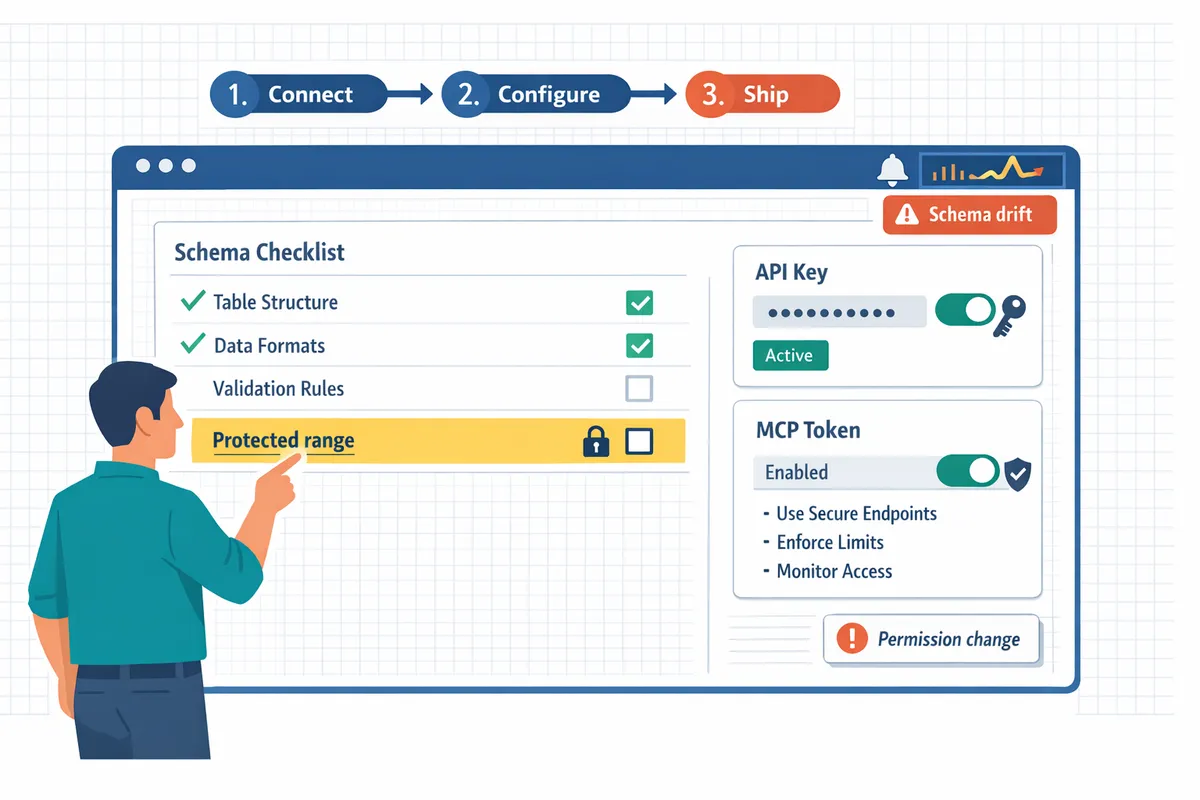
Audit sheet layout and permissions to ensure consistent column schemas, unique row keys, and a small, trusted editor set before enabling MCP. Start by scanning each spreadsheet for inconsistent headers, merged cells, multiple header rows, and missing unique IDs; these layout issues cause runtime errors for agents that expect structured JSON rows. Confirm protected ranges, service account access, and any sheets shared with external users so you can lock down write privileges.
Practical checklist and remediation steps.
- Fix inconsistent headers: normalize column names and remove presentation-only rows.
- Add a stable unique key column (UUID or sequential ID) if absent.
- Convert merged cells or multi-row headers into single-row headers.
- Restrict editors to known accounts and remove external shares.
💡 Tip: Run your normalization pass on a copy of the spreadsheet and validate with a small test agent. Sheet Gurus API surfaces schema mismatches during configuration so you catch layout problems before production. See how to prepare sheets in the MCP Server docs: MCP Server.
Step 3: Define governance and compliance requirements 🛡️
Define governance and compliance rules the MCP Server must enforce, including data residency, retention, access policies, and audit logging. Map each requirement to a control: per-sheet API keys and scoped MCP tokens for access separation, configurable rate limits to stop agent bursts, and optional Redis caching to reduce Google Sheets API calls while improving performance. Document who can create tokens, which agents receive write permission, and how to revoke access quickly.
Example mappings and operational steps.
- Access policy: assign per-sheet API keys via Sheet Gurus API and restrict keys by role and scope.
- Quotas and abuse protection: set rate limits per key to prevent accidental agent storms that can cause Google quota errors. See the roundup of MCP servers and trade-offs for agent traffic patterns: Best MCP Servers for Claude, Cursor, and Windsurf (2026).
- Auditing: export API logs to your SIEM or enable request logs so you can retain records for compliance reviews.
Also review account and token rules in our Terms of Service before launch: Sheet Gurus API Terms. Enable monitoring and alerts after deployment so you detect schema drift, permission changes, and unexpected traffic quickly.
How to enable a Google Sheets MCP Server with Sheet Gurus API (Connect → Configure → Ship)
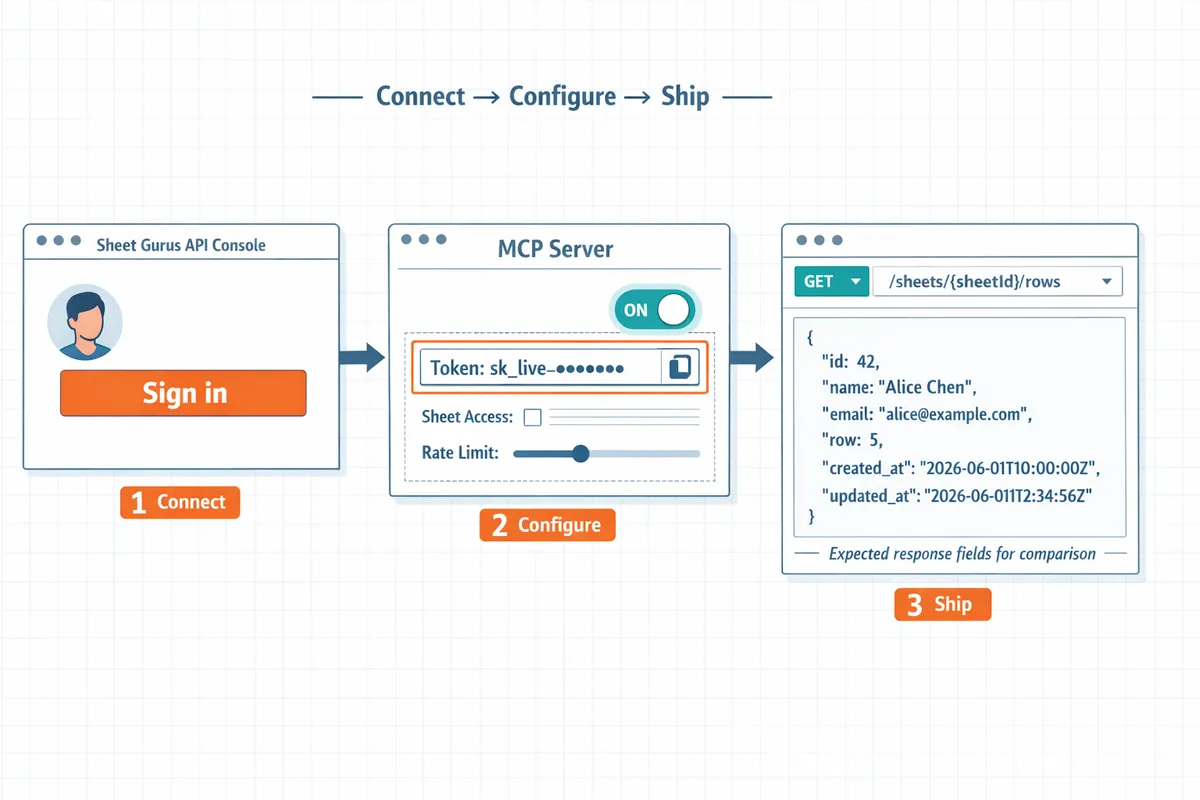
Enable a Google Sheets MCP Server by connecting your Google account in the Sheet Gurus API console, configuring MCP tokens and rules, then deploying the live endpoint. This three-step flow (Connect → Configure → Ship) gives AI assistants like Claude and Cursor scoped, auditable access to spreadsheet data. Follow the MCP Server documentation for screenshots and consult the Sheet Gurus API Terms of Service for token and usage rules.
Step 1: Connect — sign in and select a spreadsheet 🔐
Sign in with Google through the Sheet Gurus API console and choose the spreadsheet you will publish as an API.
- Open the Sheet Gurus API console and choose Sign in with Google. Expected outcome: the console shows your account and available spreadsheets. What can go wrong: selecting a non-owner sheet can block token creation; fix by confirming ownership or adding an owner-level user.
- Review OAuth scopes on the consent screen and minimize edit permissions. Expected outcome: the token requests only the scopes needed for your workflow (read-only for reporting agents, read/write for automation). What can go wrong: granting full edit access increases exposure; if that happens, revoke and reauthorize with narrower scopes.
- Verify which internal users need admin access — typical roles: sheet owner, security approver, and integration lead. Expected outcome: those users can create per-sheet API keys and rotate tokens without full domain admin access.
Refer to the MCP Server documentation for the exact UI path to connect accounts.
Step 2: Configure — enable MCP and create scoped tokens ⚙️
Enable Model Context Protocol on the selected sheet and create scoped MCP tokens that limit agent permissions.
- Toggle MCP on for the sheet inside the Sheet Gurus API console. Expected outcome: the sheet gains MCP metadata and an MCP panel appears under sheet settings.
- Create scoped tokens: select read-only or read-write scope, set per-key rate limits, and assign allowed tabs. Expected outcome: each token shows its scope, expiry, and usage limits. Recovery tip: revoke a token immediately if you see unexpected behavior.
- Configure rate limiting and optional Redis caching. Expected outcome: rate limits prevent agent storms from hitting Google Sheets quotas; enabling Redis caching reduces Sheets API calls and speeds repeated reads.
- Set per-sheet read/write rules (row-level keys, protected columns) in the console before issuing tokens. Expected outcome: agents can only access permitted columns and rows.
💡 Tip: Use least-privilege scopes and rotate tokens on a regular schedule. See the MCP Server documentation for token lifecycle and TTL rules.
See the Sheet Gurus API MCP Server documentation for step-by-step screenshots of the MCP toggle and token panel.
Step 3: Ship — generate endpoints and validate CRUD flows 🚀
Generate the RESTful JSON endpoint and test create, read, update, and delete operations against the live API.
- Click Generate Endpoint to create your REST URL and copy the per-sheet API key. Expected outcome: a stable JSON endpoint returns a schema-derived payload matching the sheet.
- Run CRUD smoke tests with curl or Postman: read a row, insert a row, update a cell, delete a row. Expected outcome: each operation syncs back to the spreadsheet within seconds. What can go wrong: row-key mismatches cause failed updates; fix by confirming the primary key column and retrying the update.
- Run permission rejection tests: call the endpoint with an invalid or overly-scoped token to confirm 401/403 responses. Expected outcome: unauthorized attempts are blocked and logged.
- Add lightweight monitoring and an API key rotation policy before handing the endpoint to your AI integration team. Expected outcome: monitoring alerts detect quota spikes or unusual traffic and rotation limits blast radius if a key is leaked.
For more on production readiness and trade-offs, see our comparison of DIY MCP servers and Sheet Gurus API in the Claude MCP CRUD API roundup.
Step 4: Visuals to include in the quickstart 🖼️
Include three visuals to make the flow reproducible: OAuth connection, MCP toggle and token panel, and a sample CRUD test in Postman or curl.
- OAuth connection screenshot: highlight the signed-in account and the spreadsheet selector. Link this to the MCP Server documentation OAuth section for orientation.
- MCP toggle and token panel: show the MCP toggle enabled, a token created with scopes and TTL visible, and the rate limit configuration UI.
- Sample CRUD test: show a Postman or terminal request that performs a read and an update with the JSON response visible. Include expected response fields so readers can compare results.
See the MCP Server documentation for the exact image locations and token rules, and review the Terms of Service for account and token usage requirements.
Further reading: consult Best MCP Servers for Claude, Cursor, and Windsurf for broader server comparisons and Create a CRUD API from Google Sheets for AI Agents for a deeper CRUD checklist.
How to configure MCP for Claude, Cursor, Windsurf, VS Code, and Cline
Use agent-specific MCP tokens, prompt patterns, and permission scopes so each assistant only sees and modifies the sheet data it needs. An MCP token is a scoped credential that grants an AI agent specific read or write access to a spreadsheet. Sheet Gurus API typically achieves average response times under 100 ms, which helps reduce timeouts during token exchanges and short-lived sessions.
Claude ✅
Use a read-scoped MCP token for Claude when you only need contextual reads and elevate to read-write tokens only for explicitly approved edits. 1) Create a read or read-write scoped token in the Sheet Gurus API console and name it clearly (example: claude-sales-read). 2) Paste that token into Claude's integration settings or agent connector field. 3) Craft prompts that include explicit row identifiers, for example: Reference row id 42 and propose a new value for column Status but do not write changes unless confirmed. 4) Configure per-key rate limits in Sheet Gurus API to allow steady queries (example: 20 requests/min for exploration, 5 writes/min when write-capable). 5) Test with a dry-run prompt that asks Claude to list row IDs and intended edits; expect no writes. Common pitfall: ambiguous prompts trigger unintended edits. To recover, revoke the token and re-issue a read-only token until prompts are strict.
See our MCP Server docs for token creation and Claude examples.
Cursor 🧭
Cursor requires short-lived, per-session tokens plus explicit tab and field permissions to keep sessions isolated and protect sensitive columns. 1) Provision a per-session scoped token from the Sheet Gurus API dashboard when the user starts a Cursor session. 2) Set tab-level permissions so Cursor can only access the tabs required for the task. 3) Use field-level permissions to hide PII columns (example: mask columns SSN and Salary). 4) Configure Cursor to request the sheet schema before accessing rows; this avoids guessing column names. 5) Quick test prompt: Return column headers for tab Leads only. Expected outcome: headers list with sensitive columns omitted. 6) Expire per-session tokens after the session ends and log issuance in Sheet Gurus API for auditability. Common pitfall: forgetting tab-level restrictions lets agents enumerate other tabs; fix by tightening the token scope and reissuing tokens.
Link to our roundup of tested MCP servers for compatibility comparisons with Cursor.
Windsurf 🌊
Enable optional Redis caching in Sheet Gurus API for Windsurf to cut repeated Google Sheets calls and lower latency for repeated queries. 1) Turn on Redis caching in the Sheet Gurus API console for the MCP endpoint. 2) Set cache TTLs per endpoint: use 30 seconds for fast-changing dashboards, 5 minutes for mostly-read resources. 3) Configure Windsurf to treat a cache miss as a normal read and to retry once after a short delay if the read fails. 4) Tune rate limits on the Sheet Gurus API key to prevent agent storms (example: cap concurrent reads to 10 and requests/sec to 3). 5) Monitor cache hit ratio and Google Sheets quota usage; expect cache to reduce quota calls by the hit ratio percentage. Common pitfall: stale cached values after manual sheet edits. To avoid stale reads, invalidate the cache on writes or set short TTLs for frequently edited tabs.
Our MCP Server documentation explains cache configuration and TTL best practices.
VS Code 🛠️
VS Code agent integrations need scoped tokens with write disabled during development and request logging enabled for clear audit trails. 1) Create a development token in Sheet Gurus API with read-only scope and attach it to the extension settings. 2) Use a separate staging spreadsheet to run the agent; that prevents accidental production edits. 3) Enable request logging in Sheet Gurus API so each extension call records timestamp, token id, and endpoint. 4) When ready to test writes, issue a time-limited write token and run a controlled test scenario. 5) Expected outcome during development: the VS Code agent inspects rows without modifying the production sheet and logs show all requests. ⚠️ Warning: Do not attach a production write token to an editor extension. Use staging tokens and short-lived write tokens for controlled tests.
Enable logging in the Sheet Gurus API dashboard and verify logs before switching tokens.
Cline 📟
Cline CLI-style agents must store MCP tokens securely and implement automatic retries to handle transient Google API errors without causing global throttling. 1) Store tokens in a secure OS keychain or a secrets manager with strict file permissions rather than plaintext environment variables. 2) Configure the client to perform automatic retries with incremental delays and a max of 5 attempts for transient failures. 3) Set per-key rate limits in Sheet Gurus API to prevent one CLI client from consuming global capacity. 4) Implement token rotation: script a check that fails safely when token age is near expiry and requests a rotated token from the dashboard. 5) Validation checklist before production run: confirm token scope (read vs write), verify token TTL and rotation policy, run a header-only read to confirm permissions, and test retry logic with a simulated transient failure. Expected outcome: CLI agents run unattended without causing quota spikes or accidental wide-scoped access.
For secure token storage patterns and rotation workflows, consult our MCP Server guide.
How to troubleshoot MCP Server issues and avoid common mistakes
Most MCP Server failures come from authentication, rate limits, or schema mismatches and each has a clear diagnostic path. Follow the numbered steps below to isolate the fault, take corrective action in the Sheet Gurus API console, and prevent recurrence.
Step 1 — Fixing authentication and token errors 🔑
Check that the MCP token scope matches the agent's requested actions and that the token is active. Inspect the token audit trail in the Sheet Gurus API console to confirm the token's last-used time, scope, and revocation status. Actions:
- Open the Sheet Gurus API dashboard and view MCP tokens for the target sheet. Expect: token shows the same permissions the Claude or Cursor agent requests. If scopes differ, regenerate a scoped token with minimal permissions.
- If you see 401s or 403s, rotate the token immediately and update the agent with the new token. Expected outcome: agent authentication succeeds within one minute after rotation.
- Validate Google OAuth consent scopes in the connected account if tokens look valid but access still fails. Recovery: re-authorize the Google connection and re-sync the sheet.
💡 Tip: Store token IDs and creation timestamps in your ops runbook so you can quickly check token age and revoke suspicious tokens.
Step 2 — Resolving rate limiting and throttling ⏱️
Throttle errors usually come from either Google Sheets API quotas or per-key rate limits in the Sheet Gurus API. Identify which limit triggers throttling by matching error codes in logs: Google quota hits return Sheets API quota errors, while Sheet Gurus rate limits return the platform's 429 payload. Actions:
- Check request patterns in the Sheet Gurus API usage dashboard to see burst sources. Expected outcome: a pinpointed client or agent causing spikes.
- If Google quotas are the culprit, stagger agent requests, add exponential backoff in the agent prompts, or move heavy read loads to cached endpoints in Sheet Gurus API. Expected outcome: fewer 429s during peak periods.
- Use Sheet Gurus rate limiting controls to apply per-key caps for experimental agents, and raise global or per-key limits temporarily from the console for known maintenance windows. Recovery: temporary limit increases prevent shared-endpoint outages while you tune client behavior.
⚠️ Warning: Do not permanently raise limits for unknown traffic. Use short windows and audit logs to avoid unexpected costs.
Step 3 — Handling data sync and schema mismatches 🧩
Schema mismatches occur when the live sheet layout differs from the API's expected schema, and sync conflicts happen when two writers update the same row concurrently. Detect mismatches by comparing the Sheet Gurus API JSON response with the live sheet in Google Sheets. Actions:
- Export a sample API response and open the spreadsheet to verify column names, header rows, and data types. Expected outcome: column headers match JSON keys exactly, including capitalization.
- Enforce a unique row-key column (for example, id or uuid) and configure agents to include that key on updates. Expected outcome: fewer accidental duplicates and safer PATCH operations.
- Enable an explicit last-modified timestamp column and use optimistic locking: check the timestamp before writing, and reject updates if stale. Recovery: agents should fetch the latest row and reapply intended changes.
- Use Sheet Gurus API's schema validation settings (see MCP Server docs) to reject malformed writes before they hit the sheet.
Step 4 — Improving performance with caching and indexing ⚡
High-read workloads perform better when you use Sheet Gurus API caching and sensible sheet indexing rather than hitting the Sheets API on every request. Decide whether to cache by measuring read per second and acceptable data staleness. Actions:
- Enable Redis caching in the Sheet Gurus API console for read-heavy endpoints and set TTLs based on your freshness needs. Expected outcome: cache hits reduce Google Sheets calls and lower latency.
- Add index-style helper columns in the sheet for common query fields, then query by those columns from the API to avoid full-sheet scans. Expected outcome: targeted queries return faster and cost fewer quota units.
- For complex joins or analytics, move heavy queries to a dedicated database or data warehouse and keep the sheet as the source of truth. Recovery: offloading prevents long-running requests from affecting agent responsiveness.
Step 5 — Security checklist and operational best practices 🔒
A short security checklist prevents outages and reduces risk from compromised credentials. Apply per-sheet API keys, enable logging, and limit token scopes to the minimum needed for each agent. Actions:
- Assign one API key or MCP token per agent and set per-key permissions in the Sheet Gurus API console. Expected outcome: compromised keys have a limited blast radius.
- Turn on detailed access logging and alerting for error thresholds, token revocations, and sudden traffic spikes. Expected outcome: faster detection of misuse or runaway agents.
- Regularly rotate keys and test revocation procedures in a staging sheet to confirm agents fail gracefully. Recovery: documented rotation steps let you recover within minutes.
- Document retention and access policies in your compliance playbook to meet audit needs.
Suggested image:
Related reading: For a quick comparison of MCP server options and trade-offs, see our roundup of the Best MCP Servers for Claude, Cursor, and Windsurf. For stepwise MCP configuration, review the MCP Server documentation and our step-by-step CRUD API guide for AI agents.
Frequently Asked Questions
This FAQ answers practical buyer and implementation questions about running a Google Sheets MCP Server with Sheet Gurus API. Each answer points to the relevant product docs and highlights what to test before you move a sheet into production.
How do I start an MCP Server for Google Sheets with Sheet Gurus API? 🤖
Sign in with Google, pick the spreadsheet, enable MCP in the Sheet Gurus API console, and create scoped tokens for each agent. After Connect → Configure → Ship you will receive a live MCP endpoint that exposes the selected sheet as a structured context source for agents. Start by testing with a staging spreadsheet and a single agent token; expect CRUD calls to appear in the activity log and changes to sync back to the original sheet in seconds.
Step-by-step expected outcomes.
- Sign in with Google. Expect the Connect flow to show available spreadsheets.
- Enable MCP for the chosen sheet and define tabs to expose. Expect an MCP endpoint URL and token selector in the Console.
- Create per-agent tokens and run the recommended test prompts from the MCP Server docs. Expect the agent to read schema and return structured results.
Refer to the MCP Server docs for exact UI screenshots and recommended test prompts. If you want a comparative view before you decide, read our Best MCP Servers for Claude, Cursor, and Windsurf review.
What permissions does Sheet Gurus API need to publish an MCP Endpoint? 🔐
Sheet Gurus API requests the minimum Google OAuth scopes required to read and write the selected spreadsheet and to manage MCP tokens. You grant those scopes during the Connect flow in the Console, and Sheet Gurus API will list each scope before you accept it. Review the Terms of Service for details on authentication, token lifecycle, and administrative controls.
Practical checks and what to expect.
- After you authorize, confirm the OAuth grant shows read/write access only to the chosen spreadsheet.
- Check the Console's token management screen to see issued MCP tokens and revoke any token immediately if needed.
Read the Terms of Service and the MCP Server docs for the exact scopes and token management best practices.
Can Claude and Cursor use the same MCP Endpoint at once? 🧭
Yes. Multiple agents can access the same MCP Endpoint provided you issue separate scoped tokens and configure per-key rate limits. Use per-agent tokens to separate permissions and apply per-key rate limits to prevent contention or quota errors when several agents query the same sheet simultaneously.
Operational guidance and expected outcomes.
- Create a token per agent and set conservative per-token rate limits during testing. Expect queuing or throttling if a burst exceeds limits.
- Monitor the Console metrics and adjust limits or add caching if you see repeated Google Sheets quota hits.
For recommended agent-specific token patterns and prompt examples, see the MCP Server docs and our guide comparing MCP options for Claude and Cursor.
How do I protect sensitive columns when exposing a sheet to agents? 🔒
Use Sheet Gurus API's per-sheet and per-field permissions to exclude sensitive columns, create read-only tokens that omit those fields, and enable auditing to track access. For strict separation, copy public-facing columns into a separate sheet or tab and expose only that view through MCP; expect the exposed endpoint to show only permitted fields and return 403 for denied fields.
Steps you can take right away.
- Identify PII or financial columns and mark them as restricted in the Console.
- Create a token scoped to the public view and test reads to confirm restricted columns are absent.
- Enable audit logs and export a sample access report to ensure tokens behave as intended.
⚠️ Warning: Do not rely solely on client-side masking. Use server-side per-field permissions and audit logs to prevent accidental exposure.
What causes most MCP integration failures and how do I avoid them? 🛠️
Most failures come from inconsistent schemas, missing primary keys, expired tokens, or misconfigured rate limits. Validate that each exposed tab has a stable primary key, normalize column names before enabling MCP, and routinely rotate and test tokens to avoid downtime from expirations.
Practical troubleshooting steps and expected outcomes.
- Run the Console schema audit; it flags missing primary keys and ambiguous headers. Expect a short report with corrective actions.
- Use a staging sheet to load typical agent traffic and watch for quota or latency alerts. Expect to tune per-key rate limits or enable Redis caching if you hit Google Sheets API quotas.
See the MCP Server troubleshooting section for exact audit steps and the comparison post on DIY vs Sheet Gurus API for guidance on quotas and latency.
Does Sheet Gurus API store my spreadsheet data? 📦
Sheet Gurus API acts as a proxy that reads and writes directly to your Google Sheet and does not persist long-term copies by default, though optional Redis caching may store transient data for performance. Check the Terms of Service for full details on data handling, retention, and ownership; the Console also shows whether caching is enabled for a given endpoint.
What to verify in your account.
- In the Console, confirm whether Redis caching is enabled for the MCP endpoint and view the cache TTL setting.
- Review the Terms of Service page to understand retention policies and how to request deletion or export of cached copies.
Deploy a Google Sheets MCP Server and connect it to your AI assistant.
The quickstarts get you from enabling MCP to issuing scoped tokens and connecting Claude or Cursor so agents can read and write sheet context safely. Follow the MCP Server documentation for the exact enable, token, and permission steps. For architecture and quota trade-offs, compare options in our Best MCP Servers for Claude, Cursor, and Windsurf (2026).
💡 Tip: Use scoped MCP tokens and per-key rate limits to prevent quota errors when many agents access the same sheet.
Sheet Gurus API turns Google Sheets into production-ready RESTful JSON APIs in minutes, requiring no backend code. Users sign in with Google, select a spreadsheet, and immediately receive a live API endpoint that supports full CRUD operations with changes syncing back to the original sheet in real time.
Create your first endpoint with the MCP Server getting-started guide and connect an agent to test real queries. Subscribe to our newsletter for implementation tips and updates. Start the guided setup now to move a Sheets-backed agent from prototype to production.