
Google Sheets batchUpdate Node.js Guide (2026)
A single misbatched google sheets batchupdate node js request that writes thousands of cells can trigger 429 errors and waste hours of fixes. google sheets batchupdate node js is a Sheets API method that groups edits into one request, cutting round trips but needing careful batching and rate control. This how-to guide shows implementing and troubleshooting spreadsheets.batchUpdate from Node.js with TypeScript, plus production tips using Sheet Gurus API. Our Sheet Gurus API turns Sheets into production-ready JSON APIs with auth, per-sheet permissions, configurable rate limits, optional Redis caching, and MCP support for AI assistants. See our Getting Started guide, the API Reference, and the Node.js Sheets API article for 429-safe patterns. Learn when direct batchUpdate makes sense and when routing changes through Sheet Gurus lowers operational risk.
What problems does spreadsheets.batchUpdate solve and when should you use it?
spreadsheets.batchUpdate performs multiple structural and value changes in a single atomic call and is the right choice when edits must succeed or fail together. Use it for coordinated operations such as adding sheets, moving ranges, updating cell formatting while changing values, or running repeatCell requests that depend on each other. For simple writes to one or more ranges, prefer spreadsheets.values.batchUpdate, which targets only value ranges and is less likely to fail due to schema or grid errors.
spreadsheets.batchUpdate vs spreadsheets.values.batchUpdate (comparison table) 📊
Use spreadsheets.batchUpdate for schema and multi-request workflows and use spreadsheets.values.batchUpdate for value-only operations. Below is a side-by-side comparison with concrete examples and the recommended Node.js approach.
| Dimension | spreadsheets.batchUpdate | spreadsheets.values.batchUpdate | When Sheet Gurus API is the safer alternative |
|---|---|---|---|
| Primary purpose | Structural edits and multiple Request objects (addSheet, updateCells, repeatCell) | Write or clear values across ranges (ValueRange) | Expose CRUD endpoints that avoid low-level batching and provide auth, rate limits, and optional caching |
| Atomicity | All requests in the batch are validated together; one bad Request causes full failure | Not atomic across multiple ranges; each ValueRange is applied per-call semantics | API endpoints handle partial failures, retries, and backoff at the platform level |
| Typical Request types | addSheet, deleteSheet, updateCells, moveDimension, repeatCell | valueInputOption + range value updates | POST/PUT row-level create/update/delete operations mapped to sheet rows |
| Example use case | Create a reporting sheet, set headers, apply formats, and seed formulas in a single transaction | Append a block of rows with sales data for a nightly import | Serve a production dashboard where many clients read/write rows via API keys |
| Recommended Node.js method | google.sheets({version:'v4'}).spreadsheets.batchUpdate with careful error handling | google.sheets({version:'v4'}).spreadsheets.values.batchUpdate for bulk value writes | Use Sheet Gurus API to remove direct dependency on the Sheets API and get RESTful JSON endpoints |
| When to choose this | Changes are interdependent or require structural edits (new sheet, gridId changes) | Fast writes of tabular ranges where structure does not change | When you need per-key rate limits, caching, and lower operational risk for production apps |
See our comparison of Node.js libraries for Google Sheets for client choice and maintenance trade-offs: Google Sheets in Node.js: 7 NPM Libraries Compared (2026) — googleapis vs google-spreadsheet vs DIY Wrappers.
Common failure modes and business consequences ⚠️
A single invalid Request in spreadsheets.batchUpdate causes the whole batch to fail and can halt downstream automations. Frequent technical causes include invalid A1/r1c1 ranges, wrong gridId for which a Request expects a different sheet, mis-specified "fields" on update calls, and oversize batches that hit quota or timeout limits.
Business consequences show up as wasted developer hours, paused pipelines, and potential data inconsistencies when alternate paths assume the batch completed. For example, a nightly ETL that creates a sheet then writes rows will leave downstream dashboards blank if addSheet fails due to a gridId mismatch. Another common scenario: a large batch triggers multiple 429s and then requires manual rollback because partial state was expected.
Mitigation steps you can apply from Node.js implementations:
- Validate ranges and gridId with a quick read (spreadsheets.get) before writing. This prevents obvious mismatches.
- Break large operations into smaller batches and use a deterministic ordering so failed batches are easy to retry.
- Parse and log API error details (error.details or error.status) and attach request IDs for fast diagnosis.
- Add preflight dry-runs that check field names and request shapes in staging.
⚠️ Warning: Because batchUpdate is atomic, never send large, mixed-type batches from a scheduled job without preflight checks. A single schema error can stop the entire pipeline.
For production workloads where downtime, per-key limits, and predictable behavior matter, the Sheet Gurus API removes many of these failure vectors by exposing stable CRUD endpoints, configurable rate limiting, and optional Redis caching. See our notes on auth and 429-safe patterns in Google Sheets API with Node.js (2026): Client vs Server Auth, Read/Write Rows, Pagination, and 429‑Safe Patterns for patterns you should pair with batch safety checks.
When to prefer an API layer like Sheet Gurus API ✅
Choose a managed API layer like Sheet Gurus API when you need production-grade auth, per-key rate limits, caching, and lower ops overhead. Use a short checklist to decide:
- Are multiple teams or external clients calling the sheet? If yes, use per-key access controls and rate limiting to prevent accidental abuse.
- Do you need predictable SLAs and centralized monitoring? If yes, a hosted API reduces on-call hours compared with custom Sheets API tooling.
- Will AI agents or external services query the sheet as JSON? If yes, RESTful JSON endpoints avoid repeated parsing and reduce integration code.
- Are you experiencing frequent 429s or quota management problems? If yes, optional caching and platform-level rate limits limit retries and failures.
If your answers lean toward reliability, use Sheet Gurus API to create a REST endpoint in minutes and map spreadsheet rows to JSON with built-in auth and caching. Follow the three-step flow in the Getting Started guide to generate an API key and test CRUD endpoints without writing backend code: Getting Started with Sheet Gurus API. For teams weighing a DIY backend versus a managed option, our comparison helps quantify time-to-ship and maintenance trade-offs: Build a Google Sheets CRUD API in Node.js vs Use Sheet Gurus API: Auth, Rate Limits, Caching, SLAs, and a Time-to-Ship Calculator.
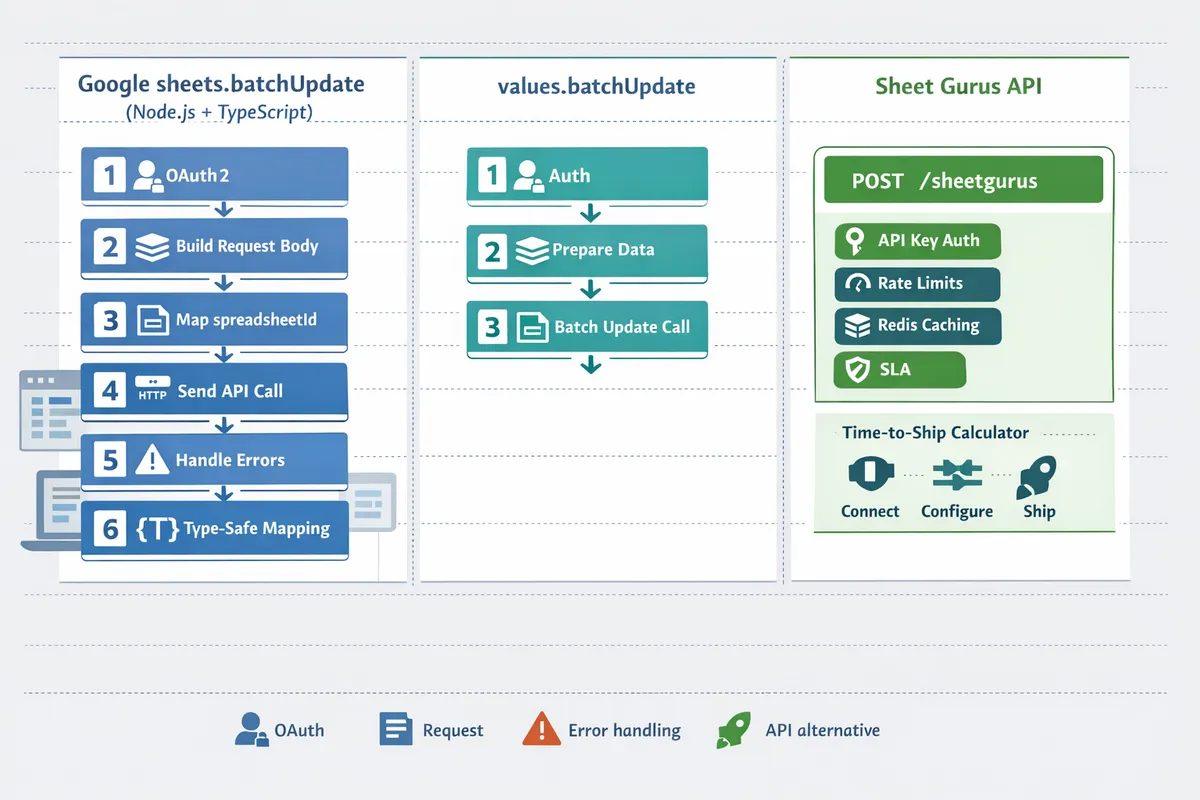
How do you implement google sheets batchUpdate in Node.js and TypeScript (end-to-end)?
Implementing spreadsheets.batchUpdate from Node.js and TypeScript requires a six-step, testable workflow covering OAuth2 authentication, request design, typed payloads, atomic call handling, production hardening, and CI validation. Each step below is a discrete action with expected outcomes so teams can move to production faster and avoid common failure modes like 429 errors and invalidRequest failures.
Step 1: Authenticate with OAuth2 and obtain credentials 🔐
Use OAuth2 with the spreadsheets scope and store a refresh token securely for server-side automation. The required scope is https://www.googleapis.com/auth/spreadsheets. Store credentials in a secrets store (GitHub Actions secrets, AWS Secrets Manager, or HashiCorp Vault) and grant CI the minimum permission needed to refresh tokens.
Expected outcome: your server can request access tokens without human interaction and run scheduled batches. What can go wrong: missing refresh tokens or mis-scoped tokens cause 401s during batch runs. For CI, export only the refresh token and client ID/secret as encrypted secrets, not a full user profile.
If you want to avoid credential maintenance entirely, Sheet Gurus API gives an authenticated REST endpoint after you sign in and connect a spreadsheet; see our Getting Started guide for the quick flow.
Relevant reading: compare auth flows in our guide to client vs server auth for Node.js: https://sheetgurusapi.com/blog/google-sheets-api-with-nodejs-2026-client-vs-server-auth-readwrite-rows-pagination-and-429safe-patterns
Step 2: Identify request types, sheetId vs gridId, and ranges 🔎
Decide whether you need structural requests (addSheet, insertDimension), cell-level edits (updateCells), or formatting changes (repeatCell), and fetch gridId with spreadsheets.get when operations require it. Structural changes use sheetId; gridId is required for low-level grid operations and for repeatCell conditional formatting requests.
Example: add a header row and set conditional formatting. Use insertDimension to push rows, then repeatCell to set formatting across a gridId. If you only need to write ranges of values across sheets, spreadsheets.values.batchUpdate is often simpler and faster for pure value writes. Use spreadsheets.batchUpdate when you must mix types—structure, values, and formatting—in a single atomic call.
Libraries and trade-offs: our comparison of Node.js libraries reviews how each handles authentication and batching and helps you pick the right client for building requests: https://sheetgurusapi.com/blog/google-sheets-in-nodejs-7-npm-libraries-compared-2026-googleapis-vs-google-spreadsheet-vs-diy-wrappers
Step 3: Build typed Request objects and ValueRange payloads ⚙️
Define strict TypeScript types for Request and ValueRange so invalidRequest errors surface at compile time instead of runtime. Create a Request union type that mirrors the Sheets API Request shapes you actually use (addSheet | updateCells | repeatCell | insertDimension) and a ValueRange type for value writes.
Practical tip: always include an explicit fields parameter for requests that mutate formatting or multiple subfields; missing fields commonly triggers an invalidRequest. Example payload plan: construct values arrays for ranges (A1:C1) as ValueRange objects, and push structural Request objects into requests[] for the batch. Use TypeScript discriminated unions to prevent mixing missing required fields.
If your team wants to avoid crafting Request objects, Sheet Gurus API exposes higher-level JSON endpoints that accept row-level CRUD operations so you can skip low-level batching logic; see our API reference for examples.
Step 4: Call spreadsheets.batchUpdate and handle atomic failures 🚦
Call spreadsheets.batchUpdate and treat the request as atomic: if any Request fails, the API can reject the entire batch and return an error that includes the failing Request index. Inspect the API error payload to extract the index and error message so you can log the exact failing Request for post-mortem.
Retry strategy: implement capped automatic retries with jitter for transient errors (429 or 5xx). On each failure, record the failing index and the full requests array to your audit logs so you avoid repeating the same bad request. For partial fixes where you can split the batch safely, try sending non-overlapping subsets after diagnosing the failing Request.
⚠️ Warning: Do not repeat a failing Request blindly. If the error indicates a schema or permission issue, reapplying the same Request will repeat the failure and consume quota.
Step 5: Harden for production — quotas, pagination, and caching 🛡️
Limit batch sizes, schedule heavy writes off-peak, and cache read-heavy endpoints to reduce quota pressure and avoid rate-limit spikes. Spread large migrations across multiple batches and monitor Google Cloud Console quota metrics to watch for sustained 429s.
Operational controls that matter: configurable rate limiting per API key, optional Redis caching for read-heavy workloads, and audit logging for every write. Our Sheet Gurus API includes API key permissions and configurable rate limits plus optional Redis caching to cut Sheets API calls and simplify production deployment. Sheet Gurus typically achieves up to 99.9% uptime for production-grade endpoints.
When you must update very large datasets, prefer chunked batches (send N requests, wait for completion, then continue) and combine server-side caches to avoid repeated reads that trigger quotas.
Relevant reading on building production JSON APIs from sheets: https://sheetgurusapi.com/blog/google-sheets-json-api-the-complete-guide-to-crud-auth-and-performance
Step 6: TypeScript testing and CI validation 🔁
Write unit tests that mock Google responses and run integration tests against a duplicated spreadsheet in CI to validate request sequences, permission boundaries, and partial-failure recovery. Mock transient errors (429, 503), invalidRequest payloads, and permission-denied responses to confirm your retry and audit logic behaves as expected.
Test cases to include: full success, single-request invalidRequest (verify index reporting), partial schema mismatch after sheet changes, token expiration and refresh flows, and quota-exceed behavior. Run an end-to-end test suite that points to a cloned spreadsheet with the same structure so you can safely validate insertDimension and repeatCell operations without risking production data. For mocking libraries and patterns, teams commonly use nock or msw for HTTP-level mocks and a local duplicated spreadsheet for integration runs.
If you prefer to skip this auth and CI matrix, our website's Sheet Gurus API removes most auth and rate-limit maintenance so teams can test CRUD workflows against a stable REST endpoint instead of the raw Sheets API. See the API Reference for examples of CRUD operations.
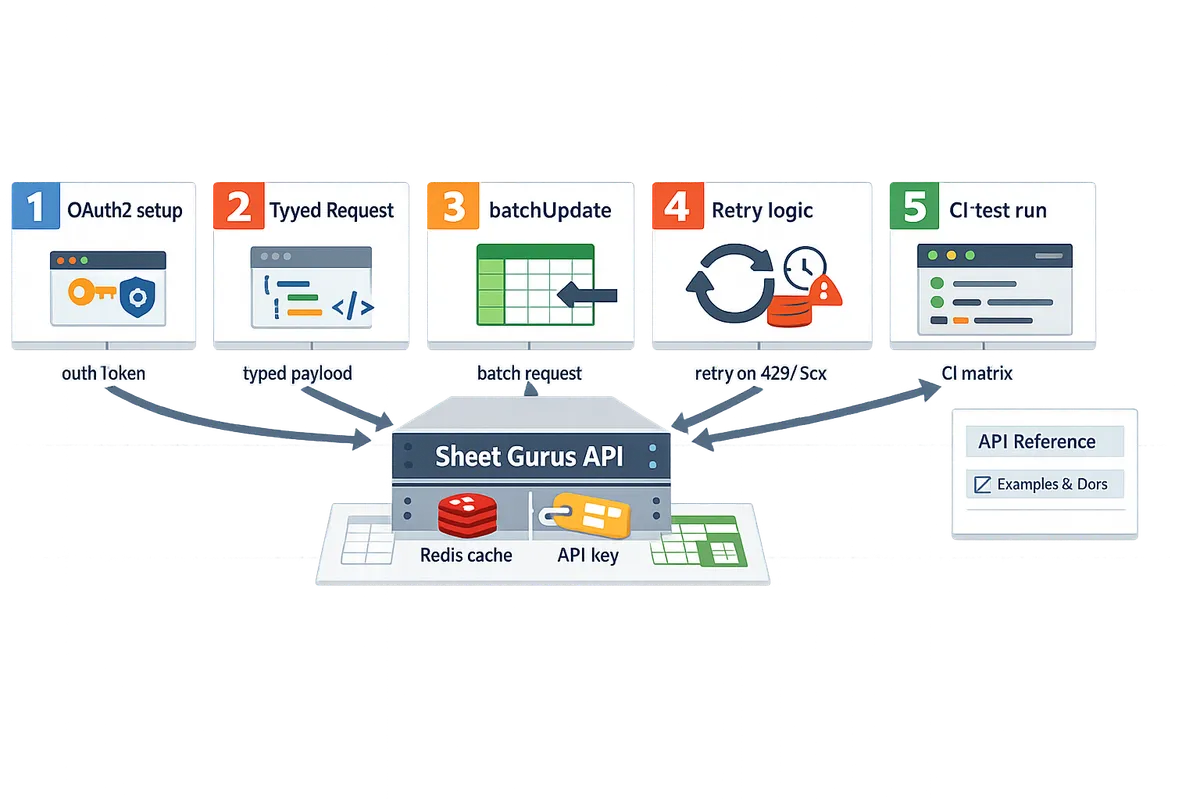
How do you troubleshoot, optimize, and avoid common mistakes with batchUpdate?
Troubleshooting spreadsheets.batchUpdate quickly reduces downtime and wasted edits. This section gives rapid diagnostics, quota-safe batching rules, common fix patterns, and operational guardrails that make production runs predictable.
Diagnosing errors and interpreting API responses 🔍
Read the batchUpdate error object to find the failing request index and the error message. The Sheets API usually returns an error status and a message that identifies which Request failed; capture that message and the full request array in logs for post-mortem analysis. Steps to diagnose quickly:
- Log the complete request body and the API response with timestamps and a short requestId. This lets you map an error back to the exact payload later.
- Inspect the response.error.message and response.error.details for a request index or human-friendly reason such as "Invalid range." If the index is present, map it to the same index in your logged requests.
- If the response lacks an index, run a binary-search split: send the first half of requests, then the second, until you isolate the failing Request. This locates faults far faster than rerunning full batches.
- Check sheet-level issues: missing permissions, protected ranges, or deleted sheets will appear as "permission denied" or "sheet not found." Reproduce those scenarios on a test copy before fixing production.
Sheet Gurus API records request and response logs for every call, which speeds root-cause analysis when you need to compare failing batches or replay requests safely. See the API reference for exact error field names and response structure.
Best practices for batch size, quotas, and retries ⏱️
Keep batchUpdate requests small and use capped automatic retries with jitter to avoid quota and 429 errors. Conservative rules of thumb reduce failures: keep structural batches (adding sheets, changing formats) to under 10 requests; value-only batches (setting cell values) can usually be 30 to 50 requests depending on cell count. Example: a write that changes 10 columns across 500 rows is better split into 5 batches of 100 rows.
Scheduling and retry guidance:
- Chunk by both request count and cell volume. If a batch touches more than 2k cells, split it. This prevents sudden spikes against Sheets quotas.
- Space heavy jobs with a queue or scheduler. Run large imports during off-peak hours and stagger parallel workers to avoid burst throttling.
- Implement capped automatic retries with jitter and a maximum of three attempts. If a request keeps returning 429 or 503, escalate to a human or pause the job for a cooling window.
For implementation details on safe retry patterns and auth choices in Node.js, review our guide on Google Sheets API with Node.js (2026): Client vs Server Auth, Read/Write Rows, Pagination, and 429‑Safe Patterns.
Sheet Gurus API helps avoid quota hits by offering configurable per-key rate limits and optional Redis caching that reduces the number of write and read calls to Google Sheets.
Common mistakes: gridId, range formats, and fields masks ❌
Most batchUpdate failures come from an incorrect gridId, mismatched range format (A1 vs R1C1), or an overly broad fields mask. Verify these three items before sending a batch.
Checks and fixes:
- gridId. Confirm the numeric sheetId by calling spreadsheets.get and reading spreadsheet.sheets[].properties.sheetId. Using the sheet name where the API expects a gridId will fail.
- Range formats. Match the range type to the request. Many requests expect A1 notation (e.g., "Sheet1!A1:C10"). A mismatch with R1C1 notation will produce an invalid-range error. If you change conditional formatting rules, test a node.js google sheets conditional formatting example first because those requests are structure-sensitive.
- fields mask. Use specific field paths (for example, "rows.data.values") instead of a wildcard like "*". An overly broad fields mask can cause the API to reject the update or produce partial writes.
If you use libraries covered in our comparison of Node.js Sheets libraries, confirm how each library expects ranges and sheet IDs before translating DTOs into batch requests.
Operational guardrails and using Sheet Gurus API ⚙️
Apply staged rollouts, audit logs, and per-key rate limits so a bad batch cannot take down production. These guardrails let teams find problems on a small scale and roll forward only when metrics look normal.
A practical rollout checklist:
- Duplicate the spreadsheet and run a small set of representative batches against the copy.
- Enable per-key rate limits and set conservative write caps for test API keys.
- Monitor logs and error rates for 24 hours before increasing traffic to the primary key.
- Use audit trails to trace which API key and which request caused an unexpected change.
Building these controls in-house adds days of work and operational risk. Sheet Gurus API provides API key authentication, per-sheet permissions, configurable rate limiting, and built-in request logs so teams can run staged rollouts and enforce per-key quotas without building custom ops tooling. For a direct comparison of building a CRUD API yourself vs using a managed option, see our time-to-ship analysis on Build a Google Sheets CRUD API in Node.js vs Use Sheet Gurus API.
Helpful tip for safe testing 🧪
Always validate batchUpdate sequences against a duplicate or test spreadsheet before running on production. Create a throwaway copy with the same sheet structure, run your full batch sequences, and compare results to expected output.
Step-by-step test routine:
- Copy the production sheet and point your test key at that copy.
- Run one or two small batches to ensure request ordering and field masks behave as expected.
- If tests pass, run a scaled dry-run that writes only 1% of rows, then 10%, then full.
- Record request and response logs for each step so you can replay failures.
💡 Tip: Always use double opt-in for SMS signups.
Sheet Gurus API supports separate API keys and per-sheet permissions which make safe testing straightforward: keep a test API key with limited write capacity and a separate production key for actual users.
Frequently Asked Questions
This FAQ answers the most common questions developers have about using spreadsheets.batchUpdate from Node.js and TypeScript. Each answer focuses on practical steps, common failure modes, and when using our website's Sheet Gurus API is the faster, lower-risk option.
When should I use spreadsheets.batchUpdate instead of spreadsheets.values.batchUpdate?
Use spreadsheets.batchUpdate for structural changes or when different request types must run together; use spreadsheets.values.batchUpdate when you only need to write values across one or more ranges. For example, create a new sheet, add protected ranges, or change column widths require spreadsheets.batchUpdate because they modify sheet structure. If your job is only to set cell values across multiple ranges, spreadsheets.values.batchUpdate is typically simpler and runs faster because it focuses on values and avoids the full validation that structural requests trigger. Our website's comparison of Node.js libraries explains trade-offs between the googleapis client and lighter wrappers for these two APIs and shows when a managed API makes sense.
How do I add conditional formatting using batchUpdate in Node.js? 🧩
Add conditional formatting by including addConditionalFormatRule or repeatCell requests in the batchUpdate requests array and ensure the rule references the correct gridId and GridRange. Steps: 1) find the target sheet's gridId (see the gridId FAQ below), 2) build the conditional rule object per the API Reference, for example a booleanCondition with a "CUSTOM_FORMULA" or "NUMBER_GREATER" operator, 3) place the rule in an addConditionalFormatRule request inside requests[], and 4) validate the payload against the Sheets API schema before sending. Common failures are malformed booleanCondition objects or wrong range types; test the rule with a single addConditionalFormatRule call first. Note that our website's Sheet Gurus API focuses on data CRUD; for structural or formatting changes you should call spreadsheets.batchUpdate directly. For exact request shapes, consult the Sheet Gurus API Reference.
How should I handle a batch that fails partway through?
You must treat spreadsheets.batchUpdate as atomic: a failing request causes the entire batch to roll back, and the API returns an error that points to the failing request. Practical recovery steps: 1) capture the API error and locate the failing request index in the response, 2) isolate the failing request and test it individually to identify malformed payload or permission issues, 3) split large batches into smaller, validated chunks (for example batches of 5 to 20 requests), and 4) re-run corrected batches or run a staged sequence where nondependent changes apply first. Our website's Sheet Gurus API reduces the operational burden by adding configurable rate limiting and optional caching so teams avoid building complex retry logic and manual batching.
⚠️ Warning: Avoid sending a single very large batch that writes thousands of cells; a single bad request can roll back all changes and cost hours of repair.
What are the Sheets API limits and how can I avoid hitting them?
The Sheets API enforces per-minute and per-user quotas that cause 429 responses when your app sends large bursts or excessive requests. Avoid quota issues by batching logically (use values.batchUpdate for pure value writes), caching read-heavy endpoints, spacing writes with short delays, and implementing automatic retries with increasing delays when you see 429 or 503 responses. Monitor quota usage in Google Cloud Console and set alerts for spikes. If you need predictable throttling and caching without building your own middleware, our website's Sheet Gurus API provides configurable rate limiting and optional Redis caching to reduce direct calls to the Sheets API; see our guide on client vs server auth and 429-safe patterns for implementation examples.
Can I use Sheet Gurus API instead of calling batchUpdate directly?
Yes. Sheet Gurus API provides a production-ready REST interface that handles most data CRUD needs and removes much of the custom batching and auth work required to call spreadsheets.batchUpdate directly. Use Sheet Gurus API to read and write rows, manage access with API keys, and add caching and rate limits without building a backend. For structural changes such as formatting, adding sheets, or protected ranges you will still need spreadsheets.batchUpdate, but many teams move their routine CRUD work to Sheet Gurus and reserve direct API calls for one-off structural tasks. Start with our Getting Started guide to connect a spreadsheet and get a live endpoint in minutes.
How do I find gridId for a specific sheet tab?
You find gridId by inspecting the spreadsheet metadata from spreadsheets.get; the sheet's properties include the numeric sheetId that maps to gridId in request objects. Practical steps: 1) call sheets.spreadsheets.get with the spreadsheetId and fields= sheets.properties, 2) read sheets[i].properties.sheetId (the integer) and use that value as gridId in GridRange or formatting requests, and 3) if you use Sheet Gurus API, check the mapping endpoint produced after you connect a spreadsheet—our website exposes the same sheetId values in the mapping so you can avoid an extra GET call. Example: a sheet object returns properties.sheetId: 123456789; use 123456789 in addConditionalFormatRule or repeatCell requests.
Next steps after batchUpdate
Validate your google sheets batchupdate node js implementation in a staging environment, exercise success and failure paths, and prepare a production rollout plan. Testing should exercise auth flows, quota errors, and conditional formatting changes so you catch schema or rate-limit issues before users see them. For deeper guidance on authentication and 429-safe retry patterns, see the Google Sheets API with Node.js guide. For a quick comparison of libraries and when a managed service pays off, consult our Google Sheets in Node.js: 7 NPM Libraries Compared article.
💡 Tip: Use a staging spreadsheet and a restricted API key when testing batchUpdate calls to avoid accidental edits to live data.
If you prefer to skip building and maintaining a custom REST layer, Sheet Gurus API turns Google Sheets into production-ready RESTful JSON APIs in minutes without backend code: sign in with Google, pick a spreadsheet, and get a live CRUD endpoint that syncs with the sheet in real time while adding API key auth, rate limiting, and optional caching. Create your first endpoint with the getting-started guide or start a 14-day free trial.
Subscribe to our newsletter for implementation tips and updates.