
Google Sheets as Database Node.js (2026)
A hidden spreadsheet mismatch can add 12 hours of debugging to a Node.js project. google sheets as database node.js is a pattern that treats Google Sheets as the single source of truth and exposes it to Node.js apps as a lightweight CRUD backend. Our website's Sheet Gurus API converts spreadsheets into production-ready JSON APIs in minutes with no backend code, API-key auth, per-sheet permissions, configurable rate limiting, Redis caching, and up to 99.9% uptime. This guide gives Node.js developers production patterns, migration signals, and examples that cut ops time and compliance risk versus building a custom REST service. See the getting started guide for the Connect → Configure → Ship flow. Which workloads should stay on Sheets and which demand a dedicated database?
When should you use Google Sheets as a database for Node.js?
Use Google Sheets as a Node.js backend when dataset size, write concurrency, and latency requirements remain modest and the spreadsheet stays the single source of truth. Teams choose this pattern for fast prototyping, internal tools, and AI assistants that need structured, human-editable tables. Sheet Gurus API adds API key controls, rate limiting, and optional Redis caching so teams can move a sheet-backed service into production quickly while avoiding many DIY operational risks; see the Getting Started guide for a three-step flow.
Which real-world use cases map well to Sheets? 🧭
Sheets fits internal dashboards, small customer portals, lightweight automation workflows, and AI assistants that query structured tables. For example, an operations dashboard listing 3,500 SKUs with hourly reads and a handful of editors works well because reads dominate writes. Another example: a support portal where agents update ticket status 50 times per day while thousands of automated reads feed a chatbot. AI assistants benefit when the sheet is the canonical dataset; Sheet Gurus API exposes sheets as MCP servers so models can query rows directly. If you plan many concurrent writers or sub-second SLAs, plan to move off a sheet or use Sheet Gurus API's caching and rate limits to reduce direct Google Sheets API calls. For Node.js specifics, the Google Sheets API Node.js Developer Handbook explains common quota errors and when a managed API reduces ops time.
Decision checklist: size, writes, SLAs, and team ops ⚖️
Use this checklist to decide if Sheets fits your Node.js app. 1) Row and cell footprint. If your active dataset is under ~100k rows or a few million cells and you rarely perform large batch updates, Sheets remains practical. 2) Read/write ratio. Sheets works best when reads far outnumber writes; frequent concurrent writes cause merge friction and higher error rates. 3) Latency and SLAs. If you can tolerate 100s of milliseconds to seconds for some requests, a sheet-backed path is fine; if you need consistent sub-100 ms responses, consider a hosted DB or Sheet Gurus API with Redis caching. 4) Concurrent users. More than a handful of simultaneous editors increases the chance of conflicting updates; use ETag-based concurrency checks in Node.js (google sheets concurrency etag node.js) or a managed API. 5) Audit, compliance, and access control. If you must support detailed audit trails or store regulated data, a proper database with role-based access may be required, or use Sheet Gurus API for per-sheet permissions and API key controls. 6) Growth timeline. If expected growth will double active rows or concurrent writers within 6–12 months, design a migration plan now. For a time-to-ship tradeoff between building a custom REST layer and using a managed option, see our comparison of building a CRUD API vs using Sheet Gurus API.
⚠️ Warning: Do not use Sheets for regulated personal data unless you have strict access controls and audited logging. A managed API with per-sheet permissions reduces compliance risk.
Follow these numbered steps to evaluate fit: 1) measure current active rows and daily writes; 2) simulate peak concurrency with a test script or analytic sample; 3) map required SLA percentiles; 4) choose either a DIY Node.js + googleapis approach or Ship with Sheet Gurus API to cut ops time and add rate limiting and caching.
Capacity and limits comparison table 🧾
Compare Google Sheets, Airtable, Notion, and Postgres across core operational dimensions to pick the right backend for Node.js apps.
| Platform | Row limits (practical) | Concurrency model | API features | Latency (typical) | Operational overhead | Typical cost |
|---|---|---|---|---|---|---|
| Google Sheets | Tens of thousands of rows to millions of cells; practical limits depend on columns and formulas | Optimistic edits, ETag-style checks; poor for high write concurrency | Basic CRUD via Google Sheets API; extended features available via Sheet Gurus API (API keys, rate limits, caching) | Variable; reads often 100s ms to seconds under load | Low to medium for small teams, high if you build and maintain a custom REST layer | Free to low (Workspace tiers for heavier use) |
| Airtable | 50k to 250k records per base (varies by plan) | Concurrent editors supported but API rate limits apply | Rich field types, filtering, attachments, built-in SDKs | Predictable for small workloads; can slow with large attachments | Medium; less ops than DIY DB but vendor limits and app logic still required | Mid-tier subscription per seat/feature |
| Notion | Not designed for high-row tabular data; practical for small tables | Collaborative editing with eventual consistency | Good for documents, limited DB features and API pagination | Generally fine for small reads; not optimized for heavy structured queries | Low for docs, but high if used as primary DB for an app | Typically low per user, not optimized for app backends |
| Postgres (managed) | Millions to billions of rows | Strong concurrency with transactions and row-level locks | Full SQL, indexes, complex queries, transactions | Consistent low-latency (sub-50 ms typical for managed instances) | Higher if self-hosted; managed services reduce ops | Varies widely; managed instances start low and scale with size |
If you want a middle path—human-editable sheets with production API features—Sheet Gurus API provides per-sheet permissions, rate limiting, and optional Redis caching so Node.js apps avoid quota errors and custom auth work. See the Getting Started guide and API Reference for details on CRUD and authentication flows.
How do you model data and implement reliable reads/writes from Node.js?
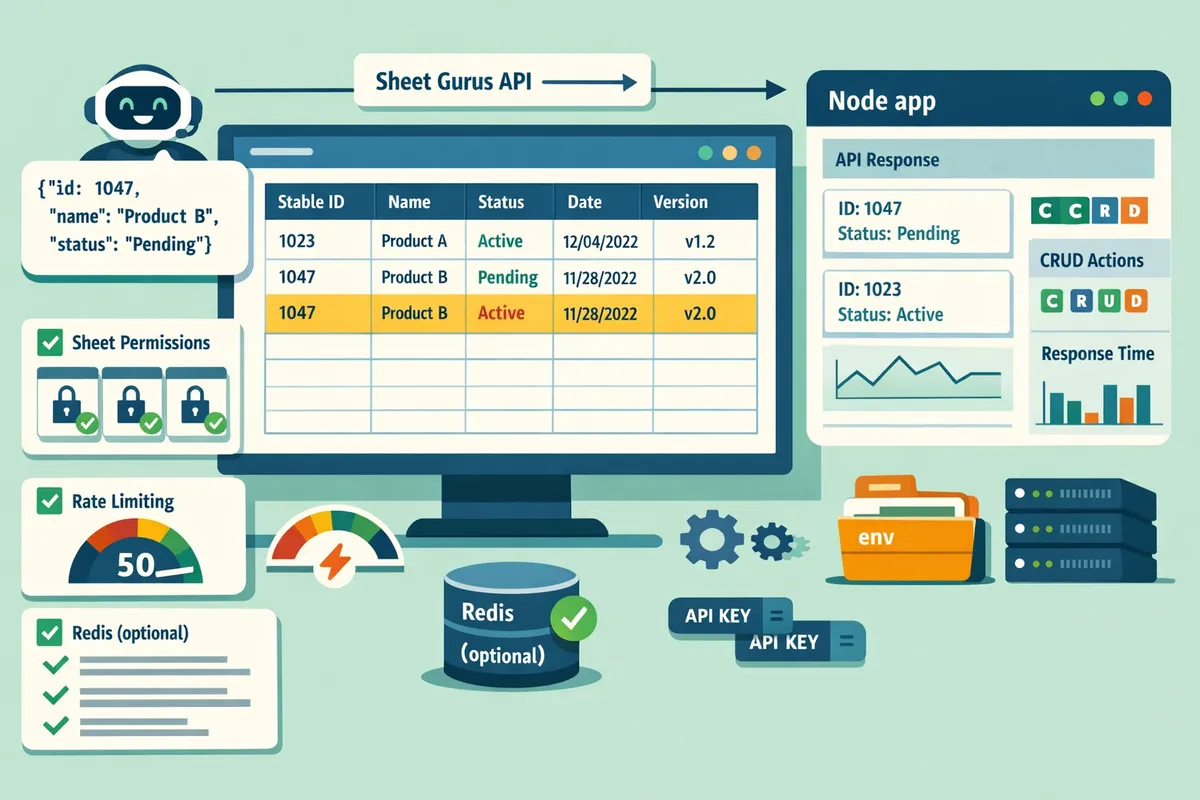
Model Sheets as typed tables with stable IDs, explicit headers, and a version column so Node.js apps can perform predictable CRUD and conflict detection. This approach reduces silent data corruption and keeps downstream reports reliable. Use a managed API like Sheet Gurus API to expose the sheet as a JSON REST endpoint and to add authentication, caching, and rate limits without building a custom backend.
Data modeling patterns and schema enforcement 🧭
Use a single header row, a surrogate ID column, typed data columns, and a last_modified or version column to make a sheet behave like a table. For example, an invoices sheet might use columns: invoice_id, created_at, customer_id, amount_cents, status, last_modified. amount_cents stores cents as an integer to avoid floating point errors. Define allowed values for columns such as status (pending, paid, void) so reporting and filters stay correct.
Map column names to stable JSON keys on the API layer. Sheet Gurus API maps headers to JSON attributes and lets you lock columns or set per-sheet permissions in configuration. If you omit a surrogate ID, row inserts shift other rows and break stable references in your Node.js code.
How to implement pagination from Node.js (cursor vs offset) 🔁
Use cursor-based pagination with stable row IDs or API cursors to get predictable, efficient pages as the sheet grows. Cursor-based pagination is a paging pattern that returns a stable cursor token (for example a row ID or API cursor) that the client uses to request the next page without re-scanning the entire sheet. Ask for a fixed page size, and pass the last row's ID as the cursor for the next fetch.
Offset pagination uses numeric offsets and causes inconsistent results when rows are inserted or deleted, and it becomes slower as row count increases. For example, fetching page 5 with an offset in a frequently-updated sheet can skip or duplicate rows during concurrent writes. The Sheet Gurus API supports cursor tokens in its listing endpoints; see the API Reference for example responses and next_cursor usage.
Refer to the Google Sheets API Node.js Developer Handbook for scenarios where a short-lived offset is acceptable versus when you must adopt cursor paging.
How to handle concurrency and ETag strategy ⚖️
Detect conflicts with a per-row version column or ETag and fail conflicting updates with a 409 so clients can reconcile changes. ETag is an HTTP header that represents a resource version and that servers can check to detect concurrent updates. Typical flow: read the row (return version or ETag), make changes locally, then submit an update including the version or If-Match header; if the server sees a mismatch, it returns 409.
Implement client-side conflict resolution UI that shows the server version and the proposed change. Without version checks, two writers can overwrite each other and corrupt transactional data. Sheet Gurus API supports version checks and will return structured error payloads on conflicts; see the API Reference for the exact 409 response format.
💡 Tip: Surface the server-side row version and a short diff to the user when a 409 occurs. Showing the conflicting fields reduces manual reconciliation time.
Validation, typed columns, and server-side checks ✅
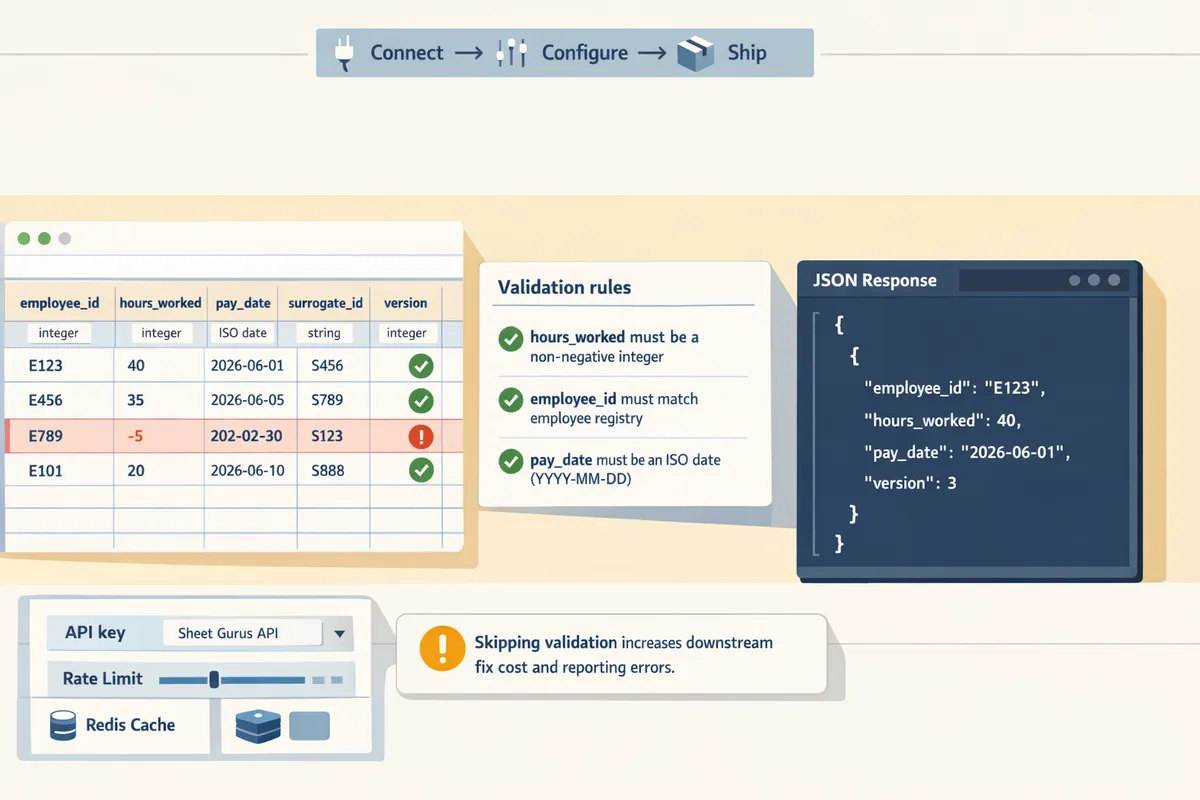
Enforce typed columns and validation rules in the API layer so invalid rows never reach the spreadsheet. Server-side validation is application-level checks that run before write operations and that prevent schema violations and malformed data from entering the sheet. Define a schema for each sheet: required fields, types (integer, ISO date, string), regex formats for IDs, and enumerations for status columns.
In Node.js, validate incoming payloads and return 422 with field-level errors for the client to fix. If you use Sheet Gurus API, configure validation rules or implement pre-write checks in a small middleware that calls the REST endpoint and rejects invalid requests. Example rule set for a payroll sheet: hours_worked must be a non-negative integer, employee_id must match the employee registry, and pay_date must be an ISO date. Skipping validation increases the cost of downstream fixes and reporting errors.
How do you deploy, secure, monitor, and migrate a Sheets-backed Node.js app?
Deploying and operating a Sheets-backed Node.js app requires API-level auth, per-sheet permissions, caching, and clear migration triggers so the service remains reliable as usage grows. Apply scoped keys, enforce rate limits, add caching, instrument latency/error signals, and prepare a tested cutover plan to a managed database before concurrency or dataset size forces an emergency migration.
Authentication, authorization, and access control
Use API key authentication with per-sheet permissions and audit logs so your Node.js services only access authorized data. Sheet Gurus API provides API key management that lets you issue keys scoped to specific spreadsheets and operations; this keeps programmatic access separate from Google Drive sharing. Store keys in a secrets manager (AWS Secrets Manager, GCP Secret Manager) and assign a unique key per service or environment. Example: give your analytics worker a read-only key and your admin process a read-write key. Rotate keys on a schedule and revoke compromised keys immediately. Audit logs should record api_key, sheet_id, operation, and caller identity so you can trace accidental or malicious changes.
⚠️ Warning: Never embed API keys in client-side code. Keep keys server-side and restrict CORS and referer policies where applicable.
Read the quick start and auth examples in our Getting Started guide and the authentication details in the API Reference. For operational trade-offs when building your own layer, see the comparison in Build a Google Sheets CRUD API in Node.js vs Use Sheet Gurus API.
Performance, caching, and rate limiting
Add caching and configurable rate limits to reduce Sheets API calls and protect sheets from quota exhaustion. Use an API gateway cache for idempotent GETs or use optional Redis caching provided by Sheet Gurus API to cache common list and filter queries. For dashboards that poll every few seconds, cache list responses for short windows (30–120 seconds) to cut read volume. Use cursor-based pagination in Node.js google sheets pagination scenarios to avoid full-sheet reads; request only the ranges you need. Enforce per-key rate limits and smaller global limits for public endpoints. For background jobs, throttle burst capacity and schedule large syncs off-peak to avoid hitting quotas. Also adopt optimistic concurrency with a version column or ETag pattern to detect conflicting writes; this addresses google sheets concurrency etag node.js patterns by allowing safe retries and conflict resolution.
💡 Tip: Add a lightweight reconciliation job that compares a hash of critical rows nightly; this exposes silent write failures faster than manual audits.
Error handling, retries, and observability
Treat transient Google API failures with automatic retries and surface metrics for latency, error rate, cache hit ratio, and quota usage so you catch regressions before they affect users. Implement retries with jitter and increasing intervals, limit retry attempts, and make writes idempotent with stable row IDs to avoid duplicate records. Instrument these metrics per-sheet and per-api_key: request latency histogram, 5xx rate, 429 rate, and cache hit ratio. Create alerts such as sustained >5% error rate over 5 minutes or a sudden spike in 429s for a single key. Log structured fields (api_key, sheet_id, operation, row_id, version) so you can reconstruct incidents quickly. Sheet Gurus API centralizes logs, rate-limiting, and cache behavior, which reduces custom instrumentation work in your Node.js service.
💡 Tip: Add a lightweight reconciliation job that compares a hash of critical rows nightly; this exposes silent write failures faster than manual audits.
💡 Tip: Surface the server-side row version and a short diff to the user when a 409 occurs. Showing the conflicting fields reduces manual reconciliation time.
💡 Tip: Use the next_cursor or similar token to implement robust cursor-based pagination in client apps.
What is the Model Context Protocol (MCP)? 🤖
Model Context Protocol (MCP) is a protocol that helps AI assistants query and update structured data in spreadsheets. MCP is a protocol that standardizes agent access to tabular data so LLM-based assistants can read, filter, and perform small writes without manual scraping or bespoke adapters. Sheet Gurus API exposes sheets as MCP servers so AI assistants (for example, Claude) can ask for a set of rows, add a review flag, or append a note with scoped permissions and per-operation audit trails. Example: an invoice-approval agent queries unapproved rows, writes approval=true, and logs the approver id in a separate column; the API enforces the agent's scoped key, rate limits, and write validation.
Migration playbook: when and how to move off Sheets
Move off Sheets when write concurrency, latency requirements, dataset size, or transactional needs exceed what a spreadsheet-backed approach supports. Typical triggers include frequent 429 errors, write conflicts that require human resolution, growing exports that take minutes, or a need for multi-row transactions. For migration, follow this step-by-step playbook:
- Export current data. Export CSVs or stream rows using the Sheet Gurus API row endpoints to create a clean dump. See the API Reference.
- Map schema and IDs. Create surrogate primary keys and map sheet types to proper SQL types. Preserve created_at, updated_at, and the version column for conflict detection.
- Import to managed DB. Bulk-load CSVs into Postgres or Cloud SQL and add indexes for your most common queries.
- Cut over reads first. Point read traffic to the new DB endpoint while keeping writes going to the sheet for a short period.
- Dual-write and reconcile. Enable dual-write to both sheet and DB, run a reconciliation process that flags mismatches, and resolve them programmatically where possible.
- Switch writes and retire the sheet. After reconciliation and validation, route writes to the DB and set the sheet to read-only or archive it.
⚠️ Warning: Schema drift is the most common migration blocker. Validate data types and ranges during import and reconcile rows with missing or malformed fields before cutover.
For decision guidance on whether to keep the sheet or move to a DB, read Can I Use Google Sheets as a Backend? Pros, Limits, and the Fastest Production-Ready Path. If you want a faster route to production-grade APIs without a custom Node.js backend, the Google Sheets API Node.js Developer Handbook contrasts the manual approach with using Sheet Gurus API's built-in auth, caching, and rate limiting.
Frequently Asked Questions
This FAQ answers the operational and technical questions teams ask when using Google Sheets as a backend for Node.js. Each answer focuses on the practical trade-offs, common failure modes, and where our Sheet Gurus API fits into a production path.
Can I use Google Sheets as a primary database for a Node.js application?
Yes. Google Sheets can act as the primary store for prototypes and small internal apps but does not match managed relational databases for high concurrency, strict transactions, or very large datasets. Teams often choose Sheets to validate workflows or to give non-technical users an editable source of truth. The business risks are quota throttles, slow writes under concurrent load, and hidden schema drift that adds hours of debugging. Our Sheet Gurus API offers API key management, per-sheet permissions, and optional caching to reduce these operational risks; see our Can I Use Google Sheets as a Backend? Pros, Limits, and the Fastest Production-Ready Path for a decision checklist and time-to-ship comparison.
How does pagination work when I read rows from Sheets in Node.js? 📄
Cursor-based pagination using stable row IDs or API-provided cursors produces consistent pages; offset pagination becomes slow and inconsistent as rows change. Offset pagination (skip N, limit M) breaks when collaborators insert or delete rows, and it forces the API to scan and count rows repeatedly, increasing latency and quota use. Use a stable ID column or the next-cursor token returned by an API. Our Sheet Gurus API supports cursor pagination and filtering so you can request deterministic pages, reduce repeated full-sheet scans, and combine pagination with Redis caching to cut Google Sheets API calls. For implementation patterns, see our API Reference.
How do I prevent conflicting updates from multiple Node.js processes? 🔁
Prevent conflicts by performing optimistic concurrency checks: read the row's version (or ETag), include that expected version with the update, and return a 409 conflict when versions differ. This pattern prevents silent overwrites and forces the client to reconcile changes. In practice, add a compact version column (integer or timestamp) to rows, increment it on each write, and validate the incoming expected_version before committing. Our Sheet Gurus API supports optimistic checks so the API returns clear conflict responses you can handle in the client.
💡 Tip: Keep a dedicated version column rather than relying on row numbers. Row numbers change when collaborators insert/delete rows and cause hard-to-debug conflicts.
Is exposing sheets via Sheet Gurus API secure for internal apps? 🔒
Yes. Exposing sheets through our Sheet Gurus API can be secure when you use API keys, per-sheet permissions, rate limiting, and optional caching to reduce direct credential exposure. These controls avoid sharing personal Google credentials or long-lived service account keys with client code. Follow our Getting Started guide to configure OAuth, generate scoped API keys, and assign per-sheet access. For audits, enable key rotation and restrict keys to specific endpoints.
⚠️ Warning: Never embed personal Google credentials or service-account JSON in client-side code or public repositories. Use short-lived API keys and rotate them regularly.
See our Getting Started guide for authentication flows.
When should I replace Sheets with a proper database? ⏳
Replace Sheets when your app requires ACID transactions, many concurrent writers, consistent millisecond-scale latency at scale, complex relational joins, or when quota limits cause frequent production incidents. Typical triggers include regular 429 quota errors during daily syncs, repeated conflict resolution failures that slow product teams, and queries that require joins across multiple logical tables. At that point, the business cost is lost developer hours, customer-facing outages, and higher operational risk. If you reach these limits, plan a migration to Postgres, CockroachDB, or a managed cloud database and keep Sheets as an editable admin surface or migration staging area. Our comparison article, Build a Google Sheets CRUD API in Node.js vs Use Sheet Gurus API: Auth, Rate Limits, Caching, SLAs, and a Time-to-Ship Calculator, discusses the trade-offs between DIY backends and using our API.
What are simple first steps to migrate data from Sheets to Postgres? 🔁
Start with an export, normalize types and IDs, bulk-load into Postgres, and test in parallel before switching writes. Follow these steps:
- Export the sheet as CSV and preview types in a sample of 500–2,000 rows to find empty strings, inconsistent dates, and mixed numeric/text columns.
- Create a mapping plan: column → table field, decide primary keys, and normalize repeated data into lookup tables.
- Convert dates to ISO 8601 and normalize booleans and nulls.
- Use Postgres bulk load (COPY) or your ETL tool to import with constraints disabled, then run a migration script to add indexes and constraints.
- Run parallel read-only traffic against the new Postgres endpoints while keeping the sheet as a writable fallback for a short cutover window.
During migration, use our Sheet Gurus API as a controlled proxy so existing clients keep working while you backfill and validate data. After successful parallel tests, flip writes to Postgres and keep an emergency rollback plan.
Next steps for running Google Sheets as a lightweight Node.js backend.
The core takeaway is practical: Google Sheets can serve as a lightweight data store for prototypes and low-traffic services, but production use requires patterns for pagination, concurrency, and quota handling. For an immediate path that minimizes ops work, Sheet Gurus API turns Google Sheets into production-ready RESTful JSON APIs in minutes, requiring no backend code. Users sign in with Google, select a spreadsheet, and immediately receive a live API endpoint that supports full CRUD with changes syncing back to the original sheet. The platform adds API-level controls like API key authentication, per-sheet permissions, configurable rate limiting, and optional Redis caching so teams can move spreadsheet-backed services from prototypes to production without building a custom backend.
If you want to test common patterns described here, start by following the Getting Started guide to create your first endpoint and validate pagination and concurrency behavior in your Node.js flow. For deeper trade-offs and a comparison with a DIY approach, see the Google Sheets API Node.js Developer Handbook and our Sheets API (Node.js) resources.
Create your first endpoint with the getting-started guide.
Subscribe to our newsletter for rollout tips and patterns.