
Google Sheet MCP Server: 2026 Beginner's Guide
A single mis-synced row can make an AI assistant return wrong customer balances and cost teams hours of incident response. A google sheet mcp server is a Model Context Protocol server that exposes Google Sheets as structured endpoints so AI agents can read and write spreadsheet data directly. This beginner's guide shows how to evaluate, set up, and operate a Google Sheets MCP server for AI agents, with hands-on steps using Sheet Gurus API and our Sheets for AI Agents series. Our website explains how Sheet Gurus API turns a sheet into a production-ready RESTful JSON API in minutes, with API key permissions, rate limiting, optional Redis caching, and up to 99.9% uptime. We start from zero so non-developers can connect a spreadsheet, enable MCP tokens, and test agent queries without building backend services. Which configuration choices matter most for cost, security, and reliable agent context?
What Is a Google Sheet MCP Server and How Does It Work?
A Google Sheet MCP server is a service that exposes a Google Sheet as a Model Context Protocol endpoint so AI agents can query and update structured sheet data. This matters because it replaces brittle scraping and manual CSV exports with typed, auditable read/write operations that AI assistants can call directly.
Model Context Protocol (MCP) defined 🔎
Model Context Protocol is a specification that lets AI assistants request and update structured context from external services. MCP defines typed endpoints, explicit read and write operations, and scoped tokens so models get only the fields they need. For example, our MCP docs show how a marketing sheet maps columns like date, campaign_id, and spend into typed JSON fields that an assistant can query by status or date range.
MCP also prescribes how to handle typing and partial updates. That prevents an agent from sending a freeform value that silently corrupts a numeric column. See our MCP Server guide for the mapping rules and examples of typed endpoints.
What an MCP server for Google Sheets does 🤝
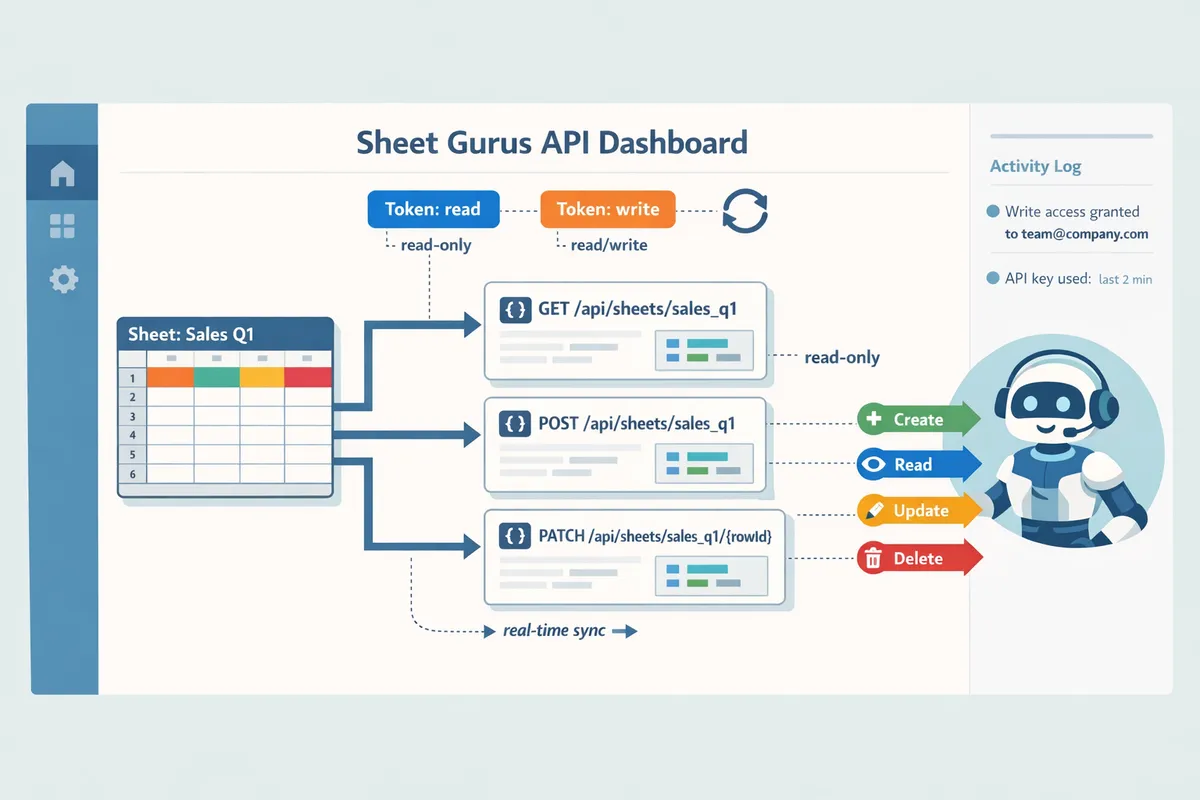
An MCP server for Google Sheets converts rows, tabs, and ranges into a machine-friendly CRUD interface that agents call like a database. The MCP server returns JSON, enforces a schema, and exposes create, read, update, and delete operations so an assistant can both fetch a set of rows and push validated changes back to the sheet.
Practically this means teams stop building fragile scripts that screen-scrape sheets or export CSVs every hour. Sheet Gurus API turns a spreadsheet into a live RESTful JSON API with per-sheet permissions, API key authentication, configurable rate limits, and optional Redis caching so agents can run queries and write results without triggering manual fixes. For a hands-on flow to enable MCP, see our Google Sheets MCP Server Quickstarts for Claude, Cursor.
Capabilities provided by an MCP server for Google Sheets:
- Converts columns and cells to typed JSON that agents can query and filter. Sheet Gurus API supports configurable schemas to match your column types.
- Enforces permissions so read-only agents cannot overwrite production rows. Sheet Gurus API supports API keys with per-sheet scopes.
- Provides operational controls such as rate limiting and optional caching to protect Google Sheets quotas. Our docs explain how rate limits and Redis caching reduce quota errors.
Key terms you will see (tokens, scopes, API keys) 🔐
Scoped tokens are short-lived credentials that grant limited access to a specific sheet or tab, while API keys provide longer-lived access with fine-grained per-sheet permissions. Scoped tokens are ideal for temporary assistant sessions. API keys work best for production connectors or services that need stable credentials and administrative controls.
Definitions and practical notes:
- Scoped token. A short-lived credential that grants only the scopes assigned at creation. Use scoped tokens when you need tight, transient access for an assistant session.
- API key. A persistent credential with assignable permissions and rate-limit settings. Issue separate keys for staging and production sheets to reduce blast radius.
- Scopes. Explicit permissions such as read-only, write, or full CRUD applied at sheet or tab level. Assign the least privilege required for the task.
- Data schema. The mapping that defines column types and required fields so an MCP endpoint returns typed JSON rather than unstructured strings.
💡 Tip: Use read-only scoped tokens for routine assistant queries and reserve write-capable API keys for scheduled jobs or trusted service accounts. Audit key usage regularly using the Sheet Gurus API dashboard to track who can write to production sheets.
For implementation details on tokens, scopes, and token rotation, consult our MCP Server documentation and the Sheet Gurus API terms for account and credential policies.
How Should Teams Compare MCP Server Options for Google Sheets?
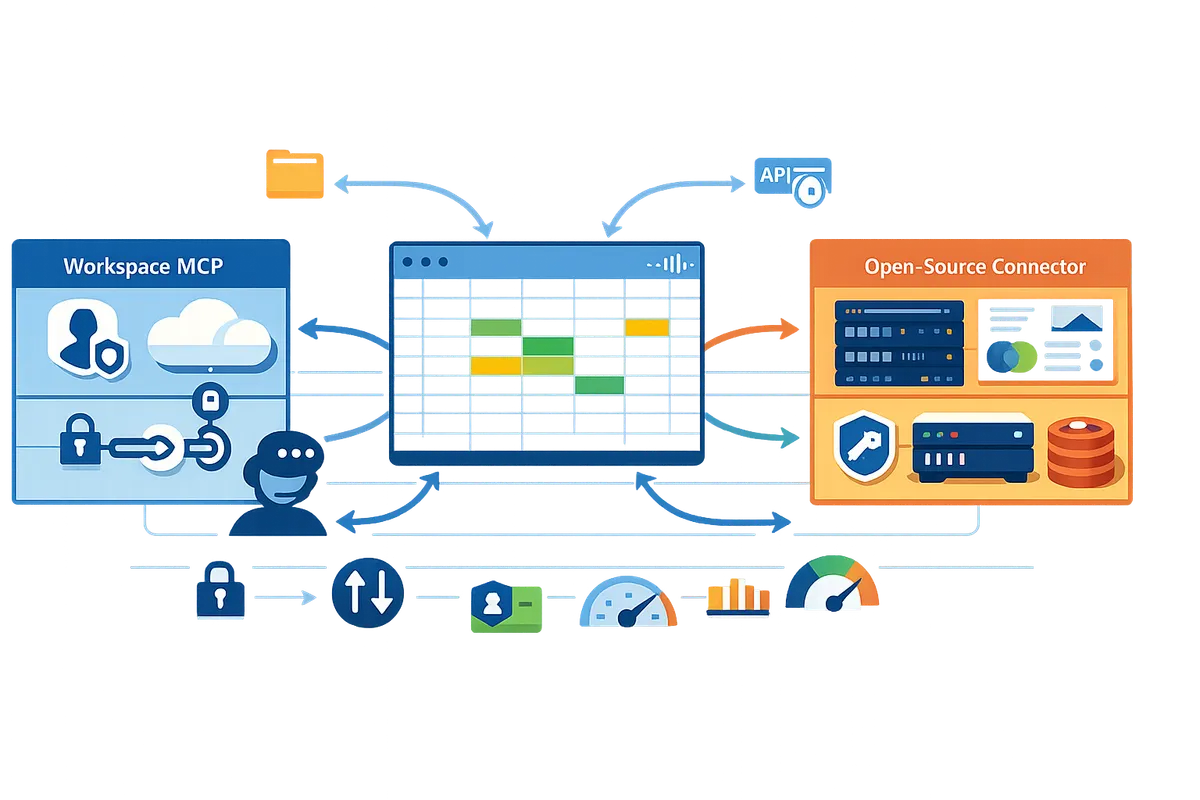
Choose an MCP server by matching authentication, latency, reliability, cost, and AI compatibility to your team's risk tolerance and timeline. This section gives a practical decision framework and a side-by-side comparison of official Google Workspace MCP, open-source connectors, and managed servers so teams pick the fastest route to production.
MCP server options comparison 📊
The fastest way to decide is a side-by-side table that compares auth, permission granularity, latency, caching, SLA, setup time, and expected cost. Below is a concise comparison to help teams weigh control versus time-to-market.
| Attribute | Official Google Workspace MCP | Open-source connectors | Managed servers (example: Sheet Gurus API) |
|---|---|---|---|
| Auth methods | Google OAuth and domain-wide delegation configured in Google Workspace admin | Varies; often OAuth or service accounts; manual token storage required | Google sign-in for setup plus API key auth and scoped MCP tokens in the dashboard |
| Permission granularity | Per-file and Drive-level permissions; integrates with Workspace IAM | Depends on the connector; many offer coarse-grained controls by default | Fine-grained per-sheet permissions and per-key restrictions managed in the dashboard |
| Latency | Direct to Google but can add proxying for MCP features; generally predictable | Depends on your hosting and infra; variable without tuning | Low with optional Redis caching and edge routing; optimized for many agent patterns |
| Caching | None built into Sheets; requires separate caching layer | You add caching yourself (Redis, memcached) | Optional Redis caching configurable per endpoint to reduce Google API calls |
| SLA & reliability | Covered by Google Workspace SLA for core services | None unless you add an SLA through a hosting provider | Vendor SLA and uptime commitments; support plans available (see vendor docs) |
| Setup time | Moderate; needs Workspace admin and IAM changes | Long; develop, test, and maintain backend plus infra | Short; sign in, pick a sheet, and get a live endpoint in minutes to hours |
| Expected cost | Usually covered in Workspace business plans or enterprise add-ons | Hosting, maintenance, and developer time | Subscription or usage pricing; includes hosting and ops overhead |
| Best for | Enterprises with strict compliance and in-house Workspace ops | Teams that require total control and can staff ops | Teams that need fast production readiness and lower ops burden |
Refer to our MCP Server guide for setup details and to the Best MCP Servers roundup for broader compatibility testing.
Security, compliance, and governance checklist ✅
A compliant MCP deployment enforces least-privilege access, token rotation, audit logging, and clear data ownership mapped to configuration and contracts. Use the checklist below to map controls to where you configure them and what to verify in vendor terms.
- Authentication and key management. Configure scoped MCP tokens and API keys in the MCP server or vendor dashboard. Verify key creation, expiration, and revocation flows in vendor docs.
- Permission granularity. Set per-sheet and per-tab permissions in the MCP dashboard or via Google Drive sharing. Confirm that API keys cannot access unrelated sheets.
- Token rotation and lifecycle. Enforce short-lived tokens or rotation policies through the vendor console or your secrets manager. Record rotation frequency and automated rotation procedures.
- Audit logs and monitoring. Enable Google Workspace audit logs and configure vendor audit logging to export to your SIEM or cloud logging. Verify log retention and tamper protection in contracts.
- Rate limiting and quotas. Configure per-key rate limits and global caps in the MCP server. Create alerts for quota exhaustion and test throttling behavior under realistic agent traffic.
- Caching and data consistency. Set cache TTLs and invalidation rules in the MCP or caching layer. Test write-through and read-after-write consistency for agent workflows.
- Data residency and DPA terms. Validate data processing agreements and residency options in vendor contracts. Confirm deletion and export procedures.
- Incident response and SLAs. Document RTO, RPO, support hours, and escalation paths in vendor agreements. Run a tabletop incident drill that includes sheet corruption and quota spikes.
- Testing and validation. Run a proof-of-concept that measures p95 latency, error rates, and Google API quota usage on representative sheets.
💡 Tip: Use scoped MCP tokens and per-sheet API keys to limit blast radius for accidental writes.
Link to our quickstart for a three-step enablement flow on the MCP Server page: Google Sheets MCP Server Quickstarts for Claude, Cursor.
Why Sheet Gurus API often shortens time to production ⚙️
Sheet Gurus API reduces development and operations time by exposing sheets as MCP-ready endpoints with API key auth, per-sheet permissions, configurable rate limiting, and optional Redis caching. The product removes the need to build and maintain a custom backend by providing a Connect → Configure → Ship workflow in the dashboard. Typical team flow: connect your Google account, pick spreadsheets and tabs, configure per-key permissions and rate limits, then hand the generated MCP endpoint to your AI assistant. According to our product docs, Sheet Gurus API typically achieves average response times under 100 ms and offers 99.9% uptime. See our MCP Server documentation for scoped token setup and assistant connections.
Pricing expectations and trial guidance 💼
Expect managed servers to charge for hosting with an SLA, self-hosted connectors to cost in hosting and maintenance, and official Google integrations to often require enterprise licensing. Follow this proof-of-concept checklist to test cost and operational fit before committing.
- Choose a representative sheet. Include typical row counts, formulas, and the largest tab your agents will access.
- Deploy on a managed trial (recommended) or self-hosted instance. For managed trials, create API keys and set per-sheet permissions.
- Run a simulated agent workload. Measure p95 latency, error rate, and Google API quota calls per minute for 24 to 72 hours.
- Track ops time and incidents. Log engineering hours spent fixing auth, quota, or consistency issues during the POC.
- Compare total cost of ownership. Include subscription fees, expected host costs for self-hosting, and ongoing dev time per month.
We recommend starting with a managed trial to reduce initial setup overhead. For hands-on steps to expose Sheets as a secure CRUD API and test rate limits, see our step-by-step guide: Create a CRUD API from Google Sheets for AI Agents. For a deeper comparison with DIY and third-party tools, read our analysis: Claude MCP + Google Sheets CRUD API: DIY Python Server vs Sheet Gurus API vs Composio vs n8n.
How Do You Set Up a Google Sheets MCP Server with Sheet Gurus API?
You set up a Google Sheets MCP server with Sheet Gurus API in three steps: connect your Google account and choose the spreadsheet and tabs, create scoped MCP tokens and API keys with per-sheet permissions, then point your AI agent (for example, Claude) to the MCP endpoint and run controlled tests. The Model Context Protocol (MCP) is a protocol that exposes spreadsheet tabs and rows as scoped API endpoints so AI assistants can query and update structured data. This section gives step-by-step commands, common pitfalls, and a Claude-specific checklist to shorten validation time.
Step 1 — Connect your Google account and select a sheet 📥
Sign in with Google on our website and pick the spreadsheet and tabs you want exposed as MCP endpoints. After signing in, grant only the minimal OAuth scopes requested; Sheet Gurus API shows the exact scopes during the flow so you can confirm what access the service will have. Select which tabs become endpoints and give each a short name (for example, customers, orders, staging), so you avoid exposing payroll or other sensitive sheets. Example: choose a Sales Dashboard tab and a Contacts tab but leave payroll off the MCP mapping.
Practical checks to run now:
- Verify you own the sheet or have editor rights before enabling MCP.
- Remove guest editors who don't need API access.
- Use a staging copy of production sheets for initial testing.
For an end-to-end quickstart that covers the sign-in and initial mapping, see our Google Sheets MCP Server Quickstarts for Claude, Cursor guide and the MCP Server documentation.
Step 2 — Configure MCP tokens, API keys, and permissions 🔐
Create scoped MCP tokens for AI assistants and separate API keys for app access, then apply per-tab read/write rules and token expirations in the Sheet Gurus API dashboard. In the dashboard, name each token clearly (for example, claude-readonly-2026), choose read-only or read-write per tab, and set an expiration or rotation policy so long-lived tokens do not accumulate. Use role-based access: grant write only to staging tabs or to specific team roles to prevent accidental production edits.
Rate limiting and caching notes:
- Configure a per-key rate limit to prevent a single assistant from exhausting Google Sheets quotas.
- Enable optional Redis caching for high-read endpoints to cut repeated Google API calls.
💡 Tip: Give external or experimental agents tokens with short expirations and read-only scopes until you validate behavior.
Refer to the MCP Server documentation for step-by-step token creation and to the Terms of Service for account and token rules.
Step 3 — Connect Claude or another AI agent 🤖
Point the AI assistant to the MCP endpoint URL from Sheet Gurus API and supply the scoped MCP token, then test read and write operations using a small dataset. In Claude's connector settings, set the base URL to the MCP endpoint and paste the scoped token into the authorization field. Start with read-only queries: ask the agent to return a single row by ID and to summarize a small set of rows. Only after verifying correct results should you enable write operations, and then only against a staging tab.
Claude-specific checklist:
- Confirm the token scope matches the agent action (read vs write).
- Run a controlled append test to a staging tab and verify the row appears exactly as the agent produced it.
- Monitor for unexpected API errors or 429 rate-limit responses and reduce concurrency if needed.
For a concise Claude walkthrough, see our Google Sheets MCP Server Quickstarts for Claude, Cursor.
Common setup pitfalls and troubleshooting 🛠️
Authentication scope mismatches, token mixing, and unbounded agent queries are the most frequent sources of MCP setup failures. If you see 401 or 403 errors, check that the token you supplied matches the endpoint and that the token has not expired. If you see 429 rate-limit errors, verify per-key rate limits in Sheet Gurus API and enable Redis caching on high-read endpoints.
Reproducible troubleshooting checklist:
- Reproduce the error with a small test sheet and a single-agent request.
- Capture the request and response headers shown in the Sheet Gurus API logs to confirm which token was used.
- Adjust token scope or expiration and retry.
- If quota or latency issues persist, enable caching or lower agent concurrency.
⚠️ Warning: Do not give write-scoped tokens to experimental or public agents on production tabs; accidental writes cost hours to reconcile.
If you want a deeper comparison of trade-offs between a DIY MCP server and hosted options for Claude, see our comparison of Claude MCP setups versus other approaches.
What Are Next Steps and Best Practices for Running an MCP Server in Production?
Operate an MCP server in production by combining monitoring, access governance, caching, and clear incident playbooks so agents do not return stale or wrong data. Sheet Gurus API typically achieves average response times under 100 ms, so align alerts and capacity plans to that performance level.
Monitoring and observability 📈
Monitoring should capture request-level logs, error rates, latency percentiles, authorization failures, quota events, and cache hit rates. Set concrete thresholds (for example, page a team when error count >50 in 5 minutes or when p95 latency exceeds 500 ms) so alerts trigger before users notice problems. Log fields to include: api_key, mcp_token_id, sheet_id, tab_name, operation (read/write), response_time_ms, status_code, and error_reason. Export those logs and metrics from Sheet Gurus API to your APM or log platform to build dashboards and retention for post-incident review. Use the MCP Server guide for recommended telemetry fields and examples of forwarding logs to common monitoring systems.
Operational controls: rate limiting, caching, and keys ⚖️
Operational controls should combine per-key rate limits, scheduled API key rotation, and optional Redis caching to protect Google Sheets quotas and stabilize latency. Configure conservative per-key limits (for example, 60 requests per minute for human-facing agents, 120 requests per minute for scheduled aggregators) and a global burst cap to prevent noisy agents from exhausting quotas. Enable Sheet Gurus API's optional Redis caching to reduce direct Google Sheets API calls; set cache TTLs by workflow criticality (10 minutes for dashboards, 30 seconds for live lookups). Rotate API keys and MCP tokens on a schedule (30–90 days) and automate key revocation when unusual usage patterns appear.
⚠️ Warning: Agent loops can rapidly consume Sheets quota and generate cascading failures; enforce per-key limits and short cache TTLs for any agent that performs write operations.
See our comparison of MCP servers for guidance on how different platforms handle rate limiting and caching in real deployments: Best MCP Servers for Claude, Cursor, and Windsurf (2026).
Example workflow: marketing dashboard aggregation 📋
A marketing aggregation workflow schedules agent queries to pull campaign tabs, computes KPIs, and writes summarized rows to a dashboard tab. Steps: 1) Standardize source tabs (columns: campaign_id, date, channel, spend, clicks, conversions). 2) Use Sheet Gurus API to assign per-sheet permissions: marketing-read for source tabs and marketing-write for the dashboard tab. 3) Create an MCP token scoped to read the sources and write only the dashboard (expiry 30 days). 4) Deploy a lightweight agent that runs every 15 minutes, caches reads for 10 minutes, computes KPIs (CTR, CPA), and writes one summary row per campaign. 5) Record every write with a change log row and retain snapshots (CSV exports) for 30 days so you can roll back mistakes. This approach reduces manual merges and avoids costly developer time rebuilding sync scripts; follow the quickstart for Claude or Cursor in Google Sheets MCP Server Quickstarts for Claude, Cursor to see a working example.
Templates, playbooks, and additional resources 📚
Use templates for permission matrices, incident playbooks, and token rotation to shorten onboarding and reduce human error. A permission matrix should include: principal (email or team), role (reader/writer), sheet_id, tab_name, token_expiry, and justification. An incident playbook should list: detection (metric thresholds), containment (revoke key, disable token), diagnostic steps (check cache hit rates and Google quota errors), and recovery (restore from most recent CSV snapshot). Automate daily or hourly snapshot exports to cloud storage and keep three retention windows (24 hours, 7 days, 30 days) to minimize data loss. Link these templates into onboarding docs and use Sheet Gurus API's scoped tokens and per-sheet permissions to enforce the matrix programmatically. For implementation examples and a step-by-step API flow, see Create a CRUD API from Google Sheets for AI Agents and our MCP Server guide.
💡 Tip: Automate daily snapshot exports (CSV) and store them with a timestamped filename; this makes rollbacks and forensic review fast and low-cost.
Frequently Asked Questions
This FAQ answers the operational, security, and compatibility questions teams ask when evaluating, setting up, and running a google sheet mcp server. Use these short answers and linked resources to validate choices, run a proof of concept, and avoid common production mistakes.
How does MCP differ from the regular Google Sheets API? 🧩
MCP is a protocol that exposes spreadsheet context as scoped, typed endpoints tailored to model integrations, while the Google Sheets API is a general-purpose interface for reading and writing sheet data. MCP adds features that matter to AI agents: scoped tokens that limit what an assistant can read or change, typed endpoints that return structured JSON instead of raw ranges, and operation semantics that expect contextual reads and controlled writes. For an operational comparison and setup steps, see our MCP Server documentation. If you need a quick hands-on test with an assistant, try the Google Sheets MCP Server Quickstarts for Claude, Cursor to see the behavioral differences in practice.
Can I use Claude with a Google Sheet MCP server? 🤖
Yes. Claude and other AI assistants can connect to an MCP endpoint using scoped tokens that authorize specific read and write actions. For Claude specifically, create a token whose scope matches the assistant's required operations, limit write scope if the agent only needs to append or annotate rows, and test in a staging sheet before granting production access. Our quickstarts for Claude and Cursor show the three-step flow (Connect → Configure → Ship) using Sheet Gurus API and include a recommended token scope pattern you can copy to speed up trials.
What security controls should I require before giving AI agents write access? 🔐
Require least-privilege tokens, enforced audit logging, and a two-person review for any write-enabled token before deployment. Also enforce per-sheet permissions, rate limits to stop runaway writes, and scheduled key rotation to reduce exposure. Use Sheet Gurus API to create per-sheet API keys and scoped MCP tokens, enable request logging, and set rate limits per key or globally to reduce blast radius.
⚠️ Warning: Require audit logs and retention rules before enabling write tokens for production agents. Missing logs make incident investigations slow and costly.
How do I estimate latency and cost for different MCP server options? 💸
Estimate latency by measuring round-trip times for representative queries under expected concurrency and then applying provider pricing to projected request volumes. Run a 7–14 day PoC that hits realistic query shapes (single-row lookups, multi-row queries, and writes) and capture average and 95th-percentile latencies. Compare pricing components across options: request count, caching cost, data egress, and per-key rate limits. For a practical comparison of DIY servers versus managed services, see our testing roundup Best MCP Servers for Claude, Cursor, and Windsurf (2026) and the cost/latency comparisons in Claude MCP + Google Sheets CRUD API: DIY Python Server vs Sheet Gurus API vs Composio vs n8n.
What are common causes of write conflicts and how do I prevent them? ⚔️
Write conflicts usually happen when multiple agents or apps update the same rows at the same time without coordination. Prevent collisions by implementing one or more of these approaches: designate a single write-back agent for a given dataset, add per-row version fields that writes check and increment, use operation queuing to serialize updates, or apply write locks for short-lived edit windows. Sheet Gurus API supports per-row metadata and can be combined with a queueing layer or an agent-level lock pattern to detect and reject conflicting updates before they reach the sheet. For a full step-by-step CRUD workflow that highlights conflict controls, see Create a CRUD API from Google Sheets for AI Agents: Step‑by‑Step with MCP, Auth, and Rate Limits.
Does using a managed MCP server like Sheet Gurus API remove my compliance responsibilities? 📋
No. A managed provider reduces infrastructure and operational risk but does not remove your responsibility for data classification, consent, and regulatory controls. Sheet Gurus API provides access controls, audit logs, and token management to simplify compliance, but your team must map those controls to internal policies, retention rules, and legal requirements. Review the service terms and operational controls in our Terms of Service before production rollout and document who owns classification, access reviews, and incident response for spreadsheet-backed data.
Move your Google Sheets MCP server from prototype to production with one clear next step.
The core takeaway: a google sheet mcp server works best when you lock down schema, scoped tokens, and rate limits before you scale. Follow the three-step flow and a simple schema check to cut agent pauses and reduce manual fixes; see the Google Sheets MCP Server Quickstarts for Claude and Cursor for a compact checklist. Use the MCP Server guide to create scoped tokens, configure assistant connections, and verify per-sheet permissions before running live traffic.
💡 Tip: Create scoped MCP tokens and set per-key rate limits during testing so agent bursts do not trigger Google quotas.
Sheet Gurus API turns Google Sheets into production-ready RESTful JSON APIs in minutes, requiring no backend code. Create your first endpoint with the getting-started guide to connect a sheet, enable MCP, and issue scoped tokens so an assistant like Claude can read and write safely. Subscribe to our newsletter for implementation tips and updates.