
Create a CRUD API from Google Sheets for AI Agents: Step‑by‑Step with MCP, Auth, and Rate Limits
A single misconfigured API key can expose thousands of customer rows. Our integration guide shows how to create crud api google sheets with Sheet Gurus API so AI agents access secure REST JSON endpoints. A CRUD API for Google Sheets is a REST interface that exposes rows as JSON and supports create, read, update, and delete synced to the original sheet. Sheet Gurus API turns Sheets into production-ready APIs in under 10 minutes with Google sign-in, per-sheet API keys, configurable rate limits, and optional Redis caching. The three-step flow (Connect → Configure → Ship) and MCP servers let AI assistants query structured sheet data while avoiding credential, token refresh, and quota maintenance of a DIY backend. What does that look like in production?
How does Sheet Gurus API expose Google Sheets as a secure CRUD REST API?
Sheet Gurus API exposes Google Sheets as a production-ready RESTful JSON CRUD API with built-in authentication, rate limiting, optional Redis caching, and operational controls. This matters because AI agents and internal apps need consistent JSON endpoints, per-key permissions, and predictable quotas rather than ad hoc scripts. Below we show the API shape, compare it to common DIY routes, list the operational tasks a team must budget for, and explain why MCP server support matters for agents.
What are the core features of a Sheet-backed CRUD API? 📄
A sheet-backed CRUD API must provide JSON endpoints for create, read, update, and delete operations plus authentication, permission scoping, rate limiting, and change sync back to the original sheet. Typical endpoint patterns include:
- GET /sheets/:sheetId/rows?page=1&limit=50 — list with pagination and sorting.
- POST /sheets/:sheetId/rows — create one or more rows (JSON array payload).
- PATCH /sheets/:sheetId/rows/:rowId — partial update of a row by id.
- DELETE /sheets/:sheetId/rows/:rowId — remove a row and sync to the sheet.
A typical request/response shape for creating a row:
POST /sheets/abcd123/rows
{
 "rows": [{ "customer_name": "Acme", "status": "open" }]
}

200 OK
{
 "created": [{ "rowId": 42, "customer_name": "Acme", "status": "open" }]
}
Permission models commonly used by internal apps and agents include per-sheet API keys, scoped OAuth tokens (read-only vs read-write), and role mappings (editor vs reader vs agent). According to our website's API reference, Sheet Gurus API provides API key auth with fine-grained per-sheet permissions and configurable rate limits so teams do not need to implement key rotation and scope enforcement themselves. For more on CRUD patterns and auth choices see our guide on Google Sheets JSON API: The Complete Guide to CRUD, Auth, and Performance.
💡 Tip: Use per-sheet API keys for agent access and keep service-to-service OAuth tokens separate for admin tooling.
How does the DIY approach compare to using Sheet Gurus API? (comparison table)
DIY approaches vary widely in security, concurrency, and maintenance overhead. The table below summarizes trade-offs between Google Apps Script, direct Sheets API, no-code tools, and Sheet Gurus API so you can pick the right path for your constraints.
| Approach | Pros | Cons | Ideal use case |
|---|---|---|---|
| Google Apps Script | Fast prototyping inside Google, triggers and simple UI. | Single point of failure, hard to scale, limited auth controls, deployment/versioning pain. | Small internal automations with low concurrency. |
| Direct Google Sheets API (custom backend) | Full control over auth, retries, and schema enforcement. | Must build credential rotation, token refresh, retry/backoff, quota monitoring, and concurrency controls. | Teams with backend ops capacity and strict custom logic. |
| No-code tools (Appsmith, n8n) | Very fast to assemble UIs and workflows without code. | Limited concurrency guarantees, opaque rate limiting, and vendor lock-in for advanced controls. | Non-engineering teams prototyping dashboards and light automations. |
| Sheet Gurus API | Instant REST endpoints, API key permissions, configurable rate limiting, optional Redis cache, MCP server support for agents. | Less control over bespoke business logic inside the API layer; customization via configuration. | Teams that need SLA-grade APIs for AI agents and internal apps with minimal ops overhead. |
For a deeper how-to that contrasts DIY steps with hosted options, review How to Turn Google Sheets into a REST API in Minutes (No Backend Required).
Why building your own REST layer is operationally complex?
Building a production-grade REST layer requires handling OAuth credential rotation, token refresh, quota limits, retry logic with exponential backoff, write concurrency, schema validation, cache invalidation, and monitoring. Teams that choose DIY must budget for the following engineering and ops checklist:
- Credential and key management. Rotate service account keys and implement automated secret rotation.
- Token lifecycle. Implement refresh token handling and graceful failures when tokens are revoked.
- Quota and rate control. Track Google Sheets API quotas, implement global and per-client throttling.
- Retry and backoff. Add idempotency keys, exponential backoff, and jitter to handle transient 429/5xx.
- Concurrency control. Implement optimistic locking, version columns, or centralized mutexing for concurrent writes.
- Schema validation and change management. Reject schema-breaking writes and provide migration tooling.
- Cache invalidation. If caching, implement TTLs, cache bust on write, and eventual consistency rules.
- Observability. Add metrics, distributed tracing, and alerting for error rates and latency.
⚠️ Warning: A single long-lived OAuth token in client-side code can expose thousands of rows; keep tokens on the server and rotate regularly.
Sheet Gurus API handles the heavy lifting for many of these items by providing API key management, configurable rate limits, optional Redis caching, and operational monitoring so teams avoid building and maintaining these systems from scratch. If you prefer the DIY route, expect several weeks of engineering to reach production parity.
What is an MCP server and why it matters for AI agents? 🧭
MCP is a protocol that exposes structured JSON endpoints that AI assistants can query and update for agent workflows. Exposing a spreadsheet as an MCP server means the sheet presents typed endpoints (for example, GET /mcp/sheets/:id/items and POST /mcp/sheets/:id/action) that agents can call with predictable schemas and structured responses.
Making a sheet available as an MCP server benefits agent workflows by providing:
- Deterministic response schemas so agents can parse and act on rows without ambiguous natural language.
- Action endpoints that let agents trigger state changes (e.g., mark order shipped) with audit-friendly payloads.
- Built-in rate limiting and API key control so agents cannot accidentally exceed quotas.
Typical AI-agent workflows that benefit include lookups for context retrieval, step-based task execution (create -> validate -> confirm), and automated record updates from conversational flows. Sheet Gurus API exposes sheets as MCP servers and handles content negotiation, schema inference, and per-key throttling so you do not need to write protocol translators, schema registries, or agent-specific middleware. For examples of production use-cases, see our post Google Sheets to API: 15 Production-Ready Use Cases for Internal Tools, Portals, and AI Agents.

What do you need before you create a CRUD API from Google Sheets?
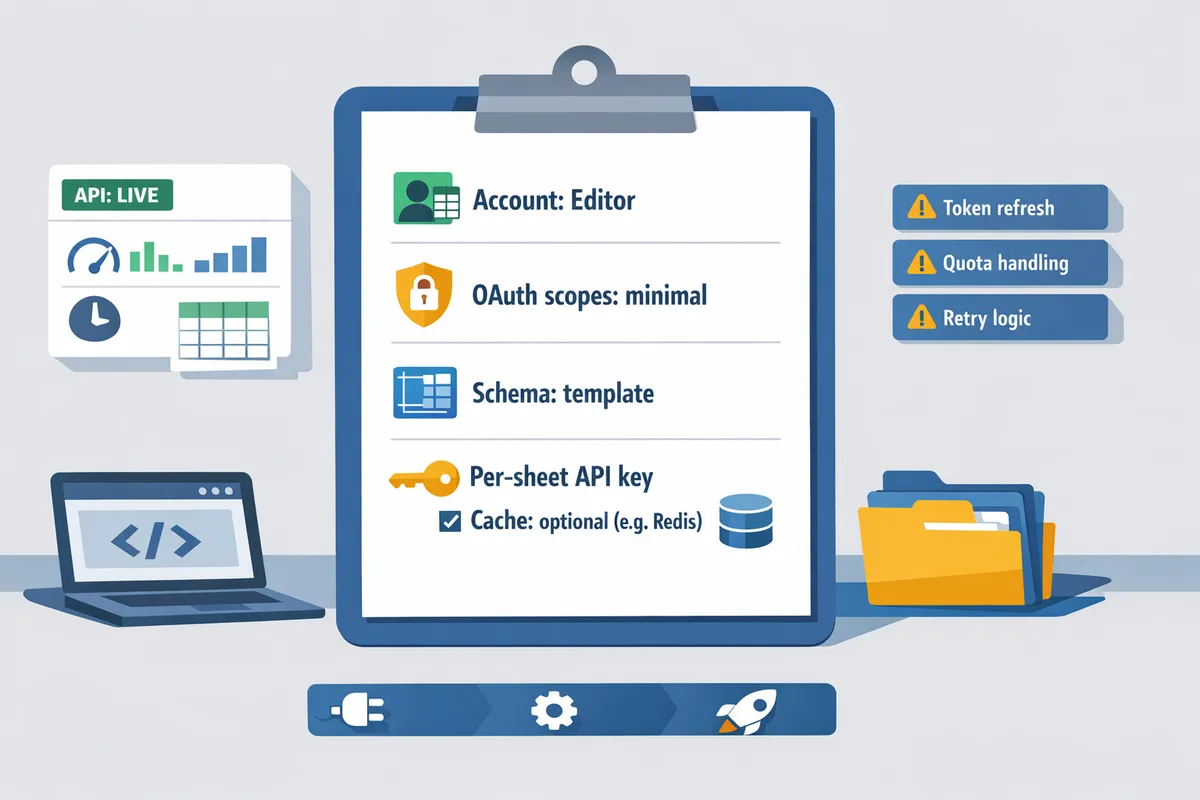
You need a Google account with Editor access to the target spreadsheet, a clear schema with a stable ID column, and a security plan that limits who can read or write sensitive rows. Sheet Gurus API handles Google sign-in, per-sheet API key permissions, and optional Redis caching so you can avoid building token refresh, quota handling, and retry logic yourself. Review the checklist below and confirm scopes, schema, and compliance before you enable a live endpoint.
Which accounts, permissions, and Google OAuth scopes are required? 🔐
You must sign in with a Google account that has Editor permission on the spreadsheet and grant only the minimal OAuth scopes your integration needs. For read/write CRUD with a user-granted consent, request the Sheets scope (https://www.googleapis.com/auth/spreadsheets) and prefer drive.file (https://www.googleapis.com/auth/drive.file) if you need file metadata or want to limit access to files the app opens. Use sheets.readonly (https://www.googleapis.com/auth/spreadsheets.readonly) for read-only services. Sheet Gurus API asks users to sign in and select the sheet, so it restricts scope consent to the selected spreadsheet where possible. If you consider a service account, plan for domain-wide delegation and explicit key rotation; building that yourself requires automated token refresh, secure key storage, and monitoring to detect expired credentials.
Key practices:
- Use Editor role on the specific spreadsheet, not Owner, where possible.
- Prefer drive.file over broad drive scopes to limit file access.
- Log consent events and rotate service credentials periodically.
💡 Tip: During onboarding, show end users exactly which spreadsheets the app will access so they can verify least-privilege consent.
How should you model your spreadsheet schema for reliable CRUD? 🧭
Design each sheet with a single header row, a stable unique ID column, and typed columns to map directly to JSON fields. Example header row that maps to a typical REST resource: id, created_at (ISO8601), status (enum), amount (number), notes (string). This maps to JSON shapes like {"id":"123","created_at":"2025-03-01T12:00:00Z","status":"open","amount":1250.50,"notes":"..."}. Use a separate sheet for related entities (normalized) and store foreign keys rather than embedding complex arrays.
Practical rules and examples:
- Use UUIDs or monotonically incrementing integers in an id column; do not rely on row numbers for stable IDs.
- Normalize repeating data into related sheets (e.g., customers, orders) and keep join keys in the primary sheet.
- Add explicit type hints in a second metadata sheet (column_name -> type) so Sheet Gurus API can validate on write.
If you build a DIY API layer, expect to add schema validation, conflict detection, and optimistic concurrency controls to avoid race conditions when multiple agents write concurrently. Sheet Gurus API includes basic validation and mapping so you skip much of that operational work.
What security and compliance checks should you perform? 🛡️
Audit sheet contents for any PII, enforce role-based API key permissions, and enable double opt-in for any messaging flows tied to sheet rows. Perform a row-level scan for sensitive fields (SSNs, credit card fragments, health data) before exposing the sheet via API. Configure Sheet Gurus API per-sheet API keys and restrict CRUD permissions by key to implement least-privilege access. Maintain an access log and rotate API keys on a schedule.
Checklist for PII handling and roles:
- Identify and redact or encrypt sensitive columns before enabling API access.
- Configure per-sheet API keys so front-end callers only get read or write where needed.
- Use role-based keys for internal vs external agents and store keys in a secrets manager.
- Implement audit logging and alerting for unusual write patterns.
⚠️ Warning: Do not expose raw personal health or payment data in a public sheet. Remove or tokenize those columns before creating an API endpoint.
Do you need Redis or an external cache? ⚡
Use Redis when reads dominate and you need sub-100ms responses or to reduce Google Sheets API call volume under sustained load. Redis reduces repeated sheet reads for AI agents that query the same rows frequently and lowers your quota consumption. Recommended pattern: cache GET responses with short TTLs (30–120 seconds) and invalidate or update the cache on any write event. If your workload has high write volume or requires strong consistency, prefer direct reads and use selective caching only for stable, read-heavy endpoints.
Trade-offs and implementation notes:
- Benefit: lower latency and fewer Google Sheets API calls for read-heavy AI queries. Cost: added operational complexity for cache invalidation and potential staleness.
- Invalidate cache on each POST/PUT/DELETE by publishing a lightweight invalidation message (pub/sub) or have Sheet Gurus API clear Redis entries automatically on writes.
- Use per-endpoint TTL settings; 30s for near-real-time dashboards, 120s for analytics snapshots.
Sheet Gurus API offers optional Redis integration to handle caching and automatic invalidation on writes, so teams avoid building and maintaining pub/sub and eviction logic themselves.
Further reading: see our deep authentication and performance walkthrough in the Google Sheets JSON API: The Complete Guide to CRUD, Auth, and Performance and the rapid setup tutorial in How to Turn Google Sheets into a REST API in Minutes (No Backend Required). For production use cases and when to convert a sheet into an API-backed service for AI agents, review Google Sheets to API: 15 Production-Ready Use Cases for Internal Tools, Portals, and AI Agents. For endpoint details, consult the API Reference.
How do you create and configure a CRUD API from Google Sheets with Sheet Gurus API?
Use Sheet Gurus API's Connect → Configure → Ship flow to expose a Google Sheet as a secure CRUD REST API with API keys, rate limits, and MCP support. This section gives precise UI actions, example request payloads, and curl/fetch snippets so you can provision a live endpoint and test create, read, update, and delete operations.
Step 1 — Connect 🔗
Sign in to Sheet Gurus API and grant the requested Google scopes to provision a live endpoint that mirrors your selected spreadsheet.
- Open our website dashboard and choose New API > Connect Google Account.
- In the Google consent dialog, grant Editor-level access to the specific spreadsheet or use a service account if your org requires domain-scoped credentials.
- In the Connect UI, select the target spreadsheet and primary sheet (Sheet A). Confirm the preview shows headers and sample rows.
What to verify after connecting: the dashboard shows a generated sheet_id, a preview of column headers, and the initial live endpoint URL. If any header is missing or mis-typed, fix it now in the spreadsheet or remap in the next step.
⚠️ Warning: Granting Editor access allows writes. Use a service account or restrict share settings if the spreadsheet holds sensitive customer data.
See our Google Sheets JSON API guide for background on scope choices and performance implications: Google Sheets JSON API: The Complete Guide to CRUD, Auth, and Performance.
Step 2 — Configure ⚙️
Map sheet headers to JSON fields, choose a stable primary key column, set per-key permissions, and toggle MCP exposure for AI agents.
- Open the API > Schema tab for the connected sheet. Click Map Columns and assign JSON field names to each header.
- Mark one column as the primary key (example: id). If you do not have a stable ID column, create one in the sheet using a UUID formula before mapping.
- Set field types (string, number, boolean, datetime) and enable validation rules for required fields or value ranges.
- Under Permissions, assign per-key access: read-only, read-write, or admin. Per-key restrictions apply at the API key level when you create keys in Step 3.
- Toggle MCP under AI & MCP to expose an MCP server for this sheet and choose read-only or read-write MCP mode.
Example mapping (sheet headers → JSON fields):
- id → id (string, primary key)
- name → name (string)
- email → email (string, required)
- balance → balance (number)
- updated_at → updated_at (datetime, server-set)
If you plan concurrent edits from multiple clients or agents, enable optimistic concurrency using either ETag headers or a version column. Sheet Gurus API supports If-Match with ETag on update requests so your agent can detect stale writes.
Building this mapping yourself requires extra infrastructure: credential rotation, token refresh logic, quota monitoring, retry/backoff, and schema validation. Our website's Sheet Gurus API centralizes those responsibilities so you avoid running and monitoring that stack. For a deeper comparison with DIY approaches, see How to Turn Google Sheets into a REST API in Minutes (No Backend Required).
Step 3 — Ship 🚢
Create scoped API keys, configure per-key or global rate limits, optionally enable Redis caching, and copy the live REST base URL to test CRUD endpoints.
- Go to API Keys > Create Key. Name the key, select the sheet scope(s), choose read or read-write, and set an expiry if desired.
- Under Rate Limits, set per-key limits (for example, 60 requests/min) and optional burst settings. You can also set a global rate limit under Settings > Rate Limiting.
- Optionally enable Redis caching to reduce Google Sheets API calls and speed up list/read endpoints.
- Copy the live base URL (example: https://api.sheetgurusapi.com/v1/sheets/{sheet_id}) and the API key string.
Test CRUD operations with curl. Replace {sheet_id} and {API_KEY} with values from your dashboard.
Create (POST). Returns 201 Created with the new row object.
curl -X POST "https://api.sheetgurusapi.com/v1/sheets/{sheet_id}/rows" \
 -H "Authorization: ApiKey {API_KEY}" \
 -H "Content-Type: application/json" \
 -d '{"name":"Jane Doe","email":"[email protected]","balance":125.5}'
Read (GET). Returns 200 OK with items and pagination.
curl "https://api.sheetgurusapi.com/v1/sheets/{sheet_id}/rows?filter=email:eq:[email protected]" \
 -H "Authorization: ApiKey {API_KEY}"
Update (PATCH) with optimistic concurrency using If-Match and ETag. Returns 200 OK or 412 Precondition Failed if ETag mismatch.
curl -X PATCH "https://api.sheetgurusapi.com/v1/sheets/{sheet_id}/rows/{id}" \
 -H "Authorization: ApiKey {API_KEY}" \
 -H "If-Match: \"etag-value\"" \
 -H "Content-Type: application/json" \
 -d '{"balance":150.0, "updated_at":"2026-03-11T12:00:00Z"}'
Delete (DELETE). Returns 204 No Content on success.
curl -X DELETE "https://api.sheetgurusapi.com/v1/sheets/{sheet_id}/rows/{id}" \
 -H "Authorization: ApiKey {API_KEY}"
💡 Tip: Create separate API keys for machine agents and human apps. Apply least-privilege permissions and rotate keys on a schedule.
For endpoint details, pagination, and query filters, consult our API Reference: API Reference.
How to run a google sheets rest crud example 🧪
Run the full CRUD flow with these compact requests: POST to create, GET to confirm, PATCH with If-Match to update, then DELETE to remove.
- POST creates a row and returns a JSON object with id and an ETag in the response headers. Status 201 Created.
- GET /rows?id={id} returns 200 OK with the single row in items[].
- PATCH must send If-Match: "etag" and returns 200 OK on success or 412 if the row changed.
- DELETE returns 204 No Content on success.
Example sequence and expected minimal responses:
- POST body: {"name":"ACME","email":"[email protected]","balance":200} → 201 Created, response body {"id":"r_123","name":"ACME"}, Header ETag: "W/"v1-abcdef"".
- GET /rows?r_id=r_123 → 200 OK, {"items":[{...}]}.
- PATCH with If-Match: "W/"v1-abcdef"" → 200 OK, updated row returned.
- DELETE /rows/r_123 → 204 No Content.
This pattern implements optimistic concurrency without locking. If you need stronger guarantees, enable a version column and wrap updates in application-level checks.
How do you integrate the API with an AI agent (Claude) using MCP? 🤖
Enable MCP in Sheet Gurus API, give the agent a scoped API key and the MCP base URL, and provide a short prompt template that includes allowed queries and actions.
- In the sheet settings, toggle MCP on and choose read-only or read-write exposure depending on agent needs.
- Create an API key limited to that sheet and to the minimum permissions (read-only for query-only tasks).
- Provide the agent the MCP base URL and the API key. The agent will send HTTP requests to the MCP server the same way other clients do.
Minimal Claude prompt template (example):
"You have read-only access to the customer sheet via MCP at https://mcp.sheetgurusapi.com/sheets/{sheet_id}. Use the provided ApiKey header. Only return rows that match the user's filter. If the user asks to update data, request explicit human approval before making write calls."
Sheet Gurus API handles token and quota management, rate limiting, and request routing for MCP endpoints so you do not have to build credential refresh or retry logic for the agent.
⚠️ Warning: Do not give agents write-scoped keys without an explicit approval flow. Restrict writable scopes to short-lived keys and audit all MCP requests.
How do you operate, optimize, and troubleshoot a production Sheet-backed CRUD API?
Operate a Sheet-backed CRUD API by enforcing per-key rate limits, using optimistic concurrency and idempotency for writes, adding Redis caching for read scale, and keeping a short runbook for quota or permission incidents. These controls prevent a single client or misconfigured AI agent from exhausting Google Sheets quotas or corrupting rows.
How should you set rate limits and quotas to protect the sheet? 🔒
Set per-key burst and sustained limits by client type, plus a global throttle to protect sheet-level quotas. Configure separate classes: trusted internal services, external AI agents, and web clients. Start with conservative defaults and raise after observing real traffic.
Recommended starting limits (example):
- Trusted internal apps: burst 100 req/s, sustained 20 req/s per key.
- AI agents (per agent key): burst 20 req/s, sustained 5 req/s per key.
- Public web clients: burst 10 req/s, sustained 2 req/s per key.
Implement burst vs sustained using a token-bucket or leaky-bucket policy in your gateway. Sheet Gurus API supports per-key and global throttles you can apply without writing gateway code. Steps to apply limits:
- Classify clients and issue keys with a tag (internal/ai/public).
- Configure per-key burst and sustained values in Sheet Gurus API settings.
- Add a global throttle to cap peak load across all keys.
- Monitor 429 spikes and reduce burst windows if Google Sheets quota errors appear.
What concurrency controls prevent conflicting writes? ⚙️
Use optimistic concurrency with a version or ETag field and enforce idempotency keys for create/update operations. This pattern avoids long locks and reduces write contention on a row-by-row basis.
Practical patterns:
- Add a numeric version column (row_version) that increments on each successful write.
- Require clients to send row_version on updates; reject if it mismatches and return the current row for retry.
- Require a client-supplied Idempotency-Key header for create/update to deduplicate retries from AI agents or webhooks.
Short illustrative retry logic (pseudo-JS, not production-ready):
// 8-line example
const resp = await fetch('/rows/123', { method: 'PATCH', headers: { 'Idempotency-Key': key }, body });
if (resp.status === 409) {
 const current = await resp.json; // contains row_version
 // client resolves conflict and retries with new row_version
}
Sheet Gurus API accepts idempotency keys and can enforce optimistic concurrency on configured sheets so you avoid building distributed lock services. When you must lock, prefer server-side short locks (100-500 ms) and fail fast rather than queueing long waits.
💡 Tip: Require Idempotency-Key for all writes from AI agents and persist the key for at least the max retry window (typically 1 hour).
How do you monitor and troubleshoot common errors and quotas? 🛠️
Monitor API key usage, 429/403 error rates, cache hit ratio, and Sheets API error payloads to detect and triage incidents quickly. Instrument these metrics as alerted signals in your monitoring system.
Actionable monitoring and alerts:
- Track per-key request rate, 429 spike rate, and 5xx error rate. Alert on sustained 429 increases over 5 minutes.
- Monitor Redis cache hit/miss ratio and average response latency to identify read pressure.
- Log full error payloads from Google Sheets API for quota or permission errors and correlate with the API key used.
Troubleshooting checklist (permission denied, quota exceeded, stale data):
- Permission denied: confirm the connected Google account still has Editor access; re-run OAuth connect in Sheet Gurus API if needed.
- Quota exceeded: inspect Google Sheets API 429/403 responses, check global throttle, and temporarily lower per-key burst values.
- Stale data: verify cache invalidation events fired on sheet updates and force a cache purge for the affected key.
See the API Reference for specifics on error codes and endpoints. For an operational primer on auth and quotas, consult our Google Sheets JSON API guide.
⚠️ Warning: Do not ignore frequent 403/429 warnings; a cascading surge from an AI agent can exhaust your Sheets project quota within minutes.
Which optimizations help scale reads and speed up AI queries? ⚡
Reduce read pressure by enabling Redis caching, exposing narrow field selection, and precomputing views for common AI queries. These reduce the number of Google Sheets API calls and lower latency for AI assistants.
Practical tactics:
- Enable optional Redis caching in Sheet Gurus API with short TTLs for AI contexts (recommended 15–60 seconds for chat contexts). Use longer TTLs (5–15 minutes) for dashboard data.
- Precompute and store aggregated views or indexes in separate sheets that the API reads instead of scanning large raw sheets.
- Require clients to use field selection and pagination to avoid returning entire rows when only a few columns are needed.
- For RAG or contextual retrieval, warm the cache on sheet updates and provide an invalidate hook that runs on write events.
Example cache strategy for AI agents: 30-second TTL, background refresh on write, and a cold-cache async warm-up process that runs when hit rate exceeds a threshold. Sheet Gurus API exposes cache controls so you can tune TTL and invalidation hooks without building a custom cache layer.
What does a minimal production runbook look like?
A minimal runbook contains immediate triage steps, escalation contacts, and recovery steps for quota, latency, and permission incidents. Keep it concise so on-call engineers can act fast.
Runbook entries (short playbooks):
- High-latency incident:
- Confirm elevated latency via monitoring dashboards.
- Identify whether latency is server-side (Sheet Gurus API) or Google Sheets API by checking response times and cache hit rates.
- If cache miss spike: increase TTL temporarily or enable aggressive background warm-up.
- If Google quota bound: enable global throttle in Sheet Gurus API and notify stakeholders.
- Billing or quota alert:
- Verify the error payload for 429/403 and map to API key causing the surge.
- Rotate the offending key or reduce per-key burst in Sheet Gurus API to stop the surge.
- Open a request with Google for quota increase and document the traffic pattern.
- Restore from spreadsheet snapshot:
- Download the latest CSV backup and import to a staging spreadsheet.
- Point Sheet Gurus API to the staging sheet and validate API behavior.
- Roll forward accepted changes and schedule a schema lock window.
Keep a short contact list (Sheet Gurus API support, Google Cloud support, primary on-call). Store runbook steps in an accessible playbook and run tabletop drills quarterly.
Frequently Asked Questions
This FAQ answers the purchase-oriented technical questions developers ask before they create crud api google sheets for production AI agents. Each answer contrasts the DIY operational work you would need to build with how Sheet Gurus API simplifies the same requirement. Use the links below for deeper configuration and operational examples.
How quickly can I go from spreadsheet to live CRUD API? 🚀
You can get a live CRUD endpoint in minutes with Sheet Gurus API for simple schemas, while more complex mappings or organizational approvals add time. For a straightforward sheet with a stable ID column and Editor access, the Connect → Configure → Ship flow typically finishes under 10 minutes. If your spreadsheet has multiple sheets, formula-driven columns, or requires row-level permission mapping, expect an additional 30–90 minutes to validate schema and test write paths. DIY builders face additional tasks: OAuth credential setup, token refresh handling, quota testing, and writing retry and idempotency logic. See our step-by-step guide on how to turn a sheet into a REST API for quick examples and the exact UI steps.
How to Turn Google Sheets into a REST API in Minutes (No Backend Required)
Can I restrict an API key to read-only access for AI agents? 🔐
Yes. Sheet Gurus API supports per-key permissions so you can issue read-only keys for AI agents and separate read-write keys for internal services. Create API keys in the dashboard and assign a scope that permits only GET and LIST endpoints for agent queries while reserving POST/PUT/DELETE for internal keys. Enforce least privilege by issuing short-lived keys for agents that need write access, and automate rotation in your CI/CD or key-management system. If you built this yourself, you would need to implement credential rotation, token revocation endpoints, and scope checks across multiple services. For endpoint details and available scopes, consult the API reference for read and write operations.
API reference for reading and writing rows
How does caching affect data freshness for AI queries? ⏱️
Caching reduces API calls and latency but introduces staleness; use short TTLs and invalidate cache on writes for agent workflows that require near-real-time responses. Sheet Gurus API offers optional Redis caching so reads hit cache first and writes trigger invalidation hooks that clear affected keys. For AI agents that query recent transactional data, start with a TTL of 5–30 seconds and invalidate specific row or page keys on POST/PUT/DELETE. For analytical queries where freshness is less critical, use longer TTLs to cut Google Sheets API calls. DIY caching forces you to design invalidation rules, race-condition handling, and cache warm-up strategies—Sheet Gurus API encapsulates those concerns so you avoid building and maintaining complex cache logic.
💡 Tip: Use selective invalidation (by row ID or query hash) rather than clearing the entire cache on every write to preserve read performance.
Google Sheets JSON API: The Complete Guide to CRUD, Auth, and Performance
What happens when Google Sheets API quotas are exceeded? ⚠️
Quota limits surface as API errors to clients and require retries with exponential backoff and idempotency to recover safely. Sheet Gurus API reduces quota pressure by applying optional Redis caching and configurable rate limits per API key or globally, and it surfaces quota-related error codes so your clients can implement targeted retry logic. Implement client-side retry with jitter (initial delay ~500 ms, multiply by 2 with up to 5 attempts) and design writes to be idempotent to avoid duplicate rows. If you build your own proxy, you must also add monitoring for Google quota windows, token refresh failure handling, and queueing for peak spikes.
Google Sheets JSON API: The Complete Guide to CRUD, Auth, and Performance
Is MCP exposure safe for production AI agents? 🤖
MCP exposure can be safe for production AI agents when combined with per-key permissions, strict rate limits, and active monitoring. Sheet Gurus API supports exposing sheets as MCP servers while letting you restrict which keys can access the MCP endpoint, apply per-key rate limits, and stream logs for agent activity. Only enable MCP for trusted agents and workflows that require structured, queryable access to spreadsheet data; rotate keys on a schedule and use short TTLs for agent credentials where feasible. Building MCP support yourself requires handling long-lived agent connections, token refresh, connection throttling, and auditing—Sheet Gurus API provides these controls out of the box.
Google Sheets to API: 15 Production-Ready Use Cases for Internal Tools, Portals, and AI Agents
Can I audit who changed sheet data through the API? 📋
Yes. Sheet Gurus API records request logs and attributes changes to API keys so you can trace which key and timestamp modified rows. Logs include the endpoint used, the API key ID, request payloads, and timestamps, letting you correlate changes to user or service identities. For stronger audit trails, include a user or run_id field in write requests so each row carries provenance metadata. If you implement this yourself, plan for log storage, retention policies, event correlation across retries, and consistency checks to handle concurrent writes.
API reference for reading and writing rows
Do I need to migrate off Google Sheets as usage grows? 📈
You may need to migrate when concurrency, transactional volume, or complex formulas cause latency, quota churn, or data integrity risks; monitor usage metrics in Sheet Gurus API to spot those thresholds. Signs to plan migration include sustained high write rates, many concurrent clients hitting rate limits, sheets with thousands of rows that slow recalculation, or frequent quota errors. Typical migration targets are PostgreSQL for transactional workloads or BigQuery for analytics. Sheet Gurus API helps by giving you metrics and logs to identify when to move and by reducing operational overhead while you build the migration scripts, data model, and cutover plan. For migration planning and common production use cases, see our guide on sheet-backed APIs and the use-case list.
Google Sheet REST API: What It Is, How It Works, Limits, and the Fastest Way to Get One • 15 production-ready use cases
Ship a secure, production-ready CRUD API from a Google Sheet with Sheet Gurus API.
Building a reliable CRUD API for AI agents requires handling auth, quotas, rate limits, retries, and schema drift—this guide showed concrete steps and the failure modes you face with a DIY approach. If you want to create crud api google sheets for AI agents, choose a managed path to avoid credential refresh, quota handling, race conditions, and cache invalidation. That choice preserves developer time and reduces production incidents.
Start a 14-day free trial of Sheet Gurus API and follow the three-step getting-started flow (Connect → Configure → Ship) to get a live CRUD endpoint, API key controls, and configurable rate limits without building backend infrastructure. For deeper operational advice, see our Complete Guide to CRUD, Auth, and Performance and the step-by-step How to Turn Google Sheets into a REST API in Minutes (No Backend Required). After your trial, consider exposing a sheet as an MCP server for AI assistants or adding Redis caching for high-read workloads.
💡 Tip: Export a schema snapshot before changing columns so you can roll back quickly if integrations break.