
Can I Connect Claude to Google Sheets? MCP vs Zapier/Make vs REST API (2026) — Fastest Secure Setup
A single misconfigured integration can expose rows of customer data to an AI assistant in minutes, creating compliance and trust risks. This article compares practical ways to connect Claude to Google Sheets and choose the fastest secure setup for production use. The Model Context Protocol (MCP) is a protocol that lets AI assistants query and update structured spreadsheet data with scoped tokens and permissions (see our MCP server documentation). Our Sheet Gurus API turns Google Sheets into production-ready RESTful JSON APIs in minutes: sign in, pick a spreadsheet, and receive a live CRUD endpoint with API key authentication, per-sheet permissions, configurable rate limiting, and optional Redis caching. It offers up to 99.9% uptime and average response times often under 100 ms. Which approach yields the fastest, most secure production path for Claude integrations?
Which path should I pick to connect Claude to Google Sheets quickly and securely?
Choose the Claude for Sheets add-on for instant, manual queries; Zapier or Make for scheduled, repeatable automations; and Sheet Gurus API (MCP/REST) for production-grade programmatic access with governance. Each path balances time-to-value, repeatability, and security differently, so match the choice to your compliance, cost, and maintenance priorities.
Claude for Sheets add-on ⚡
Use the Claude for Sheets add-on when non-technical users need fast answers from sheet data and you want setup under 30 minutes. The add-on gives immediate natural-language access to rows and lightweight analysis inside Sheets, which makes it ideal for ad-hoc reporting, quick exploration, and one-off data checks.
Pros:
- Instant access inside Google Sheets with no intermediate services.
- Low friction for analysts and biz users who already work in Sheets.
- Simple prompts produce summaries, row lookups, and quick transformations.
Cons:
- Limited automation and no programmatic CRUD endpoints for apps.
- Harder to enforce per-sheet API keys, rate limits, or centralized audit logs.
If you later need audited API keys, rate limiting, or predictable integration for apps, consider moving to Sheet Gurus API. See our Getting Started guide for steps to convert a workflow to an API-backed approach.
No-code automations (Zapier, Make) 🔁
Use Zapier or Make when you need scheduled or trigger-based workflows without writing code and you accept 1–4 hours to build a reliable flow. No-code platforms connect Claude and Sheets visually and work well for row-level summaries, email alerts on new rows, and periodic enrichment jobs.
Typical use cases:
- Send a row to Claude when a form submits and save the summary back to a cell.
- Run nightly batch summaries of new transactions and post results to Slack.
Trade-offs:
- Visual builders speed development but can become brittle as flows multiply.
- Limited control over rate limiting and often higher operational cost at scale.
If you expect heavy programmatic traffic or need fine-grained auth, link your workflow to a Sheet Gurus API endpoint to keep Zapier/Make connectors lightweight while retaining governance. For a side-by-side look at quotas and costs, see our comparison of CRUD API approaches.
MCP / REST API via Sheet Gurus API 🔒
Pick Sheet Gurus API when you require production-grade read/write APIs, scoped API keys, configurable rate limits, and auditability. Model Context Protocol (MCP) is a protocol that lets AI assistants read and write structured context directly from sources such as spreadsheets, and Sheet Gurus exposes MCP endpoints so Claude can interact with sheets like a structured data source.
Why this fits production:
- Per-sheet API keys and permissions let you enforce least-privilege access for agents and apps.
- Configurable rate limits and optional Redis caching reduce Google Sheets quota hits and give predictable performance.
- Built-in audit trails and API-level controls support compliance and operational monitoring.
Typical onboarding flow: Connect your Google account, configure which sheets and tabs to expose, and generate scoped API keys—then point Claude or your automation to the MCP-enabled endpoint. For setup steps and MCP configuration, see the Sheet Gurus API MCP Server docs and our Getting Started guide.
Pros:
- Full CRUD from apps and agents, governance, and reproducible APIs. Cons:
- More deliberate initial configuration than a single add-on install, but less ongoing ops than building a custom backend.
Quick comparison table 📊
This table compares the three paths across setup time, security controls, programmatic access, repeatability, and maintenance.
| Path | Time-to-value | Best for | Access control | Repeatability | Maintenance effort |
|---|---|---|---|---|---|
| Claude for Sheets add-on | < 30 minutes | One-off queries, analyst exploration | Google account sharing and add-on permissions | Manual or semi-manual | Low initial, limited scale |
| Zapier / Make | 1–4 hours | Triggered workflows, periodic automations | Platform-level connectors; limited per-sheet keys | Good for scheduled/triggered jobs | Moderate; grows with number of flows |
| Sheet Gurus API (MCP/REST) | Hours to a day (configure & secure) | Production apps, AI agents needing CRUD and audits | Scoped API keys, per-sheet permissions, rate limits | Best for high-repeatability and agents | Lower long-term ops than DIY backends |
⚠️ Warning: A single misconfigured integration can expose rows of customer data. Verify sheet sharing settings, OAuth scopes, and API key permissions before connecting any third-party service.

How do I set up each connection path step-by-step and how long will it take?
Each path follows a short, distinct setup flow with predictable time estimates. The Claude for Sheets add-on often runs in 10–30 minutes, no-code automations (Zapier or Make) typically need 1–4 hours for a robust flow, and a Sheet Gurus API MCP/REST setup usually takes 15–60 minutes to expose a secure CRUD endpoint. Use these step-by-step lists and timelines to assign resources and pick the fastest secure setup to connect Claude to Google Sheets.
Claude for Sheets add-on setup ⚙️
Install, authorize, and test the add-on; typical finish time is 10–30 minutes.
- Install the Claude for Sheets add-on from the G Suite Marketplace.
- Grant the requested OAuth scopes for the Google account that owns the sheet.
- Open the add-on sidebar and select the sheet and tab you want Claude to read.
- Run a sample prompt (for example, "Summarize rows A2:E10") and validate the response against known rows.
- Lock down sheet protection on sensitive tabs or create a read-only copy for testing.
Common errors and fixes:
- Missing OAuth scopes. Re-run authorization and accept all scopes.
- Protected ranges blocking reads or writes. Remove protections for the test user or use a copy.
- Unexpected output due to header rows or merged cells. Normalise the sheet layout before testing.
Expect this path to be the fastest for non-technical teams testing Claude Google Sheets integration without Zapier. Use it for quick proofs of concept and prompt validation.
Zapier / Make automation setup 🔗
Create a trigger, map fields to a Claude step, and test; plan 1–4 hours for a production-ready automation.
- Create a Zap (Zapier) or scenario (Make) that watches a sheet range or a new row event.
- Add a Claude step if available, or insert an HTTP request step to call an assistant endpoint.
- Map sheet columns to Claude inputs and map Claude outputs back to specific cells.
- Configure retries, error handling, and rate-limit pauses for high-volume runs.
- Run a batch of sample rows and verify idempotency and failure handling.
Common errors and fixes:
- Rate limits causing missed rows. Add backoff or split jobs by time window.
- Field mapping mismatches that write to wrong columns. Test with labeled sample rows.
- Credential expiration for the Google account or the Claude connector. Add monitoring and refresh alerts.
This path suits teams that need scheduled or event-driven automation without building an API, but plan monitoring if flows run frequently.
Sheet Gurus API MCP / REST setup 🧩
Enable MCP or publish a REST endpoint in our Sheet Gurus API and you can expose a secure CRUD API in 15–60 minutes.
- Sign in to Sheet Gurus API with the Google account that owns the spreadsheet. See our Getting Started guide for step-level screenshots.
- Select the spreadsheet and enable MCP or create a REST endpoint for the desired tabs.
- Generate scoped API keys or MCP tokens and attach per-sheet permissions. Refer to the MCP Server docs for token scopes and examples.
- Configure rate limits per key, enable optional Redis caching if you expect heavy read traffic, and set audit logging.
- Test a read and an update operation from Claude or another client and confirm changes sync back to the sheet in real time.
Common errors and fixes:
- Incorrect token scopes that block specific operations. Regenerate a scoped key with only needed permissions.
- Forgetting rate limits and hitting Google quotas. Set conservative limits during rollout.
- Missing sheet headers or inconsistent schemas. Normalise column names before publishing.
Our Sheet Gurus API includes API key auth, per-sheet permissions, configurable rate limiting, and optional Redis caching so you can move from prototype to production with operational controls; our infrastructure typically delivers 99.9% uptime and average response times under 100 ms.
Related reading: check our comparison of DIY and hosted MCP approaches in the Claude MCP + Google Sheets CRUD API article for trade-offs on latency, auth, and quotas.
Practical checklist and rollout timeline 🗂️
Use a short checklist to move from POC to production and expect POC in hours to days, pilot in 1–3 weeks, and production in 2–8 weeks depending on compliance.
- POC (hours–days): validate prompts, normalise sheet layout, confirm minimal permissions, and pick a path (add-on, Zapier/Make, or Sheet Gurus API).
- Pilot (1–3 weeks): add rate limits, set up logging, run real traffic at low scale, and collect errors.
- Production (2–8 weeks): approve governance, add monitoring and alerts, enable caching if needed, and train users on access procedures.
- Ongoing: rotate scoped API keys regularly, review audit logs weekly, and maintain a rollback plan for schema changes.
Checklist items:
- Test prompts against a representative sample of rows.
- Configure least-privilege permissions and scoped keys.
- Set rate limits and enable caching for heavy reads.
- Configure monitoring, alerting, and an incident playbook.
See our decision framework for help choosing the right path for long-term maintenance and cost control.
💡 Tip: Use scoped API keys during trials to limit exposure.
⚠️ Warning: Avoid sending unredacted personal data to Claude unless you have proper consent and governance controls in place.
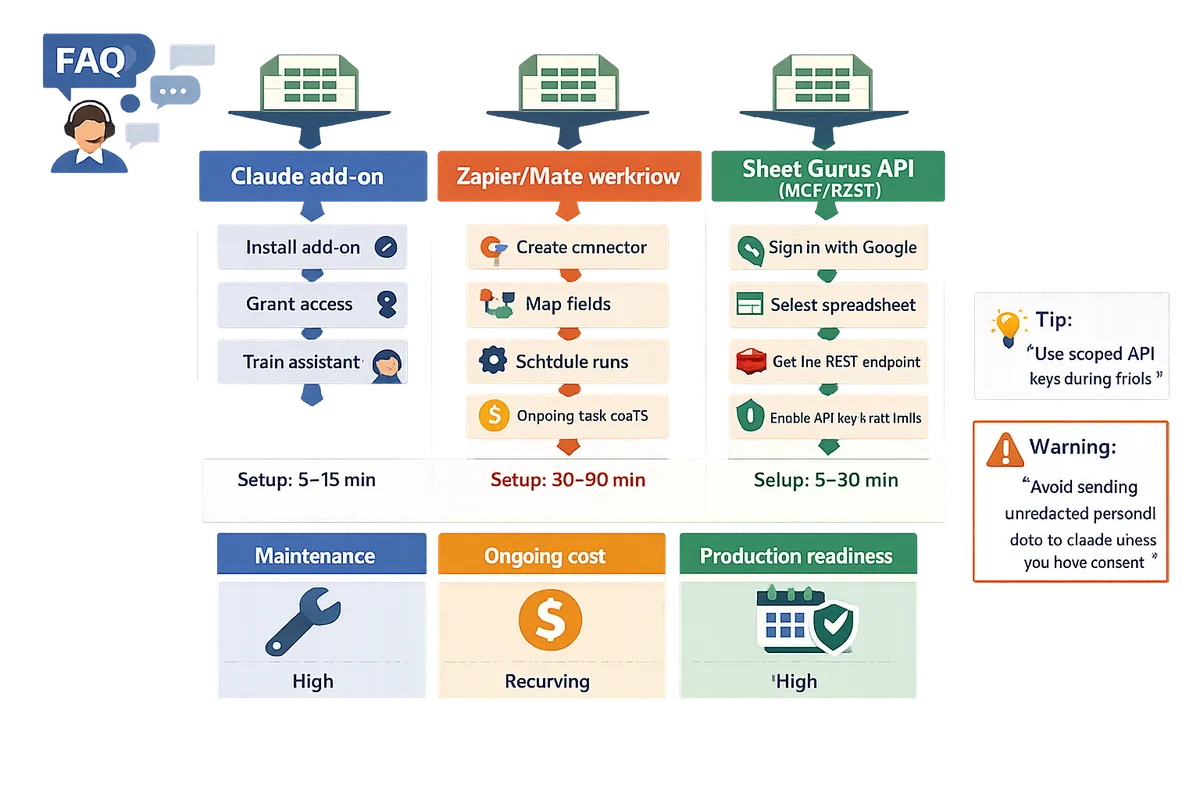
What security, governance, and troubleshooting practices prevent data risk when Claude accesses Sheets?
Use access control, token scoping, rate limiting, caching, and data minimization to prevent data exposure when Claude reads or writes Google Sheets. These controls differ by connection path: the Claude for Sheets add-on, Zapier/Make automations, or a managed MCP/REST approach such as our Sheet Gurus API. This section maps the specific controls for each path, outlines audit and troubleshooting patterns, and lists governance checks teams should run before enabling AI access to spreadsheets.
Which security features does MCP and Sheet Gurus API provide? 🔒
Sheet Gurus API provides API key authentication, fine-grained per-sheet permissions, scoped MCP tokens, configurable rate limiting, optional Redis caching, and audit logs. Our Sheet Gurus API exposes MCP-enabled endpoints so Claude can query structured rows without giving full Google account access. Use scoped tokens to limit which tabs and columns an AI assistant can read or write. Configure per-key rate limits to prevent runaway agents from exhausting Google Sheets quotas. See our MCP Server docs for step-by-step configuration and the Getting Started guide for initial setup.
How should teams handle data minimization, PII, and compliance when exposing Sheets? 🧾
Teams must remove or redact personal and sensitive fields and only share the minimal columns needed for the task. Tag columns that contain PII, create filtered API endpoints that return only required fields, and require an approval workflow before enabling any MCP endpoint that surfaces sensitive data. Add retention and access-review policies so access to historical rows expires and reviewers can certify permitted use. For practical steps, follow the Create a CRUD API guide to build filtered endpoints and retention rules.
💡 Tip: Automate column tagging and require one approver to enable MCP access for a new sheet. That prevents accidental exposure from ad hoc requests.
What are common errors and how do I troubleshoot Claude Sheets integrations? 🛠️
OAuth permission denials, API key misconfiguration, rate-limit throttling, caching issues, and oversized prompt contexts are the most common failure modes. Map each symptom to an action: reauthorize the Google account when OAuth fails; rotate or reissue API keys when authentication errors occur; raise per-key rate limits or enable Redis caching to reduce quota errors; shorten the prompt or send only summarized rows when context exceeds input limits. Maintain audit logs and alerts so unusual query volume or unexpected write operations trigger immediate review. See our comparison of CRUD API approaches for examples of quota failure patterns and recovery steps.
Steps to troubleshoot quickly:
- Match the error code or log entry to the symptom.
- Reauthorize or rotate credentials as needed.
- Apply caching or rate-limit adjustments to reduce repeat failures.
- Trim prompt context and validate returned JSON against the expected schema.
What business controls should we add and when should we use a managed integration? 📁
Require approval gates, credential lifecycle policies, periodic access reviews, and cost tracking; use a managed integration like our Sheet Gurus API when you need consistent governance, monitoring, and predictable operations. DIY automations work for early experiments but create hidden costs: maintenance hours, credential sprawl, and compliance gaps when employees copy spreadsheets or share credentials. Our Sheet Gurus API centralizes API key management, per-sheet permissions, and audit logging so teams move from prototype to production with less operational overhead. Refer to our decision framework for guidance on when to shift from Zapier or a DIY server to a managed MCP/REST approach.
Do you provide ready-to-use prompts and workflow templates for common Sheet tasks? 🤖
Yes. Our website offers a library of prompt and workflow templates for row summarization, reconciliation notes, monthly reporting, and anomaly detection. Each template includes an example prompt, the required sheet schema, the expected JSON output format, and suggested approval and retention settings so non-developers can reuse workflows safely. Use these templates with Claude Google Sheets MCP connections or through our API endpoints to reduce trial-and-error and to lower the risk of exposing unnecessary data. Consult the Getting Started guide to apply these templates to your spreadsheets quickly.
Frequently Asked Questions
This FAQ answers the most searched questions about how to connect Claude to Google Sheets and which path gives the fastest secure setup. Each answer points to specific docs and product pages for step-by-step configuration.
Can Claude read and write Google Sheets directly? 📄
Yes. Claude can read and write sheet data using the Claude for Sheets add-on, no-code automations that call APIs, or an MCP-enabled REST API such as Sheet Gurus API. The Claude for Sheets add-on works for interactive, manual queries inside a spreadsheet; no-code tools (Zapier, n8n) let you run scheduled or trigger-based flows that call Claude. For production-grade, programmatic access and per-sheet controls, Sheet Gurus API exposes your sheet as a JSON REST API and can also run as an MCP server so Claude accesses structured rows and writes back safely. See our getting-started guide for creating an API from a spreadsheet and the comparison of DIY vs hosted MCP approaches for more detail.
What is MCP and why use it with Google Sheets? 🧩
Model Context Protocol (MCP) is a protocol that lets AI assistants access structured context from sources like spreadsheets with scoped tokens and structured I/O. MCP gives predictable I/O formats and scoped access so prompts receive only the authorized rows or columns; that makes auditing and testing far simpler. Sheet Gurus API can expose a sheet as an MCP server, letting you issue scoped tokens that grant Claude read-only, read-write, or view-limited access to a specific tab or range. For implementation patterns and audit workflows, see our MCP Server docs and the decision framework that compares MCP versus no-code and REST approaches.
Can I connect Claude to Google Sheets without Zapier? 🔌
Yes. You can connect Claude without Zapier using the Claude for Sheets add-on for one-off queries or using an MCP/REST API like Sheet Gurus API for automated, production connections. The add-on takes minutes to install and is best for manual analysis and quick experimentation. No-code platforms such as n8n or Zapier suit small automation needs but require extra attention to auth and quotas. For predictable production behavior, use Sheet Gurus API to get API keys, per-sheet permissions, and optional caching, which reduces the operational risk that no-code flows often introduce. Read our guide on turning Sheets into a REST API for a fast no-backend path.
How do I prevent Claude from seeing sensitive columns in my sheet? 🔒
Prevent exposure by creating filtered views or separate tabs that exclude sensitive columns and granting Claude access only to those filtered endpoints. Sheet Gurus API supports per-sheet permissions and filtered endpoints so you can publish a safe subset of a sheet as a JSON endpoint and generate an API key scoped to that subset. Practical steps: (1) copy sensitive columns to a private tab, (2) create and test a filtered view with only the columns Claude needs, (3) connect that view in Sheet Gurus, and (4) issue a restricted API key for Claude.
⚠️ Warning: Exposing personally identifiable information without scoped tokens and audit logs can create compliance and reputational risk. Always test tokens on a staging copy first.
See our step-by-step CRUD API guide for an example workflow that enforces per-sheet permissions.
What are the common rate-limit issues and how do I fix them? ⏱️
Rate-limit issues occur when many prompts or API calls run in parallel and exceed Google API or connector quotas; fix them by configuring per-key rate limits, adding caching, batching requests, and using automatic retries. Concrete fixes: set per-key limits in Sheet Gurus API so one client cannot exhaust the global quota; enable optional Redis caching to avoid repeated Google Sheets reads for the same range; batch reads and writes (fetch ranges instead of single rows); and implement automatic retries with increasing wait times for transient 429 errors. If you run an agent loop, add a short queue that batches prompts into single API calls to reduce concurrency. Our CRUD API guide and the MCP vs DIY comparison cover common quota failure patterns and mitigation strategies.
How long does it take to move a Claude+Sheets integration to production? 🚀
Moving from proof-of-concept to production typically takes two to eight weeks depending on compliance requirements, the number of sheets, and workflow complexity. A quick interactive setup with the Claude for Sheets add-on can take 10–30 minutes for manual use; no-code automations usually need 1–4 hours to build and test for a single workflow. Production-grade deployment that includes scoped tokens, rate limits, caching, and monitoring requires the most time. Using a managed MCP/REST provider such as Sheet Gurus API shortens the timeline because you avoid building backend auth, rate limiting, and caching from scratch. See our Getting Started and decision framework articles for sample timelines and a checklist to move to production.
Where can I read detailed setup steps and comparisons?
Use our three practical guides for step-by-step help: the MCP server setup doc explains scoped tokens and MCP configuration, the CRUD API tutorial shows exact connectors and permissions, and the comparison article evaluates DIY Python, Sheet Gurus API, Composio, and n8n on latency, auth, quotas, and cost. Each guide includes examples and troubleshooting patterns for the path you choose.
Links for further reading:
- Getting Started — quick API creation and OAuth flow.
- MCP Server — configure MCP and scoped tokens.
- Claude MCP + Google Sheets CRUD API: DIY Python Server vs Sheet Gurus API vs Composio vs n8n (Latency, Auth, Quotas, Cost) — side-by-side comparison.
- Sheets APIs for AI Agents (2026): MCP vs Zapier/n8n vs Composio vs REST API — Decision Framework and Setup Paths — selection framework.
- How to Turn Google Sheets into a REST API in Minutes (No Backend Required) — fastest path to CRUD.
Use a production-ready Sheets API for fast, secure Sheets-backed AI.
The fastest secure path to connect Claude to Google Sheets is to expose spreadsheets as a managed REST API rather than relying on Zapier/Make or a fragile DIY server. DIY and low-code flows often stall on quotas, auth gaps, and operational overhead; that costs developer days and risks outages. For practical comparisons, see the Claude MCP + Google Sheets CRUD API comparison to weigh latency, auth, and quotas.
Sheet Gurus API turns Google Sheets into production-ready RESTful JSON APIs in minutes, requiring no backend code. Users sign in with Google, select a spreadsheet, and immediately receive a live API endpoint that supports full CRUD operations and syncs changes back to the original sheet. The platform exposes sheets as MCP servers so AI assistants (e.g., Claude) can query and update structured data directly, with API controls and operational tooling that speed production deployments.
Get started by following the getting-started guide to create your first endpoint with Sheet Gurus API and move a Sheets-backed agent into production. Subscribe to our newsletter for implementation tips and updates.