
Build a No‑Code Front End on a Google Sheets REST API with Glide and WeWeb (2026): Auth, Rate Limits, Caching + Free Templates
Teams spend up to 40 hours a month building and maintaining custom REST endpoints for spreadsheet-backed apps. A no code rest api from google sheets is a RESTful JSON API that exposes sheet rows as CRUD endpoints without writing backend code. Our Sheet Gurus API converts Google Sheets into production-ready RESTful JSON APIs in minutes, letting users sign in with Google, select a sheet, and receive a live CRUD endpoint with API key auth, per-sheet permissions, configurable rate limits, and optional Redis caching. See our Getting Started guide to connect a sheet and generate an API key, or explore the No-Code Sheet-to-API guide for templates and production patterns. We map steps to connect Sheet Gurus API to Glide and WeWeb, secure API keys, and tune caching and rate limits.
How does a no code REST API from Google Sheets work and what does Sheet Gurus API provide?
A no code rest api from google sheets maps spreadsheet rows and columns to RESTful JSON endpoints while adding production controls for auth, rate limits, caching, and sync. Sheet Gurus API lets you sign in with Google, pick a spreadsheet, and receive live CRUD endpoints that sync back to the original sheet in real time. This section explains the core features teams must have to move a sheet-backed prototype into production and where Sheet Gurus API handles the operational work.
Key features and architecture at a glance 🔎
Sheet Gurus API is a hosted service that maps sheets to REST resources and manages authentication, rate limiting, caching, and real-time sync. Sheet Gurus API exposes standard endpoints such as GET /sheets/{sheetId}/rows, POST to append, PATCH to update by row ID, and DELETE to remove rows while handling credential lifecycle and request routing.
- API key authentication with per-sheet permissions. Use read-only keys for dashboards and scoped write keys for integrations to reduce blast radius.
- Configurable rate limits per key or global. Prevents a single integration from exhausting Google Sheets API quota and causing 429s for others.
- Optional Redis caching with write-driven invalidation. Caching cuts Google API calls for high-read flows like dashboards and mobile apps.
- CRUD endpoints with filters, sorting, and cursor-based pagination. Supports large sheets without requiring CSV downloads.
- MCP (Model Context Protocol) server support for AI agents. Exposes sheet rows as contextual JSON so agents can query or append data directly.
💡 Tip: Create separate API keys for each integration (Glide apps, WeWeb sites, automation bots) and set the narrowest permissions needed.
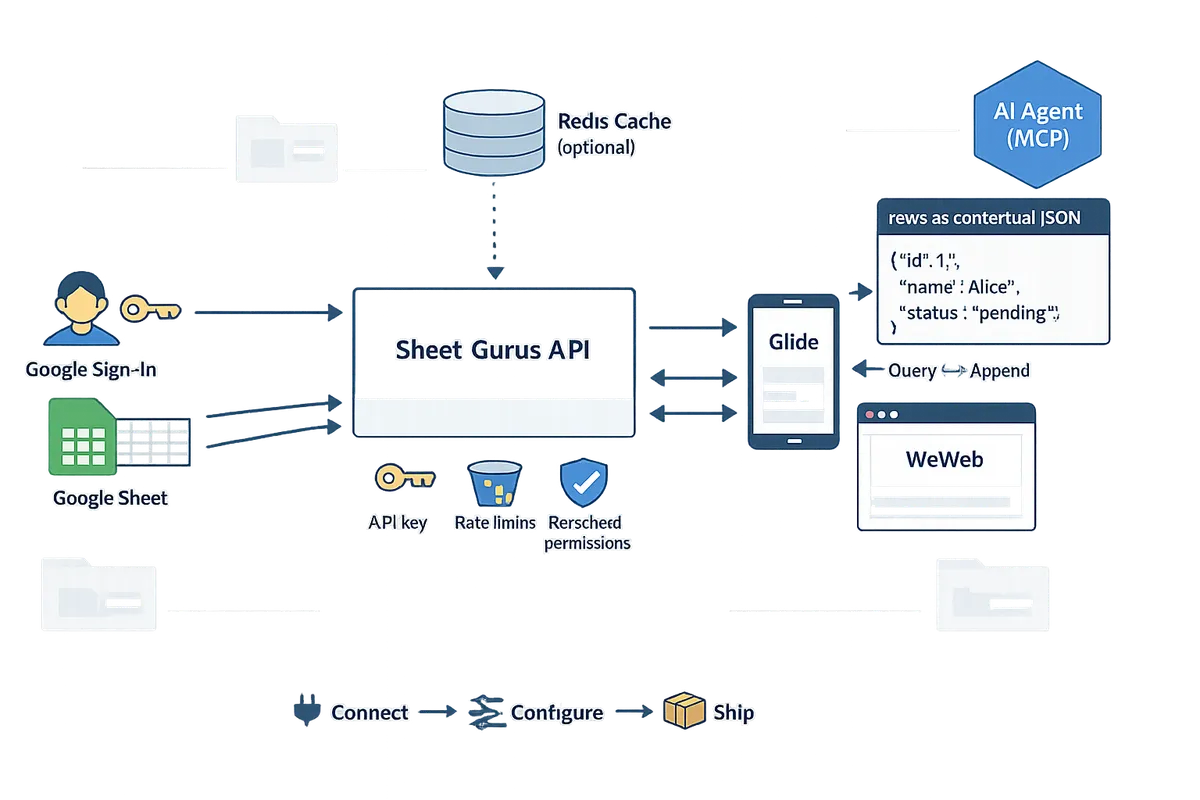
What is the Model Context Protocol (MCP) and why it matters for AI workflows 🤖
The Model Context Protocol is a specification that lets AI assistants query structured data sources as prompt context, and Sheet Gurus API exposes Google Sheets as an MCP server so agents can read and write spreadsheet rows directly. This eliminates the need to build and host custom adapters when you want an assistant to use live business data.
Practical examples:
- An AI sales assistant fetches the latest inventory rows before drafting a quote, ensuring the quote reflects current stock without manual sync.
- A customer-support agent uses an AI flow that appends call logs and updates ticket status in the sheet when a conversation ends.
How Sheet Gurus API helps in these flows:
- The platform enforces per-key permissions for MCP queries so agents can only access allowed sheets.
- MCP endpoints respect rate limits and caching rules, preventing uncontrolled agent traffic from hitting Google quota.
- Webhooks and invalidation hooks keep client apps (Glide, WeWeb) and agents aligned with the latest sheet state without polling.
See our MCP server docs in the API reference for endpoint shapes and example request flows.
Feature and pricing comparison table (Sheet Gurus API vs alternatives) 📊
This table compares authentication, access controls, rate limiting, caching, maintenance hours, and pricing trade-offs across common options.
| Provider | Authentication | Per-sheet access controls | Rate limiting | Caching | Expected maintenance hours/month | Typical pricing |
|---|---|---|---|---|---|---|
| Sheet Gurus API | Google OAuth for onboarding + API key management | Fine-grained per-sheet and per-key read/write/admin scopes | Configurable per-key and global throttles | Optional Redis with invalidation hooks | Low (1–4 hrs) | Subscription tiers with trial and predictable billing |
| SheetDB | API key (limited OAuth support) | Spreadsheet-level scoping; fewer per-sheet policy options | Platform-enforced limits; limited per-key tuning | Minimal or no Redis-backed caching | Moderate (4–12 hrs) | Lower entry price but may need upgrades for scale |
| NoCodeAPI | API key or OAuth depending on connector | Scoped keys available but less granular governance | Tiered quotas; limited per-key custom limits | Endpoint caching on platform; not Redis by default | Moderate (4–10 hrs) | Mid-tier subscriptions with usage caps |
| DIY (Google Apps Script) | OAuth under owner account; tokens in script | Access controlled by Google Drive sharing; no API key management | None built-in; you must implement throttles and queuing | None by default; you must host cache externally | High (20+ hrs) | Development and hosting cost; unpredictable ops spend |
DIY approaches typically introduce maintenance and compliance risk because teams must implement token refresh, retries, audit logs, and monitoring themselves. Sheet Gurus API centralizes those operational controls to reduce ongoing engineering and security overhead.
Why choose a managed no-code API over DIY scripts for production
A managed no-code API reduces ongoing maintenance, security exposure, and ops hours compared with running custom Apps Script endpoints. DIY scripts require you to handle OAuth token refresh, retry behavior, quota mapping to Google API limits, cache coherence, and audit trails—each adds recurring time and failure modes.
Business consequences of DIY:
- Recurring downtime from expired tokens or quota exhaustion. Operations teams spend hours restoring access and rotating credentials.
- Time lost debugging sync conflicts and duplicate writes after concurrent app requests.
- Lack of audit trails or scoped keys that increases compliance risk for regulated use cases.
How Sheet Gurus API addresses those consequences:
- Manages OAuth onboarding and token lifecycle so expired tokens do not silently break apps.
- Provides idempotent endpoints and write-queue semantics to reduce conflicting updates.
- Includes request logs, key rotation, and per-sheet permissions to satisfy audit and compliance reviews.
For step-by-step setup that gets you from spreadsheet to live endpoint, see our getting-started guide and the walkthrough on how to turn a Google Sheet into a REST API in minutes.
What are the prerequisites and configuration decisions before you start?
You need a Google account with edit access, a structured spreadsheet, and a Sheet Gurus API account before you connect Glide or WeWeb. These items determine whether your app can use read-only endpoints or full read/write access, and they shape choices for authentication, rate limits, and caching that affect cost, performance, and compliance.
Required accounts and permissions ✅
At minimum you must have a Google account with edit access to the target spreadsheet and a Sheet Gurus API account to generate endpoints and API keys. Create or confirm the following before you proceed:
- Google account that owns or is granted Edit access to the sheet. Grant access to the Google identity you will use in Sheet Gurus API onboarding.
- Sheet Gurus API account to connect the sheet, generate scoped API keys, and configure rate limits. See our getting-started guide for the exact onboarding flow.
- Optional but recommended: a staging spreadsheet for testing changes before you touch production.
- Optional for performance: a managed Redis instance if you plan to enable external caching. Sheet Gurus API supports optional Redis caching to reduce Google Sheets API calls.
- Optional monitoring credentials: Datadog, Sentry, or your logging endpoint so you can ingest request metrics and errors from production.
Spreadsheet schema checklist:
- Header row present and immutable. Column names should be lowercase, snake_case, and descriptive.
- Data types normalized: dates in ISO 8601, numbers unformatted, booleans as true/false.
- Unique ID column named id. Use a stable pattern such as UUID v4 (for example, 550e8400-e29b-41d4-a716-446655440000) or a composite key like customer_id + created_at to prevent collisions.
- Avoid merged cells, formulas in key columns, and hidden columns that downstream apps depend on.
Refer to our guide on how to turn Google Sheets into a REST API for examples of schema breakage that disrupts integrations: https://sheetgurusapi.com/blog/how-to-turn-google-sheets-into-a-rest-api-in-minutes-no-backend-required
Security and governance checklist ⚖️
Enforce API key rotation, per-sheet permission scopes, and request logging before granting production access. Configure these items to reduce blast radius and meet basic governance requirements:
- Key issuance policy. Issue scoped keys restricted by sheet ID and CRUD permissions. Prefer read-only keys for analytics and dashboards.
- Rotation and expiry. Set expiration windows and automate rotation. Require manual re-approval for keys that access production sheets.
- Least privilege access. Grant the minimum permission a consumer needs (for example, read-only for reporting tools, read/write for workflow automations).
- Logging and audit trails. Enable request logging and retain logs long enough for your compliance needs. Sheet Gurus API exposes request logs and per-key activity in the dashboard.
- Access controls and allowlisting. Consider IP allowlists or VPC controls for high-risk integrations.
- Data classification. Do not store unencrypted personal health information or other regulated data in a shared Google Sheet unless you have a compliant storage and encryption plan. If you need regulated data, evaluate alternate storage and limit sheet access to masked or tokenized values.
💡 Tip: Require scoped service keys per integration and rotate those keys on a regular cadence. Scoped keys reduce the impact of a leaked credential.
For more on production-grade auth, read No-Code Google Sheets REST API: From Prototype to Production: https://sheetgurusapi.com/blog/no-code-google-sheets-rest-api-from-prototype-to-production-auth-rate-limits-caching-ai-agents
When to DIY vs use Sheet Gurus API (decision framework) 🧭
For small prototypes or personal automations, Google Apps Script or a lightweight connector may be faster; for production apps that require predictable uptime, auth controls, and configurable rate limits, choose Sheet Gurus API. Use this decision matrix to match expected effort and risk to your project requirements.
| Option | Typical developer time | Ongoing ops cost | Expected traffic tolerance | Compliance & audit | Best for |
|---|---|---|---|---|---|
| Google Apps Script (DIY) | Hours to build a simple endpoint | Low direct cost, high maintenance overhead | Low to moderate. Breaks under concurrent traffic and quota limits | Minimal audit trails unless you add logging | Single-user automations and quick prototypes |
| Third-party connectors (SheetDB, Sheety, NoCodeAPI) | Minutes to hours | Moderate subscription costs and some operational risk | Moderate; varies by vendor | Varies. Many offer basic logs but limited governance | Low-risk prototypes and public-facing forms |
| Sheet Gurus API | Minutes to configure and ship endpoints | Predictable subscription tiers, low maintenance overhead | High. Built-in rate limiting, queuing, and caching options | Audit logs, per-sheet scopes, and key management available | Production apps needing uptime, auth controls, and auditability |
Example decision rule: if you expect uncontrolled external traffic, need per-integration key rotation, or must show audit trails, select Sheet Gurus API to avoid weeks of engineering and ongoing ops. If you plan to maintain a single-user tool with occasional edits, a script or connector may suffice.
For a step-by-step path from prototype to production and guidance on rate limits and caching tradeoffs, see our definitive 2026 guide: https://sheetgurusapi.com/blog/nocode-api-for-google-sheets-the-definitive-2026-guide-to-tools-security-and-ai-workflows

How do you set up and connect a no code REST API from Google Sheets to Glide and WeWeb?
Sign in to Sheet Gurus API, create an endpoint for your spreadsheet, then attach that endpoint to Glide or WeWeb as an external data source. This section walks through Connect → Configure → Ship with specific settings for keys, rate limits, caching, and tests so you can move a sheet-backed app to production without writing server code.
Step 1 — Connect: create the API and grant sheet access 🔗
Sign in with Google inside Sheet Gurus API and grant the service access to the spreadsheet you want to expose. After OAuth onboarding, pick the spreadsheet and map column headers to resource fields. Choose a single stable primary key column (for example, an "id" column that you control) and enable a row-level timestamp column so clients can detect recent changes. Configure write behavior explicitly: set append for event logs, set replace for canonical records, and enable idempotency keys for operations that may be retried.
If your team account needs broad access, use a dedicated service account or a restricted OAuth consent screen to avoid accidental scope expansion. Our getting-started guide shows the exact OAuth flow and recommended scopes for team projects: https://sheetgurusapi.com/docs/getting-started.
💡 Tip: Use a dedicated, descriptive OAuth consent name for production projects to reduce confusion during user approval and speed IT review.
Step 2 — Configure: API keys, permissions, rate limits, and caching ⚙️
Generate API keys in Sheet Gurus API and assign per-key permissions that limit which sheets and CRUD actions each key can call. Set global safeguards as well as per-key quotas so one misbehaving client cannot exhaust the spreadsheet's Google API quota. For starting rate limits, consider 10 requests per second with a 60-second burst window for internal apps and 2 to 5 requests per second for customer-facing endpoints; adjust based on real traffic and quota consumption.
Enable optional Redis caching in Sheet Gurus API for high-read endpoints to reduce Google API calls and cut latency. Use short TTLs for near-real-time UIs (5 to 15 seconds) and longer TTLs for dashboards or exports. Ensure write operations trigger immediate cache invalidation or a webhook so clients do not show stale data after a successful write.
⚠️ Warning: Long TTLs without write-driven invalidation cause stale reads for write-heavy apps. Test invalidation on every write path before increasing cache TTL.
For detailed parameter names and examples of rate-limit headers and caching behavior, see our API reference: https://sheetgurusapi.com/docs/api-reference.
Step 3 — Ship: connect to Glide (glide google sheets rest api) 📱
Add the Sheet Gurus API endpoint to Glide as an external data source and include the API key in the request headers. Configure Glide to call the List (GET) endpoint for collections and map the sheet columns to Glide fields; use the primary key column as the unique identifier in Glide so relations and row links remain stable. Expect Glide to poll or sync on schedule; for faster UX use Sheet Gurus webhooks to notify Glide or to trigger a manual refresh when a write occurs.
Common integration issues and fixes:
- CORS errors. Ensure the Sheet Gurus API endpoint allows the Glide origin or use an Authorization header the platform accepts. Our docs show the header patterns Glide expects.
- Schema mismatches. Add a small migration row in the sheet to preview the mapped fields and adjust field types in Glide before rolling out to users.
- Sync delays. If Glide shows stale values, confirm cache TTLs in Sheet Gurus API and enable write-driven invalidation or webhook-based refresh.
Link for background on turning Google Sheets into an API and why production controls matter: https://sheetgurusapi.com/blog/how-to-turn-google-sheets-into-a-rest-api-in-minutes-no-backend-required.
Step 4 — Ship: connect to WeWeb (weweb google sheets api integration) 🌐
Add the Sheet Gurus API endpoint in WeWeb as a custom data source and attach the API key to read and write actions. Use GET endpoints with query parameters for server-side filtering and pagination, and wire POST/PATCH actions to WeWeb form actions for creates and updates. Configure pagination using the API's page and limit parameters or cursor tokens so lists load incrementally instead of pulling the entire sheet.
When handling form posts from WeWeb, show optimistic UI updates locally and then reconcile with a follow-up read or webhook-confirmation. For example, immediately append the new item to the list view with a temporary flag, then replace it with the authoritative row when the API returns the created record. When writes may be queued due to rate limits, surface a pending state to users and retry automatically in the background.
For example usage patterns and query parameter names, consult our API reference for filter, sort, and pagination conventions: https://sheetgurusapi.com/docs/api-reference.
Verify and test endpoints before going live ✅
Run a short automated and manual test checklist that covers auth, CRUD, pagination, rate limits, and cache behavior. The first smoke tests should verify that valid requests return 200, invalid keys return 401, and rate-limited requests return 429 with a Retry-After header.
Use this numbered checklist:
- Fetch. GET root collection, confirm expected rows and field types.
- Filter. Query with a filter parameter, confirm server-side filtering.
- Create. POST a new row, verify it appears in the sheet and in subsequent GETs.
- Update. PATCH a row using the primary key and confirm timestamp bump.
- Delete. DELETE a row and ensure it no longer appears.
- Pagination. Request page 2 with limit 25 and confirm no overlap or missing rows.
- Auth failure. Use a revoked key and confirm 401 responses.
- Rate-limit. Simulate high request volume and confirm 429 and Retry-After behavior.
- Cache invalidation. Write a row and verify cache invalidation or webhook triggers a fresh read.
Automate these checks to run on deployment so permission regressions or schema changes fail fast. Our post on moving a no-code Google Sheets REST API from prototype to production includes recommended test patterns and governance controls: https://sheetgurusapi.com/blog/no-code-google-sheets-rest-api-from-prototype-to-production-auth-rate-limits-caching-ai-agents.
If you run into specific errors during any step, consult our getting-started guide for detailed troubleshooting steps and the API reference for exact endpoint behavior: https://sheetgurusapi.com/docs/getting-started, https://sheetgurusapi.com/docs/api-reference.
How do you test, optimize, and operate a Sheets-backed REST API at scale?
Testing, optimization, and operations combine functional tests, load tests, caching, monitoring, and migration plans to keep a Sheets-backed API production-ready. This section gives concrete caching settings, monitoring thresholds, migration steps, a troubleshooting checklist, and short ROI scenarios tied to Glide and WeWeb integrations.
Performance: caching strategy and when to enable Redis ⚡
Enable Redis caching when read traffic or sheet size causes frequent Google Sheets API calls that increase latency or trigger quotas. Use cache-aside or read-through caches and set TTLs by use case: 5–10 seconds for near-real-time dashboards, 30–60 seconds for customer-facing lists, and 5–15 minutes for archival reports. Invalidate caches immediately on writes using write hooks or a short-lived version token in responses, and use tag-based invalidation if you expose multiple query shapes.
Trade-offs: shorter TTLs reduce staleness but increase cache churn; longer TTLs cut Google calls but risk showing stale rows. For pages polled by many clients, use a single read-through cache node to prevent stampedes and implement request coalescing for identical queries.
Sheet Gurus API offers optional Redis caching you can enable per-endpoint so Glide or WeWeb apps hit cached JSON instead of the Sheets API. For implementation patterns, see our guide on how to turn Google Sheets into a REST API in minutes for examples of read-through caching and invalidation hooks.
💡 Tip: Start with a conservative 30-second TTL for customer-facing pages and lower it after you measure cache hit rates.
Operational playbook: monitoring, alerts, and SLA considerations 📈
Monitor error rate, request latency, API key usage, and rate-limit events and alert when thresholds indicate service degradation. Recommended alert thresholds: sustained error rate above 5% for 5 minutes; p95 latency above 800 ms for 10 minutes; and a spike in 429 responses that exceeds 3x baseline within 5 minutes. Track per-key QPS so a single integration does not consume global quota.
Incident runbook (step-by-step):
- Confirm scope via logs (which API key, which endpoint).
- Switch affected clients to read-only or a cached endpoint if available.
- Revoke or rotate compromised API keys if abuse is suspected.
- Temporarily increase per-key limits for trusted clients or enable Redis caching to reduce upstream calls.
- Post-mortem: record root cause, time-to-recover, and follow-up tasks (schema validation, extra tests, or rate-limit changes).
Use Sheet Gurus API's dashboard logs and key management to inspect request metadata and rotate keys. Our article on moving a no-code Google Sheets REST API from prototype to production explains recommended metrics and alerting configurations in more detail.
Data integrity: migration and rollback playbook
Always backup the production spreadsheet and use a staging spreadsheet for schema changes before applying bulk writes. Export a CSV snapshot and preserve a timestamped copy before any migration.
Migration steps:
- Create a staging spreadsheet that mirrors production schema and permissions.
- Run a dry migration on staging and validate record counts, primary keys, and sample rows.
- Deploy migration in a low-traffic window and write progress logs with row-level checksums.
- Validate production row counts and key uniqueness immediately after migration.
- If validation fails, restore the timestamped CSV to a new spreadsheet and reattach the API endpoint or point clients to a read-only snapshot.
Use Sheet Gurus API's audit logs to trace which API key performed each write and to confirm sync completion. For complex schema changes, prefer versioned columns or a migration column to allow easy rollback to prior values.
Troubleshooting checklist and common errors 🛠️
OAuth token expiry, misconfigured sheet permissions, CORS errors, and 429 rate-limit responses are the most common failure modes. Quick remediation and long-term fixes for each are below.
- OAuth token expired. Quick fix: re-authorize the spreadsheet owner or re-run the OAuth flow. Long-term fix: configure automated token refresh and monitor token expiry events in the dashboard.
- Misconfigured permissions. Quick fix: grant the service account or connected Google user edit access to the specific sheet. Long-term fix: enforce a permission checklist before deploy and use scoped API keys per integration.
- CORS blocking in the browser. Quick fix: switch the client to server-side calls or use HTTPS endpoints that include proper Access-Control-Allow-Origin headers. Long-term fix: configure allowed origins for each API key and document those in the app integration guide for Glide and WeWeb.
- 429 rate limits. Quick fix: apply client-side throttling or switch clients to cached endpoints. Long-term fix: adjust per-key quotas, enable Redis caching, and design client backoff strategies.
💡 Tip: Keep a dedicated debug API key with broader permissions for reproducing issues; rotate that key immediately after troubleshooting.
Cost and ROI scenarios for small teams and internal apps
Using a managed no-code API like Sheet Gurus API often reduces development and ongoing maintenance time compared with building a custom REST backend. Below are example scenarios illustrating where predictable costs and lower maintenance justify a managed service.
Internal dashboard for operations. Typical DIY effort: 40 developer hours to build endpoints plus 8 hours/month of maintenance. Using Sheet Gurus API: initial connect and config in under a day and mostly zero maintenance, which could save the team ~32 developer hours in month one and 8 monthly hours thereafter. Embed the endpoint in Glide and set the app polling interval to match your TTL to avoid unnecessary calls.
Small customer portal with authenticated reads and writes. DIY risks: implementing secure API keys, per-user ACLs, and retry logic adds weeks and increases bug risk. Using Sheet Gurus API lowers time-to-launch and reduces failure modes; add per-sheet API keys and per-key rate limits to isolate customers and avoid one client affecting others.
AI agent data access. DIY: building an MCP-compliant server and maintaining tokens adds scope and ops work. Using Sheet Gurus API lets agents query structured sheet data via the provider's MCP support with lower maintenance overhead, letting teams reallocate developer time to product features.
For setup patterns specific to Glide, reduce API calls by caching list views and using action-based writes rather than frequent polling. For WeWeb, configure the data source cache and enable client-side caching where possible. For configuration walkthroughs and endpoint examples, consult our getting-started guide and the API reference for read/write patterns and permission controls.
Frequently Asked Questions
This FAQ answers the most common operational and integration questions about a no code rest api from google sheets and connecting it to Glide and WeWeb. Use these short, actionable answers to validate configuration choices, avoid common pitfalls, and find the exact setup sections referenced below.
Can I create a read-only API from a Google Sheet? 🛡️
Yes. Create an API key in Sheet Gurus API and set its permissions to read-only to prevent client-side writes. This isolates client access from sheet owners and prevents accidental edits by Glide or WeWeb apps. See the getting-started guide for the exact permission toggle and the recommended practice of using scoped keys per app.
How does Sheet Gurus API enforce rate limits and per-key quotas? ⚖️
Sheet Gurus API enforces configurable per-key and global rate limits and returns HTTP 429 when a client exceeds its quota. Set thresholds in the dashboard and monitor the per-endpoint metrics to spot hot clients. For high-read workloads, enable optional Redis caching to reduce Google Sheets API calls and lower the chance of hitting quotas; our prototype-to-production guide explains recommended QPS and burst settings.
Will my Glide app still sync if the Google Sheets API is slow? 🔄
Yes. App sync continues, but perceived performance depends on caching and the app's polling strategy. Enabling Redis caching in Sheet Gurus API typically reduces round-trips to Google and improves response times for glide google sheets rest api integrations. If you see sync delays, increase cache TTL for read-heavy views and use webhook-driven invalidation for pages that must show fresh edits.
How do I rotate API keys without downtime? 🔑
You can rotate keys with zero-downtime by creating the new key, updating the client, testing in staging, and then revoking the old key. Update the Glide or WeWeb external data source to the new key during a brief maintenance window and verify requests succeed before revocation.
💡 Tip: Update one production instance at a time and keep the old key active for a short overlap to allow rollback if the client configuration has cached credentials.
Can I use the API with AI assistants like Claude? 🤖
Yes. Sheet Gurus API exposes endpoints compatible with Model Context Protocol so AI assistants can query structured spreadsheet data for context-aware prompts and actions. Use the MCP endpoints for read queries and scoped write keys for assistant-driven updates; the API reference shows example request and response formats for agent workflows.
What happens to write conflicts when multiple clients update the same row? ⚠️
Sheet Gurus API persists changes back to the spreadsheet but writes can conflict; use a unique primary key and a timestamp or version column to detect collisions. Implement optimistic updates in your Glide or WeWeb UI and let server-side reconciliation handle conflicts for high-concurrency flows.
⚠️ Warning: Avoid blind overwrites on important records; enable row-level timestamps and reject updates that do not match the latest version to keep data consistent.
Is there a free trial or templates to speed up integration? 🧩
Yes. Sheet Gurus API offers a 14-day free trial and starter templates for Glide and WeWeb that demonstrate common read and write flows. Use the templates to validate authentication, test rate-limit behavior, and confirm cache invalidation patterns before moving to production. For a decision framework on DIY versus hosted options, review our comparison in How to Turn Google Sheets into a REST API in Minutes (No Backend Required).
For detailed setup steps and endpoint examples, consult our getting-started guide and the no-code prototype-to-production article on auth, rate limits, and caching.
Ship a production-ready API that connects Google Sheets to Glide and WeWeb.
You can move a spreadsheet-backed prototype into production by applying authentication, per-key rate limits, and short TTL caching while using templates to speed UI builds. A no code rest api from google sheets gives you CRUD endpoints without a custom backend, but production behavior depends on access controls and cache invalidation. For a comparison of DIY trade-offs and a quick setup path, see how to turn Google Sheets into a REST API in minutes.
Sheet Gurus API turns Google Sheets into production-ready RESTful JSON APIs in minutes, requiring no backend code. Sign in with Google, pick a sheet, and get a live endpoint that syncs changes back to the sheet.
For Glide-specific examples, follow the glide google sheets rest api patterns in the client and map fields to your app's data model.
💡 Tip: Create scoped API keys per integration (Glide, WeWeb) and enable short cache TTLs for dashboards that need near-real-time data.
Start a free trial and follow our getting-started guide to connect a spreadsheet, generate an API key, and ship a live endpoint.